Monday, December 13, 2010

How to Remove Defragmenter (Uninstall Guide)

Defragmenter is a misleading program that may report false scan results on the computer, e.g. hard drive disk and registry errors. This rogue program is not actively promoted but it's still a threat. We've got a sample that doesn't detect any problems on the computer. However, it's definitely related to HDD Plus, HDD Diagnostic, Disk Doctor, and some other rogue disk defragmenters. These rogues are being actively promoted and through the use of trojan downloaders and fake online scanners. The rogue defragmenters report fake computer problems to trick users into purchasing bogus software. We think that this fake Defragmenter tool is being used to prove that your computer is clean after you purchase one of the rogue defragmenters. Be advised, Defragmenter is a piece of malware. If you have this rogue on your computer, please remove get rid of it. If you have problems removing Defragmenter, please follow the removal instructions below. Good luck and be safe online!


Defragmenter removal instructions:

1. Download TDSSKiller (free utility from Kaspersky Lab) and run it. Remove TDSS rootkit if exist.


2. Download free anti-malware software from the list below and run a full system scan.
NOTE: in some cases the rogue program may block anti-malware software. Before saving the selected program onto your computer, you may have to rename the installer to iexplore.exe or winlogon.exe With all of these tools, if running Windows 7 or Vista they MUST be run as Auto Infoistrator. Launch the program and follow the prompts. Don't forget to update the installed program before scanning.

6. New threats appear every day. In order to protect your PC from such (new) infections we strongly recommend you to use ESET Smart Security.


Defragmenter removal instructions (in Safe Mode with Networking):

1. Reboot your computer is "Safe Mode with Networking". As the computer is booting tap the "F8 key" continuously which should bring up the "Windows Advanced Options Menu" as shown below. Use your arrow keys to move to "Safe Mode with Networking" and press Enter key. Read more detailed instructions here: http://www.computerhope.com/issues/chsafe.htm


NOTE: Login as the same user you were previously logged in with in the normal Windows mode.

2. Download free anti-malware software from the list below and run a full system scan.
NOTE: in some cases the rogue program may block anti-malware software. Before saving the selected program onto your computer, you may have to rename the installer to iexplore.exe or winlogon.exe With all of these tools, if running Windows 7 or Vista they MUST be run as Auto Infoistrator. Launch the program and follow the prompts. Don't forget to update the installed program before scanning.

3. New threats appear every day. In order to protect your PC from such (new) infections we strongly recommend you to use ESET Smart Security.


Defragmenter associated files and registry values:

Files:
  • %Temp%\[SET OF RANDOM NUMBERS].exe
  • %Temp%\[SET OF RANDOM CHARACTERS].exe
  • %Temp%\dfrg
  • %Temp%\dfrgr
  • %Temp%\[SET OF RANDOM CHARACTERS].dll
  • %UserProfile%\Desktop\Defragmenter.lnk
  • %UserProfile%\Start Menu\Programs\Defragmenter\
  • %UserProfile%\Start Menu\Programs\Defragmenter\Defragmenter.lnk
  • %UserProfile%\Start Menu\Programs\Defragmenter\Uninstall Defragmenter.lnk
%Temp% refers to:
C:\Documents and Settings\[UserName]\Local Settings\Temp (in Windows 2000/XP)
C:\Users\[UserName]\AppData\Local\Temp (in Windows Vista & Windows 7)

%UserProfile% refers to:
C:\Documents and Settings\[UserName]\ (in Windows 2000/XP)
C:\Users\[UserName]\ (in Windows Vista & Windows 7)

Registry values:
  • HKEY_CURRENT_USER\Software\Microsoft\Windows\CurrentVersion\Run "[SET OF RANDOM NUMBERS]"
  • HKEY_CURRENT_USER\Software\Microsoft\Windows\CurrentVersion\Run "[SET OF RANDOM NUMBERS].exe"
Share this information with other people:

Sunday, December 12, 2010

How to Remove Internet Antivirus 2011 (Uninstall Guide)

Internet Antivirus 2011 is a rogue security program that misleads users into paying for the fake removal of malicious software. This fake program creates numerous harmless files on the computer and detects them as spyware, adware, trojans and other viruses during fake system scan. After the fake scan, Internet Antivirus 2011 prompts the user to pay for a full version of the program to remove the infections that do not even exist. If you have this rogue program on your computer, don't purchase it. Otherwise, you will lose your money and give your dredit card details to cyber criminals. Please follow the removal instructions below to remove Internet Antivirus 2011 from your computer for free using legitimate anti-malware programs.


While Internet Antivirus 2011 is running, it will display fake security alerts and notifications saying that your computer is infected with malware or that your sensitive information can be stolen. However, usually such rogue programs do not delete any files unless they come bundled with ransomware or other malicious software. This doesn't happen very often, so you shouldn't worry too much. To make things worse, Internet Antivirus 2011 may block programs on your computer and hijack Internet Explorer. Usually, it enables a proxy server on the compromised computer and then redirects users to misleading or malicious websites. If you can't browse the Internet normally, then you should check your LAN settings. You will find more information in the removal instructions below.

Internet Antivirus 2011 is from the same family as My Security Shield and My Security Engine malware. They are identical actually, except their names of course. Be advised, that such rogue programs usually comes bundled with rootkits. Removing Internet Antivirus 2011 files is not enough; you should scan your computer with TDSSKiller or Hitman Pro for rootkits. If the rootkit exists and you won't remove it then you may get another rogue program on your computer next day or after week. By the way, if you have already purchased this bogus program then you should contact your credit card company and dispute the charges. Last, but not least, if you have any questions or just want to share some valuable info about this malware, please leave a comment. Good luck and be safe online!


Internet Antivirus 2011 removal instructions using HijackThis or Process Explorer (in Normal mode):

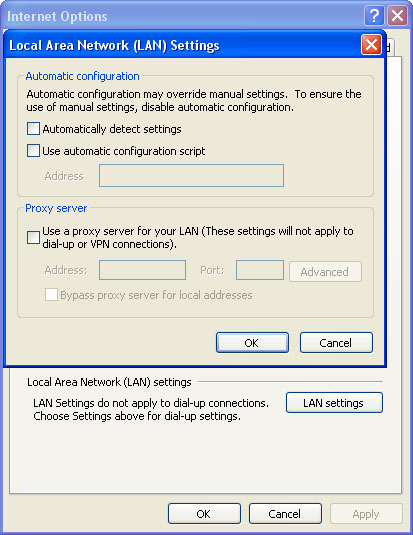
1. Launch Internet Explorer. In Internet Explorer go to: Tools->Internet Options->Connections tab. Click Lan Settings button and uncheck the checkbox labeled Use a proxy server for your LAN. Click OK.


2. Download Process Explorer.
3. Rename procexp.exe to iexplore.exe and run it. Look for similar process in the list and end it:
  • SA548_581.exe
OR download iexplore.exe (NOTE: iexplore.exe file is renamed HijackThis tool from TrendMicro).
Launch the iexplore.exe and click "Do a system scan only" button.
If you can't open iexplore.exe file then download explorer.scr and run it. Search for similar entries in the scan results:

R1 - HKCU\Software\Microsoft\Windows\CurrentVersion\Internet Settings,ProxyServer = http=127.0.0.1:25520
O4 - HKCU\..\Run: [Internet Antivirus 2011] "C:\Documents and Settings\All Users\Application Data\25485A\SA548_581.exe" /s /d
Select all similar entries and click once on the "Fix checked" button. Close HijackThis tool.

4. Download free anti-malware software from the list below and run a full system scan.
NOTE: in some cases the rogue program may block anti-malware software. Before saving the selected program onto your computer, you may have to rename the installer to iexplore.exe or winlogon.exe With all of these tools, if running Windows 7 or Vista they MUST be run as Auto Infoistrator. Launch the program and follow the prompts. Don't forget to update the installed program before scanning.

5. New threats appear every day. In order to protect your PC from such (new) infections we strongly recommend you to use ESET Smart Security.


Internet Antivirus 2011 removal instructions (in Safe Mode with Networking):

1. Reboot your computer is "Safe Mode with Networking". As the computer is booting tap the "F8 key" continuously which should bring up the "Windows Advanced Options Menu" as shown below. Use your arrow keys to move to "Safe Mode with Networking" and press Enter key. Read more detailed instructions here: http://www.computerhope.com/issues/chsafe.htm


NOTE: Login as the same user you were previously logged in with in the normal Windows mode.

2. Launch Internet Explorer. In Internet Explorer go to: Tools->Internet Options->Connections tab.
Click Lan Settings button and uncheck the checkbox labeled Use a proxy server for your LAN. Click OK.


3. Download free anti-malware software from the list below and run a full system scan.
NOTE: in some cases the rogue program may block anti-malware software. Before saving the selected program onto your computer, you may have to rename the installer to iexplore.exe or winlogon.exe With all of these tools, if running Windows 7 or Vista they MUST be run as Auto Infoistrator. Launch the program and follow the prompts. Don't forget to update the installed program before scanning.

4. New threats appear every day. In order to protect your PC from such (new) infections we strongly recommend you to use ESET Smart Security.


Internet Antivirus 2011 associated files and registry values:

Files:
  • C:\Documents and Settings\All Users\Application Data\25485A\
  • C:\Documents and Settings\All Users\Application Data\25485A\SA548_581.exe
  • C:\Documents and Settings\All Users\Application Data\25485A\[SET OF RANDOM CHARACTERS].dll
  • C:\Documents and Settings\All Users\Application Data\25485A\[SET OF RANDOM CHARACTERS].ocx
  • C:\Documents and Settings\All Users\Application Data\25485A\MSSSys\
  • C:\Documents and Settings\All Users\Application Data\SMEYFE
  • %UserProfile%\Application Data\Internet Antivirus 2011\
  • %UserProfile%\Application Data\Internet Antivirus 2011\cookies.sqlite
  • %UserProfile%\Application Data\Internet Antivirus 2011\Instructions.ini

%UserProfile% refers to:
C:\Documents and Settings\ (for Windows 2000/XP)
C:\Users\[User Name]\AppData (for Windows Vista & Windows 7)

Registry values:
  • HKEY_CURRENT_USER\Software\3
  • HKEY_CLASSES_ROOT\CLSID\{3F2BBC05-40DF-11D2-9455-00104BC936FF}
  • HKEY_CLASSES_ROOT\SMae0_2129.DocHostUIHandler
  • HKEY_USERS\.DEFAULT\Software\Microsoft\Internet Explorer\SearchScopes "URL" = "http://findgala.com/?&uid=2129&q={searchTerms}"
  • HKEY_CURRENT_USER\Software\Classes\Software\Microsoft\Internet Explorer\SearchScopes "URL" = "http://findgala.com/?&uid=2129&q={searchTerms}"
  • HKEY_CURRENT_USER\Software\Microsoft\Internet Explorer "PRS" = "http://127.0.0.1:27777/?inj=%ORIGINAL%"
  • HKEY_CURRENT_USER\Software\Microsoft\Internet Explorer\Download "RunInvalidSignatures = "1"
  • HKEY_CURRENT_USER\Software\Microsoft\Windows\CurrentVersion\Internet Settings "ProxyServer" = "http=127.0.0.1:25437"
  • HKEY_CURRENT_USER\Software\Microsoft\Windows\CurrentVersion\Internet Settings\5.0\User Agent\Post Platform "Version/10.02129"
  • HKEY_CURRENT_USER\Software\Microsoft\Windows\CurrentVersion\Policies\Explorer "DisallowRun" = "1"
  • HKEY_CURRENT_USER\Software\Microsoft\Windows\CurrentVersion\Run "Internet Antivirus 2011"
  • HKEY_CLASSES_ROOT\Software\Microsoft\Internet Explorer\SearchScopes "URL" = "http://findgala.com/?&uid=2129&q={searchTerms}"
  • HKEY_CURRENT_USER\Software\Microsoft\Internet Explorer\Download "CheckExeSignatures" = "no"
  • HKEY_CURRENT_USER\Software\Microsoft\Windows\CurrentVersion\Internet Settings "ProxyEnable" = "1"
Share this information with other people:

Saturday, December 11, 2010

How to Remove HDD Rescue (Removal Guide)

HDD Rescue is a fake hard drive disk defragmenter that reports false threats and errors to make you think that your computer is infected or has many serious hard drive, Windows registry and system memory problems. This rip-off rogue program is from the same family as HDD Plus malware. Such misleading programs usually come from fake online scanners, infected websites and malicious Ads. The scammers who created HDD Rescue may also "push" it on various social networks or even send spam. One way or another, HDDRescue is a scam. It pretends to scan your computer for errors and malcode and then reports non-existent problems. If you want to fix the problems you need to purchase HDD Rescue. Don't do that! If you have this virus on your computer, please follow the removal instructions below to remove HDD Rescue and related malware for free using legitimate anti-malware applications.


HDD Rescue won't steal your passwords or any other information. And it won't delete your files. So don't worry. It's a typical rogue that uses misleading methods to trick users into buying totally useless products. And it's annoying as hell. HDD Rescue displays fake error messages and notifications saying that your hard drive disk is missing and etc. Just ignore those fake alerts. The most annoying part comes when it actually blocks your programs and hides Desktop icons. The fake message that you will see when you attempt run a program is:
Windows detected a hard drive problem.
A hard drive error occurred while starting the application.


If it comes bundled with TDSS rookit then the situation becomes even more complicated. However, if you attempt to run a program enough times it will eventually work. Thankfully, we've got the removal instructions to help you to remove this malware from your computer

Here are some of the fake problems it detects on the compromised computer:
  • Requested registry access is not allowed. Registry defragmentation required
  • Read time of hard drive clusters less than 500 ms
  • 32% of HDD space is unreadable
  • Bad sectors on hard drive or damaged file allocation table
  • GPU RAM temperature is critically high. Urgent RAM memory optimization is required to prevent system crash
  • Drive C initializing error
Other fake HDD Rescue alerts:
Critical Error
RAM memory usage is critically high. RAM memory failure.
Critical Error
Windows can't find hard disk space. Hard drive error


You can try to register this fake program using this code: 0973467457475070215340537432225. I can't guarantee it will work but you can give it a try. If this code works then it will be a lot easier for you to remove HDD Rescue. System restore in safe mode may also solve this problem. If that won't help you, then please follow the steps in the removal instructions below. And by the way, if you have already purchased this rogue program, please contact your credit card provider and dispute the charges. If you have any questions or additional information about this malware, please leave a comment. Good luck and be safe online!


HDD Rescue removal instructions:

1. Open Task Manager (Ctrl+Alt+Delete) or use Process Explorer.
2. Click on the Processes tab.
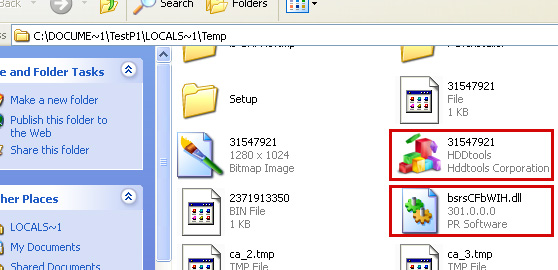
3. End HDD Rescue processes, e.g. 31547921.exe and tGlvsQfDnr.exe.


4. Download TDSSKiller (free utility from Kaspersky Lab) and run it. Remove TDSS rootkit if exist.


5. Download free anti-malware software from the list below and run a full system scan.
NOTE: in some cases the rogue program may block anti-malware software. Before saving the selected program onto your computer, you may have to rename the installer to iexplore.exe or winlogon.exe With all of these tools, if running Windows 7 or Vista they MUST be run as Auto Infoistrator. Launch the program and follow the prompts. Don't forget to update the installed program before scanning.

6. New threats appear every day. In order to protect your PC from such (new) infections we strongly recommend you to use ESET Smart Security.


HDD Rescue removal instructions (in Safe Mode with Networking):

1. Reboot your computer is "Safe Mode with Networking". As the computer is booting tap the "F8 key" continuously which should bring up the "Windows Advanced Options Menu" as shown below. Use your arrow keys to move to "Safe Mode with Networking" and press Enter key. Read more detailed instructions here: http://www.computerhope.com/issues/chsafe.htm


NOTE: Login as the same user you were previously logged in with in the normal Windows mode.

2. Download free anti-malware software from the list below and run a full system scan.
NOTE: in some cases the rogue program may block anti-malware software. Before saving the selected program onto your computer, you may have to rename the installer to iexplore.exe or winlogon.exe With all of these tools, if running Windows 7 or Vista they MUST be run as Auto Infoistrator. Launch the program and follow the prompts. Don't forget to update the installed program before scanning.

3. New threats appear every day. In order to protect your PC from such (new) infections we strongly recommend you to use ESET Smart Security.


HDD Rescue associated files and registry values:


Files:
  • %Temp%\[SET OF RANDOM NUMBERS]
  • %Temp%\[SET OF RANDOM NUMBERS].exe
  • %Temp%\[SET OF RANDOM CHARACTERS].exe
  • %Temp%\dfrg
  • %Temp%\dfrgr
  • %Temp%\[SET OF RANDOM CHARACTERS].dll
  • %UserProfile%\[SET OF RANDOM CHARACTERS].DAT
  • %UserProfile%\Desktop\HDD Rescue.lnk
  • %UserProfile%\Start Menu\Programs\HDD Rescue\
  • %UserProfile%\Start Menu\Programs\HDD Rescue\HDD Rescue.lnk
  • %UserProfile%\Start Menu\Programs\HDD Rescue\Uninstall HDD Rescue.lnk
%Temp% refers to:
C:\Documents and Settings\[UserName]\Local Settings\Temp (in Windows 2000/XP)
C:\Users\[UserName]\AppData\Local\Temp (in Windows Vista & Windows 7)

%UserProfile% refers to:
C:\Documents and Settings\[UserName]\ (in Windows 2000/XP)
C:\Users\[UserName]\ (in Windows Vista & Windows 7)

Registry values:
  • HKEY_CURRENT_USER\Software\Microsoft\Windows\CurrentVersion\Run "[SET OF RANDOM NUMBERS]"
  • HKEY_CURRENT_USER\Software\Microsoft\Windows\CurrentVersion\Run "[SET OF RANDOM NUMBERS].exe"
Share this information with other people:

Thursday, December 9, 2010

How to Remove Security Shield (Removal Guide)

Security Shield is a rogue anti-spyware program that gives exaggerated reports of infections on your computer. It performs a fake system scan and states that your computer is infected with trojans, adware, worms and other malicious software. After the fake scan it will prompt you to activate the program in order to remove supposedly found malware. If you choose to purchase this bogus program you will be redirected to a predefined web page and perform a payment transaction. Do not buy it; otherwise you will give your credit card details to cyber criminals. If you have this rogue program on your computer, please follow the step in the removal guide below to remove Security Shield for free using legitimate anti-malware software.

New graphical user interface (Security Shield 2011)


Old graphical user interface


(Thanks to rogueamp)

While Security Shield is running, it will display fake security warnings and notifications saying that malware is trying to steal your passwords and send them to a remote server. Some of the fake security alerts will display the following information:


Security Shield Warning
Spyware.IEMonster activity detected. This form of spyware attempts to steal passwords from Internet Explorer, Mozilla Firefox, Outlook and other commonly used programs. Click here to immediately remove it with Security Shield.

Security Shield Warning
Intercepting malicious software that may violate your privacy and harm your computer has been detected. Click here to remove now with Security Shield.


Furthermore, Security Shield will block certain programs on your computer, e.g. task manager, command prompt, registry editor and security software saying that you have chosen to open a program which is infected and may cause serious problems. The fake warning that you will see when you attempt run a program is:
Security Shield
"taskmgr.exe" is infected with "Worm.Win32.Autorun.bnb". Do you want to register your copy and remove all threats now?


Security Shield may also hijack your web broswers and redirect you to various malicious websites full of adware and other malicious software. It also displays fake virus attack warning in Internet Explorer:


 SecurityShield is from the same family as Security Tool rogue. As you can see, Security Shield is is nothing more but a scam. If you have already purchased this bogus program, please contact your credit card provider and dispute the charges. Then please follow the removal instructions below to remove Security Shield from your computer. If you have any questions or additional information about this malware, please leave a comment. Good luck and be safe online!

Optional: You can use this serial 64C665BE-4DE7-423B-A6B6-BC0172B25DF2 to register Security Shield in order to stop the fake security alerts that are really annoying. Once this is done, you are free to install anti-malware software and remove the rogue anti-virus program from your computer properly.


Security Shield removal instructions:

Download recommended anti-malware software (STOPzilla) to remove this virus from your computer.

NOTE: in some cases the rogue program may block anti-malware software. Before saving the selected program onto your computer, you may have to rename the installer to iexplore.exe or winlogon.exe With all of these tools, if running Windows 7 or Vista they MUST be run as Auto Infoistrator. Launch the program and follow the prompts. Don't forget to update the installed program before scanning.

If you can't download it, please reboot your computer is "Safe Mode with Networking". As the computer is booting tap the "F8 key" continuously which should bring up the "Windows Advanced Options Menu" as shown below. Use your arrow keys to move to "Safe Mode with Networking" and press Enter key. Open Internet Explorer and download STOPzilla. Once finished, go back into Normal Mode and run it. That's It!

Read more detailed instructions here: http://www.computerhope.com/issues/chsafe.htm


NOTE: Login as the same user you were previously logged in with in the normal Windows mode.


Alternate Security Shield removal instructions:

1. Delete Security Shield files manually. Go into:
  • C:\Documents and Settings\[User Name]\Local Settings\Application Data\ (Windows XP)
  • C:\Users\[User Name]\AppData\Local\ (Windows Vista/7)
Note: by default, Application Data folder is hidden. If you can't see such folder/files, please read Show Hidden Files and Folders in Windows

2. Find hidden executable file in this folder. In our case it was called ufoesziizo.exe, but I'm sure that the file name will be different in your case. Rename ufoesziizo.exe to ufoesziizo.vir and click Yes to confirm file rename. Then restart your computer.


3. Download recommended anti-malware software (STOPzilla) to remove this virus from your computer.

NOTE: in some cases the rogue program may block anti-malware software. Before saving the selected program onto your computer, you may have to rename the installer to iexplore.exe or winlogon.exe With all of these tools, if running Windows 7 or Vista they MUST be run as Auto Infoistrator. Launch the program and follow the prompts. Don't forget to update the installed program before scanning.


Security Shield associated files and registry values:

Files:

Windows XP:
  • C:\Documents and Settings\[User Name]\Local Settings\Application Data\[SET OF RANDOM CHARACTERS].exe
Windows Vista/7:
  • C:\Users\[User Name]\AppData\Local\[SET OF RANDOM CHARACTERS].exe
Registry values:
  • HKEY_CURRENT_USER\Software\Microsoft\Windows\CurrentVersion\RunOnce "[SET OF RANDOM CHARACTERS]"
Share this information with other people:

Wednesday, December 8, 2010

How to Remove HDD Plus (Removal Guide)

HDD Plus is a fake disk defragmenter that intentionally reports false information to make you think that your computer has some serious problems. The rogue program reports fake hard drive disk, Windows registry errors and other system problems. HDD Plus is very annoying; it constantly displays fake messages and notifications about various computer problems. The scammers who created this piece of malware just want to trick you into purchasing their bogus program. Do not fall victim to HDD Plus scam. If you have this rogue program on your computer then please follow the removal instructions below to remove HDD Plus and any related malware from your computer for free using legitimate anti-malware programs.


Once installed, the rogue program will make you Desktop background black and hide Windows taskbar. When you try to run certain programs you will get an error message.
Windows detected a hard drive problem.
A hard drive error occurred while starting the application.


Be advised, that if you attempt to run a program enough times it will eventually work.
Then it will display another fake message:
Fix Disk
Windows Disk Diagnostics will scan the system to identify performance problems.
Start or Cancel


If you choose to run this Windows Disk Diagnostic utility which actually does next to nothing you will get another notification.
Windows Disk Diagnostics
Windows detected a hard disk error.
A problem with the hard drive sectors has been detected. It is recommended to download the following sertified software to fix the detected hard drive problems. Do you want to download recommended software?


Furthermore, HDD Plus will pretend to scan your hard drive disk for errors. It will find 11 problems and will prompt you to run its defragmentation tool. It will supposedly fix 6 errors but if you want to fix the remains you need to buy this piece of malware. Don't do that. Some examples of the fake problems it detects on the computer are:
  • Requested registry access is not allowed. Registry defragmentation required
  • Read time of hard drive clusters less than 500 ms
  • 32% of HDD space is unreadable
  • Bad sectors on hard drive or damaged file allocation table
  • GPU RAM temperature is critically high. Urgent RAM memory optimization is required to prevent system crash
  • Drive C initializing error
You can also get this "Windows - no disk" error message. Just ignore it.


Most of the time HDD Plus comes bundled with TDSS rootkit and some other malicious software. You can remove rogue's files manually but you will have to use TDSSKiller or Hitman Pro to remove the rootkit and other malware from your computer. First of all, you need to end HDD Plus processes, e.g. 31547921.exe and tGlvsQfDnr.exe. Then you need to delete all files from %Temp% folder. And finally, scan your computer with at least two anti-malware programs given below to completely remove malicious code from your computer. If you have any questions or additional information about HDD Plus malware please leave a comment. Also, you can use this code to register the rogue program: 0973467457475070215340537432225. This may help you to stop HDD Plus pop-ups and other annoying behavior. You should still follow the removal instructions given below. Good luck and be safe online!


HDD Plus removal instructions:

1. Open Task Manager (Ctrl+Alt+Delete) or use Process Explorer.
2. Click on the Processes tab.
3. End HDD Plus processes, e.g. 31547921.exe and tGlvsQfDnr.exe.


4. Download TDSSKiller (free utility from Kaspersky Lab) and run it. Remove TDSS rootkit if exist.


5. Download free anti-malware software from the list below and run a full system scan.
NOTE: in some cases the rogue program may block anti-malware software. Before saving the selected program onto your computer, you may have to rename the installer to iexplore.exe or winlogon.exe With all of these tools, if running Windows 7 or Vista they MUST be run as Auto Infoistrator. Launch the program and follow the prompts. Don't forget to update the installed program before scanning.

6. New threats appear every day. In order to protect your PC from such (new) infections we strongly recommend you to use ESET Smart Security.


HDD Plus removal instructions (in Safe Mode with Networking):

1. Reboot your computer is "Safe Mode with Networking". As the computer is booting tap the "F8 key" continuously which should bring up the "Windows Advanced Options Menu" as shown below. Use your arrow keys to move to "Safe Mode with Networking" and press Enter key. Read more detailed instructions here: http://www.computerhope.com/issues/chsafe.htm


NOTE: Login as the same user you were previously logged in with in the normal Windows mode.

2. Download free anti-malware software from the list below and run a full system scan.
NOTE: in some cases the rogue program may block anti-malware software. Before saving the selected program onto your computer, you may have to rename the installer to iexplore.exe or winlogon.exe With all of these tools, if running Windows 7 or Vista they MUST be run as Auto Infoistrator. Launch the program and follow the prompts. Don't forget to update the installed program before scanning.

3. New threats appear every day. In order to protect your PC from such (new) infections we strongly recommend you to use ESET Smart Security.


HDD Plus associated files and registry values:


Files:
  • %Temp%\[SET OF RANDOM NUMBERS]
  • %Temp%\[SET OF RANDOM NUMBERS].exe
  • %Temp%\[SET OF RANDOM CHARACTERS].exe
  • %Temp%\dfrg
  • %Temp%\dfrgr
  • %Temp%\[SET OF RANDOM CHARACTERS].dll
  • %UserProfile%\[SET OF RANDOM CHARACTERS].DAT
  • %UserProfile%\Desktop\HDD Plus.lnk
  • %UserProfile%\Start Menu\Programs\HDD Plus\
  • %UserProfile%\Start Menu\Programs\HDD Plus\HDD Plus.lnk
  • %UserProfile%\Start Menu\Programs\HDD Plus\Uninstall HDD Plus.lnk
%Temp% refers to:
C:\Documents and Settings\[UserName]\Local Settings\Temp (in Windows 2000/XP)
C:\Users\[UserName]\AppData\Local\Temp (in Windows Vista & Windows 7)

%UserProfile% refers to:
C:\Documents and Settings\[UserName]\ (in Windows 2000/XP)
C:\Users\[UserName]\ (in Windows Vista & Windows 7)

Registry values:
  • HKEY_CURRENT_USER\Software\Microsoft\Windows\CurrentVersion\Run "[SET OF RANDOM NUMBERS]"
  • HKEY_CURRENT_USER\Software\Microsoft\Windows\CurrentVersion\Run "[SET OF RANDOM NUMBERS].exe"
Share this information with other people:

Tuesday, December 7, 2010

How to Remove HDD Diagnostic (Removal Guide)

HDD Diagnostic is a rogue disk defragmenter that purposely reports false information about your computer. It pretends to check your hard drive disk(s) and system memory for errors. Because this program is not legitimate, it will display numerous errors and system problems, mainly bad hard drive disk sectors, critical registry errors and high GPU RAM temperature. It displays fake alerts and notifications too saying that hard drive was not found or that Windows can't find hard disk space. It displays seven or eight bogus warning in total. Also, HDD Diagnostic display a fake error message stating that it has detected a critical hard drive error and then terminates almost all executables, e.g. task manager, registry editor and some anti-virus/anti-spyware programs. HDD Diagnostic is a rip-off rogue, so it will ask you to buy a license of this useless and bogus program to clean-up your computer. Do not fall victim to to this rogue program. Instead, please follow the removal instructions below to remove HDD Diagnostic and related malware (TDSS rootkit) from your computer.


HDD Diagnostic is from the same family as HDD Scan, Hard Drive Diagnostic and some other rogues. It is promoted through the use of trojans, fake online scanners and misleading advertisements. The rogue program can be distributed on social networks too. Be advised, that HDD Diagnostic may come bundled with TDSS rootkit and other malware. You can choose to remove the rogue program manually but we strongly recommend you to scan your computer with at least two anti-malware programs and TDSSKiller utility from Kaspersky Lab. For more information, please follow the removal instructions below.

The fake warning that you will see when you attempt run a program are:
Windows detected a hard drive problem.
A hard drive error occurred while starting the application.
Windows cannot find notepad. Make sure you typed the name correctly, and then try again. To search for a file, click the Start button, and then click Search.
The fake errors and problems it detects on the computer are:
Critical Error
Hard Drive not found. Missing hard drive.
Critical Error
RAM memory usage is critically high. RAM memory failure.
Critical Error
A critical error has occurred while indexing data stored on hard drive. System restart required.
HDD Diagnostic supposedly detects 111 errors no matter if it's a new computer or an old laptop. Some of the fake errors are:
  • Drive C initializing error
  • Ram Temperature is 83 C. Optimization is required for normal operation.
  • Hard drive doesn't respond to system commands
  • Data Safety Problem. System integrity is at risk.
  • Registry Error - Critical Error
Without a doubt, HDD Diagnostic is a scam. If you have purchased this bogus program then please contact your credit card provider and dispute the charges. You can use this code to register the rogue program: 0973467457475070215340537432225. Thanks to XyliBox and S!ri for this code. Please not that this code doesn't fix the problem, it only makes the removal procedure easier. To completely remove HDD Diagnostic and related malware from your computer, please follow the steps in the removal guide below. If you have any questions or would like to share your own experience remove this rogue program, please leave a comment. Good luck and be safe online!


HDD Diagnostic removal instructions:

1. Open Task Manager (Ctrl+Alt+Delete).
2. Click on the Processes tab.
3. Click to highlight [SET OF RANDOM NUMBERS].exe, e.g. 1324567543.exe, aSfdreFdfr.exe and click End Task. If it asks you "Are you sure you want to terminate the process?" click yes. This will stop HDD Diagnostic.
4. Click to highlight explorer.exe and end it too. Then click the File -> "New Task (Run...)" from the menu on the bottom right. Type in explorer.exe and click OK.
5. Open directory:
C:\Documents and Settings\[UserName]\Local Settings\Temp (in Windows 2000/XP)
C:\Users\[UserName]\AppData\Local\Temp (in Windows Vista & Windows 7)
Delete all files from this directory.
NOTE: Local Settings folder is hidden by default so you will have to change folder options to see hidden files.

6. Download free anti-malware software from the list below and run a full system scan.
NOTE: in some cases the rogue program may block anti-malware software. Before saving the selected program onto your computer, you may have to rename the installer to iexplore.exe or winlogon.exe With all of these tools, if running Windows 7 or Vista they MUST be run as Auto Infoistrator. Launch the program and follow the prompts. Don't forget to update the installed program before scanning.

7. Follow this removal guide: TDSS, Alureon, Tidserv, TDL3 removal instructions using TDSSKiller utility

8. New threats appear every day. In order to protect your PC from such (new) infections we strongly recommend you to use ESET Smart Security.


HDD Diagnostic removal instructions (in Safe Mode with Networking):

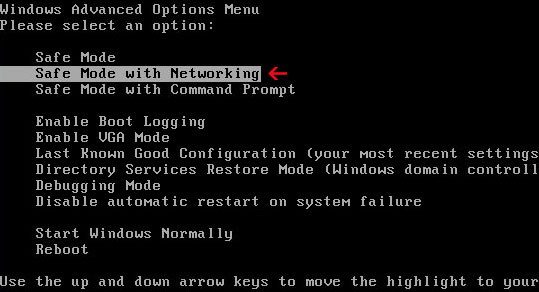
1. Reboot your computer is "Safe Mode with Networking". As the computer is booting tap the "F8 key" continuously which should bring up the "Windows Advanced Options Menu" as shown below. Use your arrow keys to move to "Safe Mode with Networking" and press Enter key. Read more detailed instructions here: http://www.computerhope.com/issues/chsafe.htm

NOTE: Login as the same user you were previously logged in with in the normal Windows mode.

2. Download free anti-malware software from the list below and run a full system scan.
NOTE: in some cases the rogue program may block anti-malware software. Before saving the selected program onto your computer, you may have to rename the installer to iexplore.exe or winlogon.exe With all of these tools, if running Windows 7 or Vista they MUST be run as Auto Infoistrator. Launch the program and follow the prompts. Don't forget to update the installed program before scanning.

3. New threats appear every day. In order to protect your PC from such (new) infections we strongly recommend you to use ESET Smart Security.


HDD Diagnostic associated files and registry values:

Files:
  • %Temp%\[SET OF RANDOM NUMBERS]
  • %Temp%\[SET OF RANDOM NUMBERS].exe
  • %Temp%\dfrg
  • %Temp%\dfrgr
  • %Temp%\[SET OF RANDOM CHARACTERS].dll
  • %UserProfile%\[SET OF RANDOM CHARACTERS].DAT
  • %UserProfile%\Desktop\Hard Drive Diagnostic.lnk
  • %UserProfile%\Start Menu\Programs\HDD Diagnostic\
  • %UserProfile%\Start Menu\Programs\HDD Diagnostic\HDD Diagnostic.lnk
  • %UserProfile%\Start Menu\Programs\HDD Diagnostic\Uninstall HDD Diagnostic.lnk
%Temp% refers to:
C:\Documents and Settings\[UserName]\Local Settings\Temp (in Windows 2000/XP)
C:\Users\[UserName]\AppData\Local\Temp (in Windows Vista & Windows 7)

%UserProfile% refers to:
C:\Documents and Settings\[UserName]\ (in Windows 2000/XP)
C:\Users\[UserName]\ (in Windows Vista & Windows 7)

Registry values:
  • HKEY_CURRENT_USER\Software\Microsoft\Windows\CurrentVersion\Run "[SET OF RANDOM NUMBERS]"
  • HKEY_CURRENT_USER\Software\Microsoft\Windows\CurrentVersion\Run "[SET OF RANDOM NUMBERS].exe"
Share this information with other people:

How to Remove PC Protection Center (Removal Guide)

PC Protection Center is a rogue security program that pretends to scan your computer for viruses, registry/system errors, Windows start-up failures and then reports fake infections, registry errors and other system problems. All the reported errors and infections count towards to overall score of your computer's performance which is usually very low to scare you into thinking that your PC has some serious problems. PC Protection Center then pretends to fix some of these errors and removes several viruses. If you want to completely remove the remains you need to purchase this fake and useless program. I think it goes without saying that you shouldn't buy it. This program is a scam, a total rip-off rogue. Not to mention that it detects malicious code and system errors on new computers. If your computer in infected with PCProtection Center then please follow the steps in the removal guide below.


While PC Protection Center is running, it will display fake security alerts and notifications. It will block task manager and some other programs too. It does this to scare you into purchasing a license of the program. If you do this, you will lose your money and give your credit card details to scammers.


Warning!
Security alert
Name: taskmgr.exe
Location: C:\WINDOWS\System32
Potentially harmful script execution is detected. It is strongly recommended to run total System scanning.

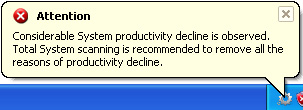
Attention
Considerable System productivity decline is observed.
Total System scanning is recommended to remove all the reasons of productivity decline.
Attention
Suspicious software activity is detected.
Please start system files scanning for details.
Attention
Potentially harmful software is detected.
To enable the security mode and remove harmful software it is recommended to perform a cleanup.
The home page of PC Protection Center is pcprotectioncenter.com


PC Protection Center is from the same family as PrivacyGuard 2010, PCoptimizer 2010 and Privacy Corrector.

As you can see, PC Protection Center is yet another rogue that uses misleading methods to steal money from unexperienced computer users. If you have already bought this piece of malware, you should contact your credit card provider and dispute the charges stating that PC Protection Center is a scam. Then please follow the removal instructions below to remove PC Protection Center from your computer for free using legitimate anti-malware applications. If you have any problems removing this malware, please leave a comment. Good luck and be safe online!


PC Protection Center removal instructions:

1. Click Start → Run (or WinKey+R).
2. Type in: cmd and click OK. Command prompt window will show up.
3. Type in: taskkill /f /im PCProtectionCenter.exe and click Enter. This will stop PC Protection Center.
4. Download free anti-malware software from the list below and run a full system scan.
NOTE: in some cases the rogue program may block anti-malware software. Before saving the selected program onto your computer, you may have to rename the installer to iexplore.exe or winlogon.exe With all of these tools, if running Windows 7 or Vista they MUST be run as Auto Infoistrator. Launch the program and follow the prompts. Don't forget to update the installed program before scanning.

5. New threats appear every day. In order to protect your PC from such (new) infections we strongly recommend you to use ESET Smart Security.


Alternate PC Protection Center removal instructions (in Safe Mode with Networking):

1. Reboot your computer is "Safe Mode with Networking". As the computer is booting tap the "F8 key" continuously which should bring up the "Windows Advanced Options Menu" as shown below. Use your arrow keys to move to "Safe Mode with Networking" and press Enter key. Read more detailed instructions here: http://www.computerhope.com/issues/chsafe.htm


NOTE: Login as the same user you were previously logged in with in the normal Windows mode.

2. Download free anti-malware software from the list below and run a full system scan.
NOTE: in some cases the rogue program may block anti-malware software. Before saving the selected program onto your computer, you may have to rename the installer to iexplore.exe or winlogon.exe With all of these tools, if running Windows 7 or Vista they MUST be run as Auto Infoistrator. Launch the program and follow the prompts. Don't forget to update the installed program before scanning.

3. New threats appear every day. In order to protect your PC from such (new) infections we strongly recommend you to use ESET Smart Security.


PC Protection Center associated files and registry values:

Files:
  • C:\Program Files\PC\PC Protection Center
  • C:\Program Files\PC\PC Protection Center\1.ico
  • C:\Program Files\PC\PC Protection Center\PC Protection Center.exe
  • C:\Documents and Settings\All Users\Start Menu\Programs\PC Protection Center\
  • C:\WINDOWS\Tasks\At1.job
Registry values:
  • HKEY_CURRENT_USER\Software\PC
  • HKEY_CURRENT_USER\Software\PC\PC Protection Center
  • HKEY_LOCAL_MACHINE\Software\Microsoft\Windows\CurrentVersion\Run Protect = PCProtectionCenter.exe
  • HKEY_LOCAL_MACHINE\Software\Microsoft\Windows\CurrentVersion\Uninstall\Protection
  • HKEY_LOCAL_MACHINE\Software\Microsoft\Windows\CurrentVersion\policies\system
  • EnableLUA = 0x00000000 ConsentPromptBehaviorAuto Info = 0x00000000 ConsentPromptBehaviorUser = 0x00000000
Share this information with other people: