Showing posts with label Trojans. Show all posts

Thursday, October 20, 2011

Remove Backdoor:Win32/IRCbot (Uninstall Guide)

Backdoor:Win32/IRCbot is a Trojan horse that connects to an Internet Relay Chat (IRC) server, allows remote access to the infected system and eventually turns your computer into an advertising cash making machine. The Trojan has to be manually installed. It is transmitted via instant messaging software, Facebook, and malicious websites. Very often, Backdoor:Win32/IRCbot masquerades as picture and it even looks like a real picture but if you take a closer look, you'll see that it's an executable file. Here's an example of an infected file.

PIC67893549074533-JPG-www.facebook.com


PIC67893549074533-JPG-www.facebook.com.exe


If you hide extensions for known file types, there's a great chance you won't notice the difference. Besides, the infected executable loads a picture to dispel suspicion (not always). Upon execution, Backdoor:Win32/IRCbot drops a file into a users's Application data and Start Up folders, modifies Windows registry and attempts to configure the system to run malicious files automatically everytime Windows starts.

The payload program targets Facebook accounts, Windows Live Messenger, and Yahoo Messenger for further propagation. It simply injects a few words (example: ""hahdhauhahaaha did you see this??") and malicious URL into your private messages and your Facebook wall. It then hides IMs chat history. Furthermore, Backdoor:Win32/IRCbot changes the home page to http://domredi.com/1/ in Internet Explorer. It then randomly redirects Internet Explorer to other shady websites. The following website were identified:
  • easynetseek.com
  • go2article.info
  • articleslot.info
  • skyarticle.net
  • diggarticle.com
  • digitword.com
  • qoolsearch.info
They all look messed up, mostly free article directories and spammy search engines.


Thankfully, you can restore your default home page and stop the annoying redirects without any problems. You can remove Backdoor:Win32/IRCbot manually as well, if you feel confident working with the Registry Editor and you know exactly which files are infected. However, please note that this Trojan may drop malicious files into different folders and download additional malware onto your computer. We strongly recommend you to use anti-malware software to remove this Trojan horse and associated malware from your computer. If you need help removing Backdoor:Win32/IRCbot, including all variants of this infection, please leave a comment below or just email use. Good luck and be safe online!


Backdoor:Win32/IRCbot removal instructions:

1. Download recommended anti-malware software (STOPzilla) to remove this virus from your computer.

NOTE: in some cases the rogue program may block anti-malware software. Before saving the selected program onto your computer, you may have to rename the installer to iexplore.exe or winlogon.exe With all of these tools, if running Windows 7 or Vista they MUST be run as Auto Infoistrator. Launch the program and follow the prompts. Don't forget to update the installed program before scanning.

2. Go to ToolsInternet Options. Select General tab and click Use default button or enter your own website, e.g. google.com instead of http://domredi.com/1/. Click OK to save the changes. And that's about it.


Associated Backdoor:Win32/IRCbot files and registry values:

Files:
  • C:\Documents and Settings\[UserName]\Local Settings\Application Data\[SET OF RANDOM CHARACTERS].exe
  • C:\Documents and Settings\[UserName]\Start Menu\Programs\[SET OF RANDOM CHARACTERS].exe
Registry values:
  • HKEY_CURRENT_USER\SOFTWARE\Microsoft\Windows\CurrentVersion\Run "[SET OF RANDOM CHARACTERS]"
Share this information with your friends:

Tuesday, October 4, 2011

Volmgr.exe, volmgr.dll: Trojan.Plongo and Google/Bing Redirects

Badvertisement and highly efficient click-fraud attacks have increased dramatically over the last year, especially during the Summer months. Web search engines are the primary method for most Internet users to find information on a particular topic. Cyber crooks who operate large groupings of hacked PCs can effectively monetize botnets redirecting Google, Bing and Yahoo! search results to completely irrelevant web pages full of advertisements or even adware. You can find multiple forum threads about this issue, commonly addressed as the Google redirect virus or just search redirect virus. Malware from the TDSS (TDL3 and TDL4) and ZeroAccess/Serifef families were involved in nearly all cases of those annoying redirects. However, yesterday we found another Trojan horse that may cause redirects too and may even replace the ZeroAccess/Serifef. Some of the hacked websites that were previously installing the ZeroAccess/Serifef Trojans and rootkits now distributed Trojan.Plongo, Trojan.Win32.Generic [Kaspersky]. It uses DLL injection and drops two files in %AppData% folder: volmgr.exe and volmgr.dll. Malware uses rootkit techniques to hide its presence from the victim and security products. However, GMER detects the hidden file without any problems.


What is more, Trojan.Plongo modifies Windows hosts file and DNS settings. It deletes default values and adds the following lines:
  • 95.64.61.155 www.google.com
  • 95.64.61.156 www.bing.com


A quick trace root 95.64.61.155 reveals that the server is physically located in Romania. Google may ask you if you would like to change your default search page to google.ro. However, cyber crooks can easily change servers and rebuild malware, so you may be redirected to other servers as well, not necessarily 95.64.61.155. Unfortunately, only ten security vendors out of forty three are able to detect this malware. Even less can effectively remove it from the infected computer. Thankfully, Norton Power Eraser does a great job of deleting Trojan.Plongo malware. The following removal guide has been created to help you to remove volmgr.exe, volmgr.dll and associated malware from your computer. If you have any questions, please leave a comment below. Good luck and be safe online!


Removal instructions:

1. Download Norton Power Eraser. Download link: http://security.symantec.com/nbrt/npe.aspx?

2. Double-click on the NPE.exe to run the utility. Please read the end user license agreement carefully and if you agree, click on the Accept button.


3. Click on the Scan button.


4. Rootkit scan is important this time, so click on the Restart button. Windows will now restart. You don't have to do anything. After a reboot it will continue to scan your computer for malicious software.


5. When Norton Power Eraser has finished, it will list all malicious files found on your computer. Important: select olmgr.dll to be fix too. Then click on the Fix button and then choose Restart. It will automatically reboot your computer again.


6. After a reboot, Norton Power Eraser will show you removal results. That's about it for the Trojan.Plongo malware. You can now close Norton Power Eraser.


Associated files and registry values:

Files:
  • %AppData%\volmgr.dll
  • %AppData%\volmgr.exe
Registry values:
  • HKEY_LOCAL_MACHINE\SOFTWARE\Microsoft\Windows\CurrentVersion\Run volmgr = "%AppData%\volmgr.exe"
Share this information with other people:

Thursday, August 4, 2011

Remove Android.Hippo (Uninstall Guide)

Android.Hippo is a Trojan horse that disguises itself as popular game software and it has been seen on Android app marketplaces in China and fake app stores. It is also found with repackaged versions of popular applications. Android.Hippo is a typical trojan that sends SMS messages to premium-rate phone numbers. It can also delete incoming SMS messages from numbers that begin with certain digits, for example 10. So, if you've got a huge phone bill, it might be that your Android device is infected by a Trojan horse that sends SMS messages to premium-rate phone numbers. If you think that your mobile phone is infected, please run a full system scan with legitimate mobile security software and remove any suspicious apps from your device. Good luck and be safe online!

This trojan is also known as ANDROIDOS_HIPPOSMS.A.


Android.Hippo manual removal guide:

1. Open the Google Android Menu.
2. Go to the Settings icon and select Applications.
3. Next, click Manage.
4. Select the application and click the Uninstall button.

Additionally, you should scan your device with mobile antivirus software. All major antivirus software vendors offer Mobile Security products.
Share this information with your friends:

Remove Android.Smssniffer (Uninstall Guide)

Android.Smssniffer is a Trojan horse that sends all SMS messages received on the compromised Android device to a remote server. This trojan is found bundled with repackaged versions of popular games and applications, usually available for download from unofficial market places. To remove Android.Smssniffer from your smart phone please legitimate mobile antivirus software listed below. You can also remove any suspicious apps and running services manually. It't worth mentioning that you should download and install applications, games, etc., only from official marketplaces. Good luck and be safe online!


Android.Smssniffer manual removal guide:

1. Open the Google Android Menu.
2. Go to the Settings icon and select Applications.
3. Next, click Manage.
4. Select the application and click the Uninstall button.

Additionally, you should scan your device with mobile antivirus software. All major antivirus software vendors offer Mobile Security products.
Share the knowledge:

Wednesday, August 3, 2011

Remove Android.Golddream (Uninstall Guide)

Android.Golddream is a Trojan horse that logs incoming SMS messages and calls, stores certain information in text files and then uploads those files to a predefined website. Cyber crooks repack popular games or applications and then upload the repacked .apk files to certain market places, usually unofficial markets and Chinese web application stores. Android.Golddream runs automatically when the operating system starts. It creates a service called zjService. When user receives an SMS, the Trojan stores sender's address, message body and the time when the SMS was received. When a phone call is made, this Trojan stores date/time and phone number. Android.Golddream also gathers the following information: device ID, SIM serial number, subscriber ID. What is more, the Trojan can download, install/uninstall and execute new packages, send SMS messages and make a phone call. If you have zjService service running on your smart phone or you have recently installed an application from unofficial markets, you should scan your computer with legitimate mobile security application. To remove Android.Golddream from your Android device, please follow the steps in the removal guide below. Good luck and be safe online!

Also Known As: ANDROIDOS_SPYGOLD.A [Trend Micro]


Android.Golddream manual removal guide:

1. Open the Google Android Menu.
2. Go to the Settings icon and select Applications.
3. Next, click Manage.
4. Select the application and click the Uninstall button.

Associated Android.Golddream files:
  • [SET OF RANDOM CHARACTERS].apk
  • zjsms.txt
  • zjphonecall.txt
  • zjphonecall.txt
Additionally, you should scan your device with mobile antivirus software. All major antivirus software vendors offer Mobile Security products.
Share the knowledge:

Sunday, July 17, 2011

Remove Jucheck.exe Trojan (Uninstall Guide)

Jucheck.exe is the Java update verification process which notifies users about new updates available for the Java software installed on your computer. Unfortunately, it's not uncommon for malicious software authors to use well known and legit file names to confuse users and in some cases to avoid detection. We previously wrote about a Trojan horse masquerading as msiexec.exe. There's also an IRC backdoor Trojan which uses another legitimate file name jusched.exe to trick users into running malicious code on their computers. So, how do you determine whether it's a virus or a legitimate application?

First of all, you should verify that the file is digitally signed and verified by the distributor of software. Jucheck.exe should be digitally signed by Sun Microsystems, Inc., but if the publisher is Unknown then it's probably some kind of malware.

Secondly, you should verify the file location. Legitimate Java software updater runs from C:\Program Files\Java\jre1.6.0_01\bin\jucheck.exe. This part \jre1.6.0_01\ may vary depending on the version of the Java software installed on your computer. Malicious software usually runs from Windows temporary folder (%Temp%) or Windows system folder (%Windir%). If the jucheck.exe runs from C:\Users\AppData\Local\Temp\jucheck.exe folder or from C:\Windows\jucheck.exe then you shouldn't allow it to run.

Finally, you can upload the suspicious file to VirusTotal, Jotti or VirScan to determine whether it's malicious or not. If the file is infected, you should get similar results: http://file.virscan.org/report/f1c42499897ee70aaa40cc4f1619571c.html

If you got the User Account Control (UAC) message about jucheck.exe from Unknown publisher asking you to make changes to your computer, please click No and scan your computer with legitimate anti-malware software.


Download recommended anti-malware software (STOPzilla) to remove this virus from your computer.

NOTE: in some cases the rogue program may block anti-malware software. Before saving the selected program onto your computer, you may have to rename the installer to iexplore.exe or winlogon.exe With all of these tools, if running Windows 7 or Vista they MUST be run as Auto Infoistrator. Launch the program and follow the prompts. Don't forget to update the installed program before scanning.

If you need help removing the jucheck.exe malware, please a comment below. Good luck and be safe online!

Friday, July 1, 2011

Remove TR/VB.Agent.20480.A (Uninstall Guide)

TR/VB.Agent.20480.A is a Trojan horse that downloads/requests other malicious files from Internet. It creates a startup registry entry, reduces system security and may even turn off anti-virus software. TR/VB.Agent.20480.A affects Windows operating system. If you suspect or confirm that your computer is infected with TR/VB.Agent.20480.A, please run a full system scan with your anti-virus software and use free anti-malware application listed below. Good luck and be safe online!

Download free anti-malware software from the list below and run a full system scan.
NOTE: in some cases the rogue program may block anti-malware software. Before saving the selected program onto your computer, you may have to rename the installer to iexplore.exe or winlogon.exe With all of these tools, if running Windows 7 or Vista they MUST be run as Auto Infoistrator. Launch the program and follow the prompts. Don't forget to update the installed program before scanning.

New threats appear every day. In order to protect your PC from such (new) infections we strongly recommend you to use ESET NOD32 Antivirus.

Share the knowledge:

Wednesday, June 29, 2011

Remove Msiexec.exe Trojan (Uninstall Guide)

In the last few weeks we've heard numerous cases of people getting User Account Control (UAC) notifications asking them to allow msiexec.exe tu run. When we got the first e-mail, we thought that the user is experiencing system error but after quite a bit of research we found out that it was a Trojan horse masquerading as msiexec.exe. The Trojan was located in Users directory: C:\Users\[UserName]\msiexec.exe.
User Account Control
Do you want to allow the following program from an
unknown publisher to make changes to this computer?
Program name: msiexec.exe
Publisher: Unknown
File origin: Hard drive on this computer


The legitimate msiexec.exe program that interprets packages and installs products is located in C:\Windows\System32 folder. But the problem is that cyber criminals try to avoid antivirus detections and confuse users by giving a malicious program the same name of some other legit programs. And when you do a Google search on the word 'msiexec.exe', you're presented with a list of results saying that it's a legitimate Windows program. In this case, the file location of the malicious msiexec.exe program (C:\Users\[UserName]\msiexec.exe) clearly indicates that it pretends to be something it's not. You can upload suspicious files to VirusTotal or Jotti to see if your suspicions were correct.

The malicious msiexec.exe downloads additional malware onto your computer. Even if you delete it manually, it may reappear after you reboot your computer. That's why we strongly recommend you to scan your computer with anti-malware software.

Download recommended anti-malware software (STOPzilla) to remove this virus from your computer.

NOTE: in some cases the rogue program may block anti-malware software. Before saving the selected program onto your computer, you may have to rename the installer to iexplore.exe or winlogon.exe With all of these tools, if running Windows 7 or Vista they MUST be run as Auto Infoistrator. Launch the program and follow the prompts. Don't forget to update the installed program before scanning.

Important! Do not delete the legitimate msiexec.exe located in C:\Windows\System32 folder.

If you need help removing the msiexec.exe Trojan horse, please a comment below. Good luck and be safe online!


Associated Msiexec.exe files and registry values:

Files:
  • C:\Windows\System32\strmdll32.dll
  • C:\Windows\System32\mycomput32.exe
  • C:\Windows\System32\SYSTEM32\55274-640-2001945-237251270C.manifest
  • C:\Windows\System32\SYSTEM32\55274-640-2001945-237251270S.manifest
  • C:\Windows\System32WINDIR%\SYSTEM32\avicap3232.dll
  • C:\Windows\System32\SYSTEM32\55274-640-2001945-237251270P.manifest
  • C:\Windows\System32\SYSTEM32\248321536
  • C:\Windows\System32\SYSTEM32\msorcl3232.exe
  • %Temp%\WER11.tmp
  • %Temp%\2BA98D.dmp
%Temp% refers to:
C:\Documents and Settings\[UserName]\Local Settings\Temp (in Windows 2000/XP)
C:\Users\[UserName]\AppData\Local\Temp (in Windows Vista & Windows 7)
  • HKEY_CURRENT_USER\SOFTWARE\
  • HKEY_CURRENT_USER\SOFTWARE\IVEDHGVTFU\
  • HKEY_CURRENT_USER\SOFTWARE\IVEDHGVTFU\CLSID\
  • HKEY_LOCAL_MACHINE\SOFTWARE\CLASSES\.FSHARPROJ\
  • HKEY_LOCAL_MACHINE\SOFTWARE\CLASSES\.FSHARPROJ\PERSISTENTHANDLER\
  • HKEY_LOCAL_MACHINE\SOFTWARE\CLASSES\CLSID\{167D8C11-D0F7-4D4A-94FF-1B727D3CFC51}\
  • HKEY_LOCAL_MACHINE\SOFTWARE\CLASSES\CLSID\{167D8C11-D0F7-4D4A-94FF-1B727D3CFC51}\INPROCSERVER32\
  • HKEY_LOCAL_MACHINE\SOFTWARE\CLASSES\CLSID\{53FBF74C-ACD3-8E42-3397-A342CEE0B972}\
  • HKEY_LOCAL_MACHINE\SOFTWARE\CLASSES\CLSID\{53FBF74C-ACD3-8E42-3397-A342CEE0B972}\INPROCSERVER32\
  • HKEY_LOCAL_MACHINE\SOFTWARE\CLASSES\CLSID\{CA80A1DF-1993-458D-B1C5-8893EC9E5770}\
  • HKEY_LOCAL_MACHINE\SOFTWARE\CLASSES\IVEDHGVTFU\
  • HKEY_LOCAL_MACHINE\SOFTWARE\CLASSES\IVEDHGVTFU\CLSID\
  • HKEY_LOCAL_MACHINE\SOFTWARE\MICROSOFT\WINDOWS\CURRENTVERSION\EXPLORER\BROWSER HELPER OBJECTS\{167D8C11-D0F7-4D4A-94FF-1B727D3CFC51}\
  • HKEY_LOCAL_MACHINE\SOFTWARE\MICROSOFT\WINDOWS\CURRENTVERSION\EXPLORER\BROWSER HELPER OBJECTS\{53FBF74C-ACD3-8E42-3397-A342CEE0B972}\
  • HKEY_USERS\.DEFAULT\SOFTWARE\IVEDHGVTFU\
  • HKEY_USERS\.DEFAULT\SOFTWARE\IVEDHGVTFU\CLSID\
Share the knowledge:

Tuesday, June 28, 2011

Remove Android.Ggtracker (Uninstall Guide)

Android.Ggtracker is a Trojan horse for Android devices that may send SMS messages to premium-rate numbers without your knowledge and consent. It is distributed through the use of malicious webpages that usually imitate the Android Market website. The malicious website may trick you into installing some sort of battery saving application, e.g., t4t.pwower.management or even a porn app packaged as com.space.sexypic. Android.Ggtracker is available for download from alternate Android markets too. It targets users in the United States. The Trojan sends your phone number to predefined location and completes the sign-up procedure to SMS subscription services automatically in the background. It also intercepts SMS messages from certain numbers. Android.Ggtracker may gather certain information about your Android device and send it to predefined location.

The Trojan may collect the following information:
  • Device phone number
  • Version of the Android operating system
  • Name of the network operator
  • Sender and body of intercepted SMS messages
  • Sender and body of SMS messages in the Inbox
If you have recently installed applications that were packed as t4t.pwower.management and com.space.sexypic or you suspect that your Android device is infected by this Trojan, please follow the removal instructions below. Good luck and be safe online!


Android.Ggtracker manual removal guide:

1. Open the Google Android Menu.
2. Go to the Settings icon and select Applications.
3. Next, click Manage.
4. Select the application and click the Uninstall button.

Additionally, you should scan your device with mobile antivirus software. All major antivirus software vendors offer Mobile Security products.
Share the knowledge:

Wednesday, June 22, 2011

Remove Android.Tonclank (Uninstall Guide)

Android.Tonclank is a Trojan horse that steals information from compromised Android devices. It may open a backdoor and accept commands to perform additional actions on the phone. It gathers basic information about the phone: Device ID and Device permissions. It then sends this information to predefined locations. Android.Tonclank is also capable of performing the following actions:
  • copy all of the bookmarks on the device
  • copy all of the history on the device
  • copy all of the shortcuts on the device
  • create a log of all of the activities performed on the device
  • modify the browser's home page
  • return the status of the last executed command
Android.Tonclank must be manually installed and it may be available for download in the Android MarketPlace as and application called Favorite Games Backup. It runs malicious code in the background and downloads additional a .jar file from the internet. If you suspect or confirm that your device has been affected by Android.Tonclank or you have recently installed an application called Favorite Games Backup, please follow the removal instructions below. Good luck and be safe online!


Android.Tonclank manual removal guide:

1. Open the Google Android Menu.
2. Go to the Settings icon and select Applications.
3. Next, click Manage.
4. Select the application and click the Uninstall button.

Additionally, you should scan your device with mobile antivirus software. All major antivirus software vendors offer Mobile Security products.
Share the knowledge:

Remove Android.Lightdd (Uninstall Guide)

Android.Lightdd is a Trojan horse that monitors the phone and sends certain information about your device to predefined locations. This Trojan horse runs in the background and gathers information when certain actions occur on the phone. Android.Lightdd registers the following services:
  • com.passionteam.lightdd.Receiver
  • com.passionteam.lightdd.CoreService
What is more, Android.Lightdd may trick you into downloading Trojanized apps from unofficial Android Markets. Here's a list of apps that were distributing Android.Lightdd malware. Please note that some of these malicious apps might be still available for download at unofficial Android Markets.
  • Beauty Breasts
  • Call End Vibrate
  • Floating Image Free
  • HOT Girls 1
  • HOT Girls 2
  • HOT Girls 3
  • HOT Girls 4
  • Paint Master
  • Quick Photo Grid
  • Quick SMS Backup
  • Quick Uninstaller
  • Sex Sound
  • Sex Sound: Japanese
  • Sexy Girls: Hot Japanese
  • Sexy Legs
  • Super App Manager
  • Super Color Flashlight
  • Super Photo Enhance
  • Super StopWatch and Timer
  • System Monitor
  • Volume Manager
If you suspect or confirm that your device has been affected by Android.Lightdd, please follow the removal instructions below. Good luck and be safe online!


Android.Lightdd manual removal guide:

1. Open the Google Android Menu.
2. Go to the Settings icon and select Applications.
3. Next, click Manage.
4. Select the application and click the Uninstall button.

Additionally, you should scan your device with mobile antivirus software. All major antivirus software vendors offer Mobile Security products.
Share the knowledge:

Tuesday, May 17, 2011

Remove Win32/Olmarik (Uninstall Guide)

Win32/Olmarik is a Trojan horse that may secretly download and install malware on your computer. It may also display fake security warnings and misleading pop ups to scare you into downloading malicious software voluntarily. Usually, Win32/Olmarik displays misleading warnings saying that your computer is infected with spyware, viruses and other malicious software. If clicked upon, these fake security alerts begin downloading rogue anti-virus software or spyware. Win32/Olmarik may also collect data (keywords entered into search engines, operating system version, etc.) and serve as a backdoor. Some variants of this Trojan can be controlled remotely. For example: Win32/Olmarik.AGF. It also replaces the original (Master Boot Record) of the hard disk drive with its own program code. There is also the Win32/OlmarikTdl4 which is a newest version of this Trojan horse. Unfortunately, Win32/Olmarik can not be manually deleted. Thankfully, there are standalone removal tools that are capable of removing this dangerous infection from your computer for free. If you computer is infected with Win32/Olmarik, please follow the removal instructions below. Clarifications and comments are welcome as usual. If you have questions, please leave a comment below. Good luck and be safe online!

Malicious processes created by Win32/Olmarik:


Win32/Olmarik variants:
  • Win32/Olmarik.AGF
  • Win32/Olmarik.RN
  • Win32/Olmarik.XG
  • Win32/Olmarik.AMN
  • Win32/Olmarik.KW
  • Win32/Olmarik.TX
  • Win32/Olmarik.ADA
  • Win32/Olmarik.JK
  • Win32/Olmarik.AJL

Win32/Olmarik removal instructions:

1. Download EOlmarikRemover and EOlmarikTdl4Cleaner (Win32/Olmarik removal tools from ESET).

2. Run both programs and follow the on-screen instructions.


3. After the rebooting, please download and run recommend anti-malware software (STOPzilla) to remove the leftovers of this virus from your computer.

It's possible that an infection is blocking STOPzilla from properly installing. Before saving the selected program onto your computer, you may have to rename the installer to iexplore.exe or winlogon.exe. Don't forget to update the installed program before scanning.


Associated Win32/Olmarik files and registry values:

Files:
  • C:\WINDOWS\Zcepia.exe
  • C:\Documents and Settings\[UserName]\Local Settings\Temp\Zbl.exe
  • C:\WINDOWS\system32\rundll32.exe
  • rundll32.exe C:\WINDOWS\system32\sshnas21.dll,GetHandle
  • C:\Documents and Settings\[UserName]\pimon.exe
Registry values:
  • HKEY_CURRENT_USER\Software\Microsoft\Windows\CurrentVersion\Run "C:\Documents and Settings\[UserName]\Local Settings\Temp\Zbl.exe"
  • HKEY_CURRENT_USER\Software\Microsoft\Windows\CurrentVersion\Run "C:\Documents and Settings\[UserName]\pimon.exe /w"
  • HKEY_LOCAL_MACHINE\SYSTEM\ControlSet001\Services\SSHNAS\Parameters "C:\WINDOWS\system32\sshnas21.dll"
Share the knowledge:

Thursday, March 24, 2011

Remove Android.Zeahache (Uninstall Guide)

Android.Zeahache is a Trojan horse that uses a publicly available exploit to elevate privileges on Android-based devices. The Trojan itself doesn't perform any malicious activities but other malware can take advantage of the changes made to your smart phone. For example, other applications may use it to gain root access on compromised devices without users' knowledge. Android.Zeahache opens a backdoor on the compromised device making it vulnerable to cyber crime. It drops a root shell to the following location: /system/bin/zhash. This Trojan horse affects mostly Chinese Android phone owners who either downloaded the app through the Chinese application markets or the official Android Market. Google has already removed infected application from the official Android Market and took further steps to remove the threat from compromised devices. If you've downloaded the application in question from alternative markets, you have to remove the threat yourself. Next time, download applications only from trusted sources. You should also use mobile security software which will scan every application you download to ensure it is safe. Good luck and be safe online!


1. Open the Google Android Menu.
2. Go to the Settings icon and select Applications.
3. Next, click Manage.
4. Select the application and click the Uninstall button.

Share the knowledge:

Thursday, March 3, 2011

How to Remove Android Rootcager (Uninstall Guide)

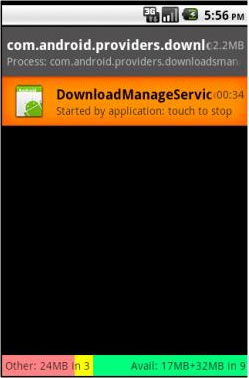
Android.Rootcager is a Trojan horse that steals information from Android devices. It can take screenshots, gather IMEI and IMSI numbers and send them to remote servers, and install a DownloadProvidersManager Android Package which creates a backdoor to your Android device and downloads additional malware in the background. Cyber-criminals inject their malicious code into popular free apps and republishes in the official marketplace under different application and publisher names. If you think that you may have installed an application in question, check com.android.providers.downloadsmanager (DownloadManageService) in the “Running Services” activity available from the Application system settings of your phone. If you find this service running on your phone, please stop it and uninstall the DownloadProvidersManager Android Package.


Image source: symantec.com


Android.Rootcager removal instructions:

1. Tap on Settings and under Settings, tap on Applications.
2. Under Applications, tap on Running services.
3. To stop com.android.providers.downloadsmanager (DownloadManageService) service, just tap it. A dialog will come up. Tap Stop to close the service.
4. Then, go to Manage Applications. Select the com.android.providers.downloadsmanager (DownloadManageService) and click on the "Uninstall" button.

Monday, September 20, 2010

Remove fake Avast!, NOD32, DivX7, Emule, uTorrent installers (Uninstall Guide)

Another day, another threat lurking on the Internet. This time we've found several malicious software installers. The malware masquerades as an installer for a program, i.e. Avast! Antivirus, NOD32 Antivirus, Emule, DivX7, Windows Media Player 11, Limware, Format factory and some other well known software.


The rogue installer prompts user to to send SMS messages to a premium number and obtain a code to complete the program installation. It's not as aggressive as ransomware, but it's still a threat. Besides, the fake installer drops malicious files upon execution:
  • C:\Windows\System32\svchost64.exe
  • C:\Windows\System32\updtr.exe
Detection:
Trojan:MSIL/Fakeinstaller.A [Microsoft]
Trojan-Ransom.MSIL.FakeInstaller.a [Kaspersky]
Win32/RansomFakeInstaller.A [CA]
Trojan-Ransom.MSIL [Ikarus]
FakeInstaller [Sunbelt Software]
Win32/Agent.QNG [ESET]

These fake installers were made for users residing in western and central European countries, mainly Spain, France, Germany, Switzerland, The Netherlands and Belgium. Secretly installed files are Trojans that may download additional malware onto your computer. Here's a list of malicious websites that distribute these fake installers:
  • antivirus-avast2009.com
  • antivirus-nod32-gratuit.com
  • div-x-gratis.com
  • divx-9-gratuit.com
  • emule09-download.com
  • limewire-gratuit.com
  • lw-download.com
  • media-player12.com
  • ut-download.com
  • utorrent-gratuit.com

If you suspect that your computer is infected please download free anti-malware software from the list below and run a full system scan.
NOTE: before saving the selected program onto your computer, please rename the installer to iexplore.exe or winlogon.exe. With all of these tools, if running Windows 7 or Vista they MUST be run as Auto Infoistrator. Launch the program and follow the prompts. Don't forget to update the installed program before scanning.


Fake installers display the following messages:


Share the knowledge:

Sunday, September 19, 2010

How to remove AndroidOS.FakePlayer (Uninstall Guide)

AndroidOS.FakePlayer is a Trojan Horse that masquerades as a movie player and attempts to send premium-rate SMS messages to specific numbers without the user's consent. It has to be manually installed. AndroidOS.FakePlayer does not replicate and affects only mobile devices (i.e. smartphones).


Aliases:
Trojan:AndroidOS/Fakeplayer [F-Secure]
ANDROIDOS_DROIDSMS [Trend]
Trojan:AndroidOS/Fakeplayer [Microsoft]
Trojan-SMS.AndroidOS.FakePlayer [Kaspersky]
TR/SMS.AndroidOS [Avira]
Android.SmsSend.1 [Dr.Web]
Android/FakePlayer [ESET]
Troj/Fakplay [Sophos]


AndroidOS.FakePlayer removal instructions:

1. Go to the Settings icon and select Applications.
3. Next, click Manage.
4. Select the application (i.e. org.me.androidapplication1) and click the Uninstall button.
5. Install security software on your device to prevent such infections in the future. You may also choose mobile security software form the list below.

ESET Mobile Security
F-Secure Mobile Security
Kaspersky Mobile Security
Trend Micro Mobile Security
Avira Antivir Mobile
Dr.Web Mobile Security Suite

NOTE: Your phone manufacturer or service provider may have provided security software on your phone. Contact them to find out if they have any security solutions available.

Share this information with other people:

Thursday, February 4, 2010

Remove Google redirect virus

In this article you will find recommendations how to remove Search Engine Redirect virus or Google Redirect virus. Most of the time it’s called Google redirect problem but please note that the redirect virus affects Yahoo and Bing search results too. This problem is very frustrating and unfortunately there is no one-click solution for it. Google redirecting virus is usually a by-product of malicious software. Many people say that this problem remains after removing rogue security software or Trojans. In some cases anti-virus and anti-spyware programs remove Trojans, but unfortunately can’t detect changes made by the virus. Anyhow, below is a list of things that you should do or check in order to remove Google Redirect virus or fix Search Engine Redirect problem.
  • Check Local Area Network (LAN) settings
  • Make sure that DNS settings are not changed
  • Check Windows HOSTS file
  • Manage Internet Explorer add-ons. Remove unknown or suspicious add-ons
  • Use TDSSKiller tool to remove malware belonging to the family Rootkit.Win32.TDSS
  • Scan your computer with legitimate anti-malware software (ComboFix)
  • Use CCleaner to remove unnecessary system/temp files and browser cache
  • Reset your Router back to the factory default settings


1. Check Local Area Network (LAN) settings
a) Open Internet Explorer. In Internet Explorer go to: Tools->Internet Options.
b) Click on “Connections” tab, then click “LAN settings” button.


c) Uncheck the checkbox under “Proxy server” option and click OK.


2. Make sure that DNS settings are not changed
a) Open Control Panel (Start->Control Panel).
b) Double-click “Network Connections” icon to open it.
c) Right click on “Local Area Connection” icon and select “Properties”.


d) Select “Internet Protocol (TCP/IP)” and click “Properties” button.


e) Choose “Obtain DNS server address automatically” and click OK.


3. Check Windows HOSTS file
a) Go to: C:\WINDOWS\system32\drivers\etc.
b) Double-click “hosts” file to open it. Choose to open with Notepad.


c) The “hosts” file should look the same as in the image below. There should be only one line: 127.0.0.1 localhost in Windows XP and 127.0.0.1 localhost ::1 in Windows Vista. If there are more, then remove them and save changes. Read more about Windows Hosts file here: http://support.microsoft.com/kb/972034


4. Manage Internet Explorer add-ons. Remove unknown or suspicious add-ons
a) Open Internet Explorer. In Internet Explorer go to: Tools->Manage Add-ons.
b) Uninstall unknown or suspicious Toolbars or Search Providers.


5. Use TDSSKiller tool to remove malware belonging to the family Rootkit.Win32.TDSS
a) Download the file TDSSKiller.exe
b) Execute the file TDSSKiller.exe.
c) Wait for the scan and disinfection process to be over.
More detailed TDSSKiller tutorial: http://support.kaspersky.com/viruses/solutions?qid=208280684


6. Scan your computer with legitimate anti-malware software (STOPzilla)
Download at least one anti-malware software from the list below and scan your computer. Don’t forget to update it before scanning. I recommend STOPzilla. Usually, it detects and removes Google redirect virus better than other programs. Just install it and follow the prompts.

Download recommend anti-malware software (STOPzilla) to remove the leftovers of this virus from your computer.

It's possible that an infection is blocking STOPzilla from properly installing. Before saving the selected program onto your computer, you may have to rename the installer to iexplore.exe or winlogon.exe. Don't forget to update the installed program before scanning.

Alternate malware removal tools can be used in case STOPzilla has missed a threat:
7. Use CCleaner to remove unnecessary system/temp files and browser cache
CCleaner is a freeware system optimization. It’s not a malware removal tool. However, it’s always a good idea to get rid of unnecessary internet/system files or corrupter Windows registry values that may cause various problems to your computer. Downlaod CCleaner.

8. Reset your Router back to the factory default settings
This step is optional and should be completed only if you have followed all the above recommendations and you still have the redirect virus on your computer. First of all, please follow this guide: How to Reset a Router Back to the Factory Default Settings. Then you should flush DNS cache:

1. Go to Start->Run (or WinKey+R) and type in "cmd" without quotes.


2. In a new window please type "ipconfig /flushdns" without quotes and hit Enter. And that's it!


These recommendations shouldn’t be too complicated. I hope this article was helpful. If you have any questions don’t hesitate and ask. Comments are always welcome.

Share this information with other people: 

Saturday, January 9, 2010

How to remove Trojan.FakeAlert

Trojan.FakeAlert is a Trojan virus from the Trojan.FakeAV family. Trojans from this family pretend to be legitimate anti-spyware/virus applications. In short, Trojan.FakeAV family has many variants but, but the most active is probably the Trojan.FakeAlert. Usually, this virus hijacks the desktop background and displays fake warnings about serious computer infections. It also may hijack Internet Explorer and change some settings of Windows OS.Trojan.FakeAlert is usually installed in conjunction with a rogue anti-spyware application. This trojan can be easily removed with almost any better known anti-virus or anti-spyware application. You may choose an anti-malware application listed on the left side of this page.

Trojan.FakeAlert imitations of the legitimate software (taken from ca.com):