"System process at address 0x3BC3 have just crashed, please follow these steps to deactivate it from your system." is a fraudulent system error warning that alerts users of an erroneous system risk and then prompts users to call the premium-rate phone numbers above to resolve the apparent issue. This fake error warning clearly indicates that there is a Trojan infection on your computer. The "System process at address 0x3BC3 have just crashed" message appears on a light blue screen just as Windows loads up. It blocks Task Manager and other system tools. Unfortunately, it takes over your computer screen in Safe Mode and Safe Mode with Networking too. Hopefully, it will let you to start your computer in Safe Mode with Networking so that you can follow the general Trojan.Ransomware removal guide. You can also use your Windows CD to repair your computer if you have it or download a Rescue Disk on another computer and then clean the infected one. For more information, please follow this removal guide. However, before proceeding to the manual removal instructions, you should try to unlock your computer by entering this code: 754-896-324-589-742. It might just work!
A screen shot of the "System process at address 0x3BC3 have just crashed" error warning:
Anti-Malware Lab is a rogue anti-virus application designed to scare you into buying bogus security products. It produces fake scan results and displays misleading security alerts to make you think you have a virus infection. The fake antivirus program then prompts you to pay for a full version of the Anti-Malware Lab to remove non-existent infections and to protect your computer against spyware, Trojans and other malicious software. Although such rogue antivirus programs as AntiMalware Lab have become increasingly common in a last few years, users may still fall victim to these scams because fake antivirus programs are designed to appear as legitimate as possible. Some of these fake AVs are even made to look like legitimate anti-virus applications as where Anti-Malware Lab looks more like a Windows Security scanner. Cyber crooks usually rely on visitors to wittingly install this bogus security application. They do this through social engineering most of the time. However, Anti-Malware Lab is also distributed through the use of Trojan horses, drive-by downloads that are able to install the rogue application without your interaction and other malware. If your computer is infected with this scareware, please follow the steps in the removal guide below to remove Anti-Malware Lab and any associated malware.
Anti-Malware Lab is from the same malware family as PC Security Guardian, Best Malware Protection and some other rogue AVs. The rogue application is configured to that run automatically when Windows starts. It may report up to twenty fake infections, e.g., Trojan-IM.Win32.Faker.a, Virus.BAT.Gray.705, Trojan-PSW.Win32.Dripper and many other non-existent threats. Below are a number of different images of fake security alerts that you may run across.
It also displays fake security alerts and notifications saying that your computer is infected or under attack from a remote machine. Basically, Anti-Malware Lab uses misleading security alerts to frighten you into purchasing worthless security software. If you have already purchased this this rogue applications, you should requested a refund from a fake antivirus firm if they provide contact information and also you should contact their credit card provider to dispute the charges. They even have their own support center.
OPTIONAL: In case you can't boot your PC in Safe Mode with Networking or you can't delete the malicious files manually, you can use this code U2FD-S2LA-H4KA-UEPB to register the rogue application in order to stop the fake security alerts. Once this is done, you are free to install anti-malware software and remove the rogue anti-virus program from your computer properly. If you need help in removing Personal Shield Pro from your computer, please leave a comment below.
Anti-Malware Lab is not a virus and it can't log you keystrokes or delete your files. It's a low risk threat but you should uninstall this fake anti-virus program from your computer as soon as possible because it may download additional malware onto your computer and this is especially true if it comes bundled with Trojan downloaders. Last, but not least, may configure Internet Explorer to use a proxy over a LAN connection, so it pretty much hijacks the default web browser. To remove Anti-Malware Lab from from your computer, please follow the removal instructions below. If you need help removing this scarware, you can leave a comment below. Good luck and safe online!
Anti-Malware Lab removal instructions:
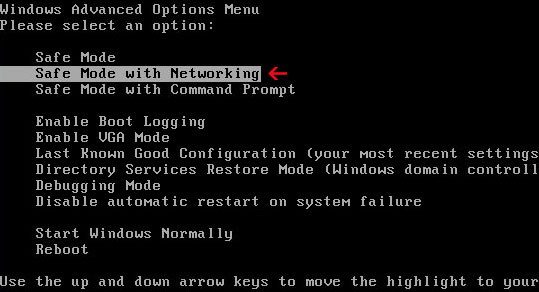
1. Reboot your computer is "Safe Mode with Networking". As the computer is booting tap the "F8 key" continuously which should bring up the "Windows Advanced Options Menu" as shown below. Use your arrow keys to move to "Safe Mode with Networking" and press Enter key. Read more detailed instructions here: http://www.computerhope.com/issues/chsafe.htm
NOTE:Login as the same user you were previously logged in with in the normal Windows mode.
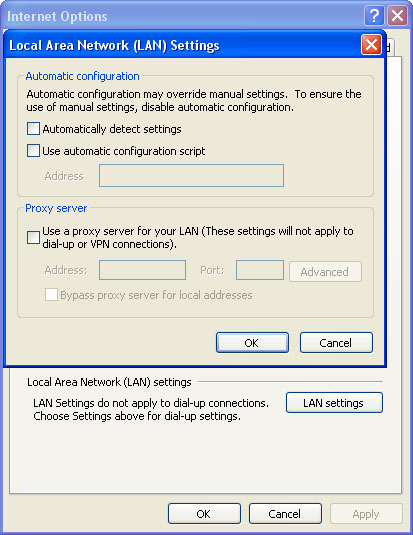
2. Launch Internet Explorer. In Internet Explorer go to: Tools->Internet Options->Connections tab. Click Lan Settings button and uncheck the checkbox labeled Use a proxy server for your LAN. Click OK. You may have to repeat steps 1-2 if you will have problems downloading malware removal programs.
3. Download free anti-malware software from the list below and run a full system scan.
NOTE: in some cases the rogue program may block anti-malware software. Before saving the selected program onto your computer, you may have to rename the installer to iexplore.exe or winlogon.exe With all of these tools, if running Windows 7 or Vista they MUST be run as Auto Infoistrator. Launch the program and follow the prompts. Don't forget to update the installed program before scanning.
4. New threats appear every day. In order to protect your PC from such (new) infections we strongly recommend you to use ESET Smart Security.
Alternate Anti-Malware Lab removal instructions using HijackThis or Process Explorer (in Normal mode):
1. Launch Internet Explorer. In Internet Explorer go to: Tools->Internet Options->Connections tab. Click Lan Settings button and uncheck the checkbox labeled Use a proxy server for your LAN. Click OK.
2. Download Process Explorer. 3. Rename procexp.exe to iexplore.exe and run it. Look for similar process in the list and end it:
DMg4a_358.exe
OR download iexplore.exe (NOTE: iexplore.exe file is renamed HijackThis tool from TrendMicro). Launch the iexplore.exe and click "Do a system scan only" button. If you can't open iexplore.exe file then download explorer.scr and run it. Search for similar entries in the scan results:
R1 - HKCU\Software\Microsoft\Windows\CurrentVersion\Internet Settings,ProxyServer = http=127.0.0.1:24525 O4 - HKCU\..\Run: [Anti-Malware Lab] "C:\Documents and Settings\All Users\Application Data\b3a2c8\DMg4a_358.exe" /s /d Select all similar entries and click once on the "Fix checked" button. Close HijackThis tool.
4. Download free anti-malware software from the list below and run a full system scan.
NOTE: in some cases the rogue program may block anti-malware software. Before saving the selected program onto your computer, you may have to rename the installer to iexplore.exe orwinlogon.exe With all of these tools, if running Windows 7 or Vista they MUST be run as Auto Infoistrator. Launch the program and follow the prompts. Don't forget to update the installed program before scanning.
5. New threats appear every day. In order to protect your PC from such (new) infections we strongly recommend you to use ESET Smart Security.
Associated Anti-Malware Lab files and registry values:
Files:
Windows XP
C:\Documents and Settings\All Users\Application Data\b3a2c8\
C:\Documents and Settings\All Users\Application Data\b3a2c8\DMg4a_358.exe
C:\Documents and Settings\All Users\Application Data\b3a2c8\PSGSys
C:\Documents and Settings\All Users\Application Data\b3a2c8\Quarantine Items
C:\Documents and Settings\All Users\Application Data\b3a2c8\PSG.ico
C:\Documents and Settings\[UserName]\Application Data\Anti-Malware Lab\
I have Google Chrome web browser and I want to block a particular website because I waste too much time on it. How can I do that? Are there any add-ons available that can block certain websites, let's say gaming sites? Thanks.
•
Unfortunately, there aren't any built-in website blocking features in Google Chrome, at least in version 12. Perhaps in the future they will support such feature which would be very useful indeed. However, there are several 3rd party Google Chrome extensions that can help you. Chrome Nanny and Website Blocker are probably the most popular website blocking extensions today. You can block an entire website or a particular subdomain of that website. Or you can limit accessing certain websites to 1 hour a day for example or even set specific time intervals when you are allowed to visit blocked websites. The only problem is that you can't set Auto Info or master password so anyone can easily add/remove websites. And another problem is that some of these extensions do not work in Incognito mode. You can find Chrome Nanny, Website Blocker and other extensions by checking out the Chrome Web Store.
Alternatively, you can use your HOSTS file in Windows to block certain websites. It is also worth mentioning that editing HOSTS file affects all web browsers, not only Google Chrome. The file is located in C:\WINDOWS\system32\drivers\etc directory.
Open your HOSTS file using Notepad.
Ignore lines that start with #. By default there should be only one entry and you shouldn't change it:
127.0.0.1 localhost
This is a reference the local machine by IP address. You can add as many entries as you want to the HOSTS file. Let's say you want to block facebook.com. You just need to add such entries to block:
127.0.0.1 facebook.com 127.0.0.1 www.facebook.com
We are telling our local machine that Facebook actually exists on the local machine and as a result you'll get a blank page instead of facebook.com. Please note that in Windows Vista and 7 you can change HOSTS file only if you have Auto Infoistrative privileges, i.e., open HOSTS file as the Auto Infoistrator. Otherwise, I'm afraid it won't work.
Personal Shield Pro is a malicious application claiming to be an antivirus program. Most of the time computers are infected when users are presented with a fake security warning that seems to indicate that the computer is suddenly infected with viruses, spyware or other malicious software and they are asked to install free malware removal tool to remove viruses. Cyber criminals use other sophisticated methods to attempt to trick users into installing Personal Shield Pro — including spam emails and drive-by downloads when simply visiting an infected website is enough to become infected by this fake security program and other malware. Once installed, Personal Shield Pro pretends to scan your computer for viruses and displays fake security alerts to make you think that your computer is infected. Generally, false positives and fake security alerts are the primary method used to convince the user of the compromised computer to purchase the rogue product. What is more, this form of malware can significantly slow your computer's performance, change your background image and download additional malware onto your computer. If your computer does become infected, please follow the steps in the removal guide below to remove Personal Shield Pro malware from your computer.
When Personal Shield Pro is running, it blocks certain application on your computer, usually Task Manager, Registry editor, other system utilities and of course legitimate anti-malware software. It displays fake notification saying that the program is infected:
Application taskmgr.exe cannot be activated. Reason: suspected in virus activitiy and moved to quarantine. Please, activate your antivirus software to clean application.
Personal Shield Pro displays other fake security alerts like every on or two minutes. Thankfully, this fake AV can be removed rather easily. If you are good with computers, you can remove this fake security program manually. But if you are not that good with computers then I suggest using free anti-malware tools listed below.
Personal Shield Pro video (old graphical user interface):
OPTIONAL: In case you can't boot your PC in Safe Mode with Networking or you can't delete the malicious files manually, you can use this code 8945315-6548431 to register the rogue application in order to stop the fake security alerts. Once this is done, you are free to install anti-malware software and remove the rogue anti-virus program from your computer properly. If you need help in removing Personal Shield Pro from your computer, please leave a comment below.
Last, but not least, if you have already purchased this fake security application, please contact your credit card company and dispute the charges. Please note that you may become a victim of credit card scam or even identity theft. Additional information about this malware and comments are welcome. Good luck and be safe online!
Personal Shield Pro removal instructions (in Safe Mode with Networking):
1. Reboot your computer is "Safe Mode with Networking". As the computer is booting tap the "F8 key" continuously which should bring up the "Windows Advanced Options Menu" as shown below. Use your arrow keys to move to "Safe Mode with Networking" and press Enter key. Read more detailed instructions here: http://www.computerhope.com/issues/chsafe.htm
NOTE:Login as the same user you were previously logged in with in the normal Windows mode.
2. Download free anti-malware software from the list below and run a full system scan.
NOTE: in some cases the rogue program may block anti-malware software. Before saving the selected program onto your computer, you may have to rename the installer to iexplore.exe orwinlogon.exe With all of these tools, if running Windows 7 or Vista they MUST be run as Auto Infoistrator. Launch the program and follow the prompts. Don't forget to update the installed program before scanning.
3. New threats appear every day. In order to protect your PC from such (new) infections we strongly recommend you to use ESET Smart Security.
Alertane Personal Shield Pro removal instructions:
NOTE: in some cases the rogue program may block anti-malware software. Before saving the selected program onto your computer, you may have to rename the installer to iexplore.exe or winlogon.exe With all of these tools, if running Windows 7 or Vista they MUST be run as Auto Infoistrator. Launch the program and follow the prompts. Don't forget to update the installed program before scanning.
Personal Shield Pro associated files and registry values:
Files:
Windows XP:
C:\Documents and Settings\All Users\Application Data\[SET OF RANDOM CHARACTERS].exe
C:\Documents and Settings\All Users\Application Data\[SET OF RANDOM CHARACTERS].pspro
Windows Vista/7:
C:\ProgramData\[SET OF RANDOM CHARACTERS].exe
C:\ProgramData\[SET OF RANDOM CHARACTERS].pspro
Registry values:
HKEY_CURRENT_USER\Software\Microsoft\Windows\CurrentVersion\Run "[SET OF RANDOM CHARACTERS].exe"
HKEY_CLASSES_ROOT\.pspro
HKEY_CLASSES_ROOT\PSP
HKEY_CURRENT_USER\Software\Microsoft\Windows\CurrentVersion\Run "[SET OF RANDOM CHARACTERS].pspro"
About Passwords Nowadays, having a strong password is a must, however people are more likely to have an easy one or two and use it for every online account or email. Probably it is conditioned by the fact that more and more things require passwords and remembering them all might be not as easy as it seems. However having an easy password is a bad idea too, because criminals or other malicious players can easily hack it, steal all your information and even cause damage by, for example, expending all your money. Therefore some simple tips below are intended to help you in creating a strong password.
5 Basic Rules
The first and most important – keep your password in secret. This must be applied for everyone, even the closest family members, friends or colleagues – you can never be sure for their precaution or intentions. Moreover, don't use unsecured channels or email for sending your password to someone.
Make your password easy to remember, but difficult to guess. Perhaps it seems impossible, but actually it is not that difficult. Check the section below, it will suggest you how to make a strong memorable password. And remember – avoid writing your password down, unless you lock it or encode.
Don't use the same password for everything. Doing that increases the possibility for malicious people to track and hack your password. Each password you choose must be new and different. If you have many problems with remembering a huge number of different passwords, try to distinguish your information to very sensitive and not so sensitive (no harm if hacked) and then for the latter use strong, but the same password.
Change your password regularly. It means at least once a year or whenever you suspect that somebody knows it.
NEVER change your password because of someone claiming that you have to. This is a popular fraud in some circles. A hacker pretends to be your system Auto Infoistrator or other important person and sends you an email, in which he asks your password for some feigned reasons. If you believe him, he will get the entry to your account straightly from you, practically without any hassle!
Features of Weak Passwords
a common word written in English or any other language,
a word(s) that means something to you and can be found in your environment, such as the name of your husband/wife, child, pet, favorite book, food, film character, musician, etc.,
your name or nickname even spelled backwards, upgraded with numbers, mixed case letters, etc.,
an alphabetic or numeric series either forwards or backwards, for example: 1234567 or 7654321, ABCDEFG or GFEDCBA,
a row of same numbers or letters, i.e. 0000000 or ZZZZZZZ,
a common keyboard shortcut, i.e. QWERTY or AZERTY,
a single number tacked on the end or beginning of the word, i.e. elephant7 or 7elephant.
Features of Strong Passwords
at least eight characters long,
mixed upper and lower-case letters (ElePHanT), numbers (1-9) and symbols (!ӣ$%^&*),
memorable, but unpredictable,
not written down,
easy to type without looking at the keyboard, in case someone is watching over your shoulder.
Creating a Strong Password There are more ways in which you can create a strong password, however only two of them are suggested here. Using them will definitely help you to create a strong and memorable password.
Phrase method. The basic idea behind this method is to pick a phrase and transform it into a very complicated, but easily remembered password.
1. First of all, think of a simple, at least eight words long sentence that means something to you. This could be a summary of your daily activities, family or just the lyrics of your favourite song, for example "My wife hates me when I am snoring". 2. Then take the first letters of each word. You already have a completely unique string of characters: "mwhmwias". 3. To make your password even more complex, you should mix upper and lower case letters, add digits and/or symbols somewhere in the middle. Using the example above, you'd get: "mWhm9wiAS" 4. Then change regular characters with special characters by your own rules. These rules can be something like this:
replace 'a' with @
replace 's' with $
replace 'o' with 0
replace 'i' with !
replace 'and' with & or +
Using the example above, we get: "mWhm9w!@S". It is evident that no one will simply guess it. Here's a video which explains how to choose a strong password, which is easy to remember but still hard to crack:
Three-part method. Another method is based on composing your password from three different parts. For instance, let's create an example of password for your "Facebook" account.
1. Primarily, we can use three or four characters from the website name written is several ways, such as "FAC" or "fAc" or "FaBo", etc. We chose "FaBo", because it is quite memorable row. 2. In contrary to the first part, the second part should be completely random and composed from digits and/or symbols, for example, "39$2". This part can be written down, as it can't be remembered so easily, but also should be hidden in a secret place. So we already have "FaBo39$2". 3. Finally, add three more characters, which can be named as your "PIN", for example: "!56". This part should never be written down, just like you bank card's or phone PIN. Place it either on the beginning/end or in the middle of your password, just like this: "!56FaBo39$2" or "FaBo39$2!56" or "FaBo!5639$2". Now you have a complete password.
Remembering Your Password As it was mentioned many times above, remembering passwords might be sometimes difficult, but writing them down is too reckless. If your head is already crowded by countless logins and passwords, you can try two pretty safe alternatives:
a secure password management software program, which stores all your passwords in highly-encrypted databases and is locked with only one master key or a key file,
a strong encryption utility, which encrypts text files, i.e. your written passwords.
Few Ways of Hacking Your Password Probably you are still wondering, how anyone can get hold of your password. Well, here are the main three techniques introduced, which will convince you that having a weak password is very incautious.
1. Stealing. This is the most popular and simplest way to compromise passwords, which can be realized by finding it written down somewhere or simply watching over your shoulder when you type it. 2. Guessing. It is incredible how many people are using the same "standard" passwords. There are many sites, which presents the top of most popular passwords, usually the very weak ones. Check it out, maybe your password is not as unique as you thought until now! 10 Most common passwords:
123456
111111
123123
qwerty
password
password1
123321
abc123
letmein
123456789
3. Attacking. There are two ways of attacking:
a brute force attack. The main idea of this method is to try every thinkable combination of letters, numbers and symbols in order to guess the password. Obviously, doing it manually takes too much time, but there is a bunch of password guessing and hacking programmes, which shouldn't be underestimated.
a dictionary attack. This method is a little bit more intelligent than the previous one, because primarily checks if your password can be found in dictionaries. It means that with a help of various software tools, hacker tries every word in your national and foreign language dictionaries, until your password is found. Moreover, the list of the most popular passwords is also tried.
If Your Password Gets Stolen Anyway... Unfortunately, even the strong and memorable passwords sometimes can be hacked or stolen. This, for example, might happen when someone breaks into the system that stores it. Therefore it is very important to notice any suspicious activities as soon as possible, because then you might be still able to inform the authorities or block your online account before something bad happens.
Windows Supervision Center is a fake program that reports false system security threats and displays falsified security alerts on your computer. It claims that you need to buy a full version of the program in order to remove viruses and malicious software from your computer. It's distributed through the use of Trojans, fake virus scanners and other malware. Needless to say, reputable software is not distributed this way. If you think that your computer is infected with Windows Supervision Center, please follow the steps in the removal guide below.
When the rogue program is executed, it blocks other applications on your computer and displays falsified error message saying that your web browser, or any other application, is infected, e.g., Trojan.Win32.Qhost.
Windows Supervision Center pretends to scan your computer for viruses. After the fake scan, it states that some of the viruses have been removed, but if you want to cleanup your computer completely, you have to purchase the full version of the program. If you choose to purchase, the rogue program will open fraudulent payment page.
The good news is that you can remove Windows Supervision Center rather easily. You can delete it manually or download anti-malware software and run a full system scan. For more information, please follow the removal instructions below. Last, but not least, if you have purchased this rogue AV, please contact your credit card company and dispute the charges. If you need help removing Windows Supervision Center, please leave a comment below. Good luck and be safe online!
1. Rename the main executable of the rogue program:
In Windows XP: C:\Documents and Settings\[UserName]\Application Data\Microsoft\[SET OF RANDOM CHARACTERS].exe
In Windows Vista/7: C:\Users\[UserName]\AppData\Roaming\Microsoft\[SET OF RANDOM CHARACTERS].exe
Look for cccayn.exe or similar file and rename it to cccayn.vir.
Then restart your computer. This should disable the rogue program. After reboot, please continue with the rest of the removal process. NOTE: By default, Application Data folder is hidden. If you can find it, please read Show Hidden Files and Folders in Windows.
2. Download shell-fix.reg. Double-click to run it. Click "Yes" when it asks if you want to add the information to the registry. This file will fix the Windows Shell entry. 3. Download free anti-malware software from the list below and run a full system scan.
NOTE: in some cases the rogue program may block anti-malware software. Before saving the selected program onto your computer, you may have to rename the installer to iexplore.exe orwinlogon.exe With all of these tools, if running Windows 7 or Vista they MUST be run as Auto Infoistrator. Launch the program and follow the prompts. Don't forget to update the installed program before scanning.
4. New threats appear every day. In order to protect your PC from such (new) infections we strongly recommend you to use ESET NOD32 Antivirus.
Alternate Windows Supervision Center removal instructions (in Safe Mode with Networking):
1. Reboot your computer is "Safe Mode with Networking". As the computer is booting tap the "F8 key" continuously which should bring up the "Windows Advanced Options Menu" as shown below. Use your arrow keys to move to "Safe Mode with Networking" and press Enter key. Read more detailed instructions here: http://www.computerhope.com/issues/chsafe.htm
NOTE:Login as the same user you were previously logged in with in the normal Windows mode.
2. Download free anti-malware software from the list below and run a full system scan.
NOTE: in some cases the rogue program may block anti-malware software. Before saving the selected program onto your computer, you may have to rename the installer to iexplore.exe orwinlogon.exe With all of these tools, if running Windows 7 or Vista they MUST be run as Auto Infoistrator. Launch the program and follow the prompts. Don't forget to update the installed program before scanning.
3. New threats appear every day. In order to protect your PC from such (new) infections we strongly recommend you to use ESET NOD32 Antivirus.
Associated Windows Supervision Center files and registry values:
Files:
In Windows XP:
C:\Documents and Settings\[UserName]\Application Data\Microsoft\[SET OF RANDOM CHARACTERS].exe
In Windows Vista/7:
C:\Users\[UserName]\AppData\Roaming\Microsoft\[SET OF RANDOM CHARACTERS].exe
Registry values:
HKEY_CURRENT_USER\Software\Microsoft\Windows NT\CurrentVersion\Winlogon "Shell" = '%UserProfile%\Application Data\Microsoft\[SET OF RANDOM CHARACTERS].exe'
TR/VB.Agent.20480.A is a Trojan horse that downloads/requests other malicious files from Internet. It creates a startup registry entry, reduces system security and may even turn off anti-virus software. TR/VB.Agent.20480.A affects Windows operating system. If you suspect or confirm that your computer is infected with TR/VB.Agent.20480.A, please run a full system scan with your anti-virus software and use free anti-malware application listed below. Good luck and be safe online!
Download free anti-malware software from the list below and run a full system scan.
NOTE: in some cases the rogue program may block anti-malware software. Before saving the selected program onto your computer, you may have to rename the installer to iexplore.exe orwinlogon.exe With all of these tools, if running Windows 7 or Vista they MUST be run as Auto Infoistrator. Launch the program and follow the prompts. Don't forget to update the installed program before scanning.
New threats appear every day. In order to protect your PC from such (new) infections we strongly recommend you to use ESET NOD32 Antivirus.