Thursday, July 14, 2011

IaaS - Cloud Computing

What is Infrastructure as a Service (IaaS)?

Infrastructure as a Service (IaaS) is a way to rent storage, hardware, servers and network capacity over the Internet. The service provider owns massive computer resources and is responsible for running and maintaining them. Meanwhile, the client needs only computer and Internet connection to access these bottomless resources and typically pays for it on a per-use basis.

The main features and components of Iaas are:
  • service-oriented utility computing,
  • automation of Auto Infoistrative tasks,
  • unlimited resources,
  • on demand self-service,
  • pay-per-use pricing,
  • desktop virtualization,
  • policy-based services.
Infrastructure-as-a-Service (IaaS) is one of three models of cloud computing service. The other two are Software as a Service (SaaS) and Platform as a Service (PaaS).


Share the knowledge:

PaaS - Cloud Computing

What is Platform as a Service (PaaS)?

Platform as a Service (PaaS) gives a possibility to run, create or test various applications by using provider's tools over the internet. The consumer has no rights to manage or control the underlying cloud infrastructure (storage, servers, platforms, etc.), but is able to configure application hosting environment and the installed applications.

Advantages of using PaaS are:
  • possibility to change and upgrade the characteristics and components of operating system,
  • easier collaboration with specialist over the word,
  • opportunity to use resources that are over the national border without crossing it,
  • overall cost reduction by minimizing the expenses of hardware and programming tools, incompatibility problems and so on.
Disadvantages of using PaaS are:
  • some providers may not allow moving developed software out of his platform (security issues),
  • flexibility of this service may still be insufficient in meeting the needs of users, whose requirements are constantly changing.
Platform as a Service (PaaS) is one of three models of cloud computing service. The other two are Software as a Service (SaaS) and Infrastructure-as-a-Service (IaaS).


Share the knowledge:

SaaS - Cloud Computing

What is Software as a Service (SaaS)?

Software as a Service (SaaS) is a cloud computing model, which hosts various software applications and makes them available to customers over the Internet or other network. There are two main software delivery models for SaaS:
  1. to give an online access to a single copy of an application,
  2. to host commercially available software and deliver it over Internet.
The last opportunity is very similar to one, which is used for other on demand computing software delivery models, for example ASP (application service provider). However due to its global accessibility and main technologies that support service-oriented architecture (SOA), Web services and even new developmental approaches, SaaS is becoming more and more popular amongst other software delivery models.

The main advantages of SaaS model are:
  • no concerns about software buying (licenses), installing and maintaining,
  • automatic updates and patch management,
  • automation of Auto Infoistrative tasks,
  • easier collaboration with other users – everyone has the same version of software,
  • world-wide access.
Software as a Service (SaaS) is one of three models of cloud computing service. The other two are Platform as a Service (PaaS) and Infrastructure-as-a-Service (IaaS).


Share the knowledge:

Wednesday, July 13, 2011

How to Remove Scour (Uninstall Guide)

Scour is a meta search engine that combines search results from Google, Yahoo, MSN and integrates real time search results from social networks to deliver the most relevant search results. Scour.com is the official website of this meta search engine. But you can also install Scour Toolbar or web browser search plug-in and use it directly from your favorite web browser. Although, Scour is not a virus or any other type of malicious software, we often receive emails from our readers saying that they can't remove Scour from their computers completely and that they didn't even install it. Well, we just want to remind you that Scour toolbar and similar applications are often bundled with freeware or shareware software. We haven't found any evidence that Scour comes bundled with malicious software. Anyway, we totally understand you that it's quite frustrating when your search results are being redirected to Scour.com especially when type something into Google or any other search engine, hit search, click on a certain search result link and you get another search engine instead of the page you was looking for. To remove Scour from your computer, please follow the steps in the removal guide below. If you have any questions or suggestions, please leave a comment below. Good luck and be safe online!


Scour removal instructions:

1. Go to the Start Menu. Select Control PanelAdd/Remove Programs.
If you are using Windows Vista or Windows 7, select Control PanelUninstall a Program.


2. Search for Scour Toolbar in the list. Select the program and click Remove button.
If you are using Windows Vista/7, click Uninstall up near the top of that window.


Alternate removal: run C:\Program Files\scourtoolbar\uninstall.exe


3. Download free anti-malware software from the list below and run a full system scan.
NOTE: With all of these tools, if running Windows 7 or Vista they MUST be run as Auto Infoistrator. Launch the program and follow the prompts. Don't forget to update the installed program before scanning.


Remove Scour in Internet Explorer:

1. Open Internet Explorer. Go to ToolsManage Add-ons.


2. Select Toolbars and Extension. Choose Scour Toolbar from the list and click on Disable button.


3. Select Search Providers. Select Scour - Search Socially and Sourc Search and click Remove button to remove it.


Remove Scour in Mozilla Firefox:

1. Open Mozilla Firefox. Go to ToolsAdd-ons.


2. Select Extensions. Choose Scour Toolbar and click Uninstall button.


Associated Scour files and registry values:

Files:
  • C:\Program Files\scourtoolbar\install.ico
  • C:\Program Files\scourtoolbar\scourtoolbar.dll
  • C:\Program Files\scourtoolbar\toolbar.ini
  • C:\Program Files\scourtoolbar\uninstall.exe
  • C:\WINDOWS\Prefetch\SCOURTOOLBAR[1].EXE-1BE5D268.pf
Registry values:
  • HKEY_CLASSES_ROOT\scourtoolbar.SCOURTOOLBAR
  • HKEY_CURRENT_USER\Software\AppDataLow\Software\scourtoolbar
  • HKEY_CURRENT_USER\Software\SCOURTOOLBAR
  • HKEY_LOCAL_MACHINE\SOFTWARE\Classes\scourtoolbar.SCOURTOOLBAR
  • HKEY_LOCAL_MACHINE\SOFTWARE\Microsoft\Windows\CurrentVersion\Uninstall\scourtoolbar
Share the knowledge:

How to Remove System Repair (Uninstall Guide)

System Repair is a rogue computer optimization and repair program that misleads users into buying doubtful value and unknown origin software by making you think your computer is infected or has some critical hard drive or system registry errors. Most of the time, users get infected when they click on a malicious link or fake pop-up messages which are really well made copies of Windows Security Center or other screens in Windows operating systems. Cyber crooks also use various social engineering tricks and fake online virus scanners in order to convince users to clean supposedly infected machines immediately with the offered tool. Some varieties of rogue computer security and optimization programs may get installed on your computer just by you visiting a website with a malicious advertisement or code, and you might never know you've been impacted. In such case, System Repair pop-ups on your computer screen like from nowhere and begins to scan your computer for viruses and system errors. If your computer is infected by this rogue applications, you should stop work and get rid of it immediately. To remove System Repair and associated malware from your computer, please follow the steps in the removal instructions below.


Once installed, System Repair performs a fake system scan for viruses and system/registry errors. After the fake scan, this rogue application reports eleven critical hard drive and system errors and immediately prompts you to pay for a full version of the program to fix found problems which actually do not even exist. What is more, System Repair hides certain files or copies them to Windows temporary folder (Temp). It makes your desktop background black and pretty much empty just to make you think that those falsely detected hard drive and registry errors truly exist. Furthermore, System Repair may drop a rootkit from the TDSS (TDL3 or TDL4) family which hides its presence from the user and may download other malware on your computer or re-install System Repair scareware if it was successfully removed from the system. You should use TDSSKiller and Backdoor.Tidserv removal tool before or after the removal of System Repair to make sure your PC is not infected by a rootkit from a TDSS family. Otherwise, System Repair might be re-downloaded to computer computer.

Here are some examples of a warning pop-up windows from this rogue program:


Additionally, you can activate the rogue program by entering this registration code 8475082234984902023718742058948 and any email as shown in the image below.


Once this is done, you are free to install anti-malware software and remove the rogue anti-virus program from your computer properly. Most importantly, don't be fooled and do not pay for this phony system optimization and repair program. If you have already purchased it, please contact your credit card company and dispute the charges. Unlike viruses, rogue applications do not self-replicate and can not delete your files, so you shouldn't worry about that. If you have any further questions, please leave a comment below. Good luck and be safe online!


System Repair removal instructions:

1. First of all, you need to unhide the files and folders. Select Run... from the Start Menu or just hit the key combination CTRL+R on your keyboard. In the Open: field, enter cmd and hit Enter or click OK.


At the command prompt, enter attrib -h /s /d and hit Enter. Now, you should see all your files and folders. NOTE: you may have to repeat this step because the malware may hide your files again.


If you still can't see any of your files, Select Run... from the Start Menu or just hit the key combination CTRL+R on your keyboard. In the Open: field, enter explorer and hit Enter or click OK.


2. Open Internet Explorer. Select Run... from the Start Menu or just hit the key combination CTRL+R on your keyboard. In the Open: field, enter iexplore.exe and hit Enter or click OK.

Download free anti-malware software from the list below and run a full system scan.
NOTE: in some cases the rogue program may block anti-malware software. Before saving the selected program onto your computer, you may have to rename the installer to iexplore.exe or winlogon.exe With all of these tools, if running Windows 7 or Vista they MUST be run as Auto Infoistrator. Launch the program and follow the prompts. Don't forget to update the installed program before scanning.

3. Open Internet Explorer and download TDSSKiller or Backdoor.Tidserv Removal Tool. This malware usually (but not always) comes bundled with TDSS rootkit. Removing this rootkit from your computer is very important (if exists). Run TDSSKiller or Backdoor.Tidserv Removal Tool to remove the rootkit.


Alertane System Repair removal instructions:

1. First of all, you need to unhide the files and folders. Select Run... from the Start Menu or just hit the key combination CTRL+R on your keyboard. In the Open: field, enter cmd and hit Enter or click OK.


At the command prompt, enter attrib -h /s /d and hit Enter. Now, you should see all your files and folders. NOTE: you may have to repeat this step because the malware may hide your files again.


2. The rogue application places an icon or your desktop. Right click on the icon, click Properties in the drop-down menu, then click the Shortcut tab.


The location of the malware is in the Target box.


On computers running Windows XP, malware hides in:
C:\Documents and Settings\All Users\Application Data\

NOTE: by default, Application Data folder is hidden. Malware files are hidden as well. To see hidden files and folders, please read Show Hidden Files and Folders in Windows.

Under the Hidden files and folders section, click Show hidden files and folders, and remove the checkmark from the checkbox labeled:

- Hide extensions for known file types
- Hide protected operating system files

Click OK to save the changes. Now you will be able to see all files and folders in the Application Data directory.

On computers running Windows Vista/7, malware hides in:
C:\ProgramData\

3. Look for suspect ".exe" files in the given directories depending on the Windows version you have.

Example Windows XP:
C:\Documents and Settings\All Users\Application Data\16441124.exe
C:\Documents and Settings\All Users\Application Data\fWpYMRQgdRYv.exe

Example Windows Vista/7:
C:\ProgramData\16441124.exe
C:\ProgramData\fWpYMRQgdRYv.exe

Basically, there will be a couple of ".exe" file named with a series of numbers or letters.


Rename those files to 16441124.vir, fWpYMRQgdRYv.vir etc. For example:


It should be: C:\Documents and Settings\All Users\Application Data\16441124.vir

Instead of: C:\Documents and Settings\All Users\Application Data\16441124.exe

4. Restart your computer. The malware should be inactive after the restart.

5. Open Internet Explorer and download TDSSKiller or Backdoor.Tidserv Removal Tool. This malware usually (but not always) comes bundled with TDSS rootkit. Removing this rootkit from your computer is very important (if exists). Run TDSSKiller and remove the rootkit.


6. Download free anti-malware software from the list below and run a full system scan.
NOTE: in some cases the rogue program may block anti-malware software. Before saving the selected program onto your computer, you may have to rename the installer to iexplore.exe or winlogon.exe With all of these tools, if running Windows 7 or Vista they MUST be run as Auto Infoistrator. Launch the program and follow the prompts. Don't forget to update the installed program before scanning.

7. New threats appear every day. In order to protect your PC from such (new) infections we strongly recommend you to use ESET Smart Security.


Associated System Repair files and registry values:

Files:

Windows XP:
  • %AllUsersProfile%\Application Data\[SET OF RANDOM CHARACTERS]
  • %AllUsersProfile%\Application Data\[SET OF RANDOM CHARACTERS].exe
  • %UsersProfile%\Desktop\System Repair.lnk
  • %UsersProfile%\Start Menu\Programs\System Repair\
  • %UsersProfile%\Start Menu\Programs\System Repair\System Repair.lnk
  • %UsersProfile%\Start Menu\Programs\System Repair\Uninstall System Repair.lnk
%AllUsersProfile% refers to: C:\Documents and Settings\All Users
%UserProfile% refers to: C:\Documents and Settings\[User Name]

Windows Vista/7:
  • %AllUsersProfile%\[SET OF RANDOM CHARACTERS]
  • %AllUsersProfile%\[SET OF RANDOM CHARACTERS].exe
  • %UsersProfile%\Desktop\System Repair.lnk
  • %UsersProfile%\Start Menu\Programs\System Repair\
  • %UsersProfile%\Start Menu\Programs\System Repair\System Repair.lnk
  • %UsersProfile%\Start Menu\Programs\System Repair\Uninstall System Repair.lnk
%AllUsersProfile% refers to: C:\ProgramData
%UserProfile% refers to: C:\Users\[User Name]

Registry values:
  • HKEY_CURRENT_USER\Software\Microsoft\Windows\CurrentVersion\Run "[SET OF RANDOM CHARACTERS].exe"
  • HKEY_CURRENT_USER\Software\Microsoft\Windows\CurrentVersion\Run "[SET OF RANDOM CHARACTERS]"
  • HKEY_CURRENT_USER\Software\Microsoft\Windows\CurrentVersion\Policies\Associations "LowRiskFileTypes" = '/{hq:/s`s:/ogn:/uyu:/dyd:/c`u:/bnl:/ble:/sdf:/lrh:/iul:/iulm:/fhg:/clq:/kqf:/`wh:/lqf:/lqdf:/lnw:/lq2:/l2t:/v`w:/rbs:'
  • HKEY_CURRENT_USER\Software\Microsoft\Windows\CurrentVersion\Policies\Attachments "SaveZoneInformation" = '1'
  • HKEY_CURRENT_USER\Software\Microsoft\Internet Explorer\Download "CheckExeSignatures" = 'no'
  • HKEY_CURRENT_USER\Software\Microsoft\Internet Explorer\Main "Use FormSuggest" = 'yes'
Share this information with other people:

Friday, July 8, 2011

Remove Windows XP Fix, Windows Vista Fix or Windows 7 Fix (Uninstall Guide)

Windows XP Fix, Windows Vista Fix or Windows 7 Fix (depending on the version of Windows that your computer is running) is a fraudulent system optimization program that displays quite legitimate looking but unfortunately fake pop-up window warnings designed to scare you into thinking your computer has some really serious hardware and software issues. It generates dozens of erroneous infections or Windows stability issues and blocks legitimate applications to trick you into participating in fraudulent transactions.


Windows XP Fix, Windows Vista Fix claims that you should pay for a license to the rogue program in order to fix system errors, clean your registry and protect your computer against new threats with software updates. It's probably one of the most annoying and troublesome scareware that we've seen so far. Windows XP Fix moves software shortcuts found in various directories to Windows temporary folder, specifically %Temp%\smtmp, %Temp% refers to Windows temporary folder. What is more, the rogue application adds +h or otherwise known as hidden attribute to some of your files on folders. It's obvious that Windows Vista Fix or Windows 7 Fix wants to make you think that your files were deleted because of critical hard drive and system errors but at the same time it states that they could be restored if you pay for a full version of the rogue software. To remove Windows XP Fix, Windows Vista Fix or Windows 7 Fix from your computer and restore your files, please follow the steps in the removal guide below.

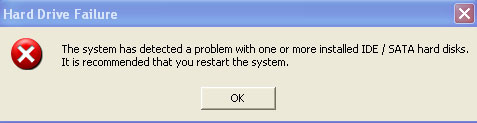
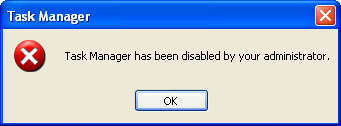
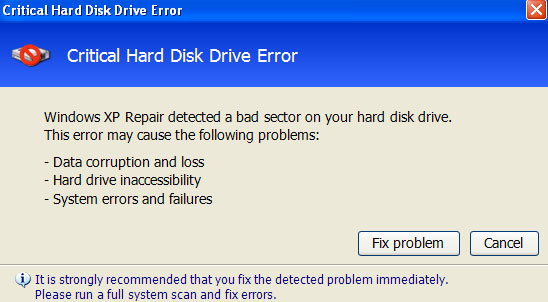
Here are some examples of a warning pop-up windows from this rogue program:


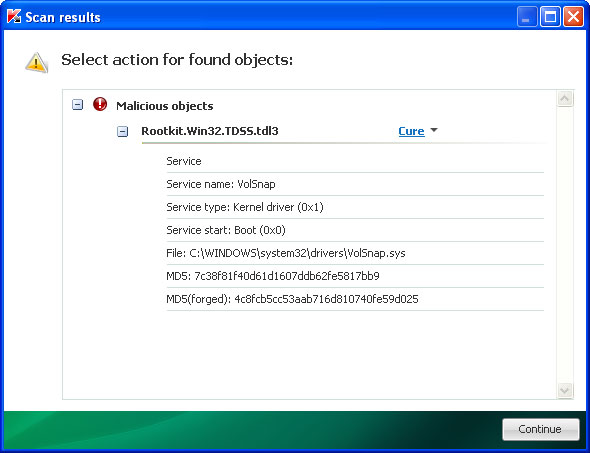
First of all, do not delete anything from Windows temporary folder; otherwise you won't be able to restore your software shortcuts and some other files. I'm saying this because I know that some of you guys use CCleaner or similar software to remove files from %Temp% folder that could be associated with malicious software. Although, that's a good idea when it comes to computer viruses, but Windows XP Fix is an entirely different side of the story. But that's not all, Windows XP Fix, Windows Vista Fix, Windows 7 Fix or in some cases malware droppers install the TDSS rookit as well. It could be either TDL3 or TDL4 version of this rootkit which is probably the most sophisticated piece of malicious software that I've ever seen. I think it should be already obvious that it's very hard or even impossible to remove this rogue application and associated malware manually. You will have to use anti-malware software and TDSS rootkit removal tools, either TDSSKiller from Kasperky lab Norton TDSS removal tool. For more information, please follow the removal steps below.

Additionally, you can activate the rogue program by entering this registration code 8475082234984902023718742058948 and any email as shown in the image below.
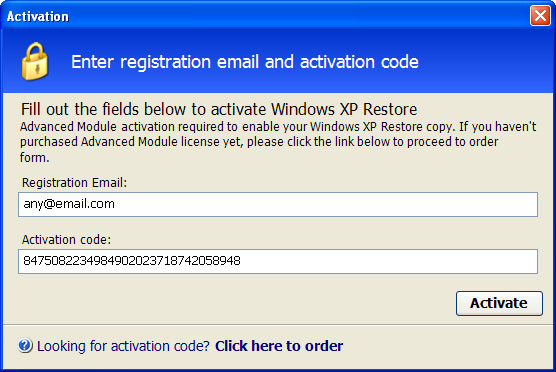


Once this is done, you are free to install anti-malware software and remove the rogue anti-virus program from your computer properly. If you have any further questions, please leave a comment below. Good luck and be safe online!

Related malware:

Windows XP Fix, Windows Vista Fix or Windows 7 Fix removal instructions:

1. First of all, you need to unhide the files and folders. Select Run... from the Start Menu or just hit the key combination CTRL+R on your keyboard. In the Open: field, enter cmd and hit Enter or click OK.
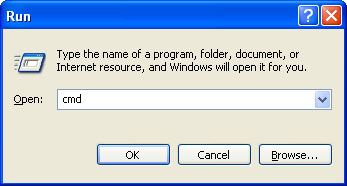


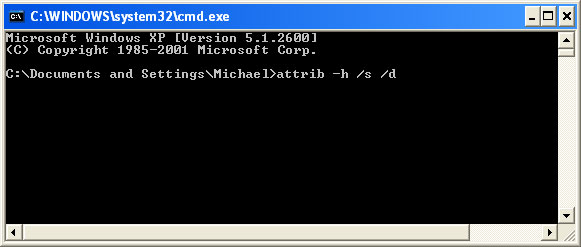
At the command prompt, enter attrib -h /s /d and hit Enter. Now, you should see all your files and folders. NOTE: you may have to repeat this step because the malware may hide your files again.


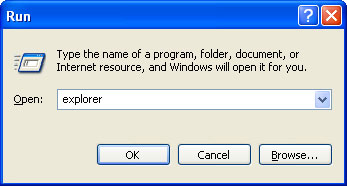
If you still can't see any of your files, Select Run... from the Start Menu or just hit the key combination CTRL+R on your keyboard. In the Open: field, enter explorer and hit Enter or click OK.


2. Open Internet Explorer. Select Run... from the Start Menu or just hit the key combination CTRL+R on your keyboard. In the Open: field, enter iexplore.exe and hit Enter or click OK.

Download free anti-malware software from the list below and run a full system scan.
NOTE: in some cases the rogue program may block anti-malware software. Before saving the selected program onto your computer, you may have to rename the installer to iexplore.exe or winlogon.exe With all of these tools, if running Windows 7 or Vista they MUST be run as Auto Infoistrator. Launch the program and follow the prompts. Don't forget to update the installed program before scanning.

3. Open Internet Explorer and download TDSSKiller or Backdoor.Tidserv Removal Tool. This malware usually (but not always) comes bundled with TDSS rootkit. Removing this rootkit from your computer is very important (if exists). Run TDSSKiller or Backdoor.Tidserv Removal Tool to remove the rootkit.


Alertane Windows XP Fix, Windows Vista Fix or Windows 7 Fix removal instructions:

1. First of all, you need to unhide the files and folders. Select Run... from the Start Menu or just hit the key combination CTRL+R on your keyboard. In the Open: field, enter cmd and hit Enter or click OK.


At the command prompt, enter attrib -h /s /d and hit Enter. Now, you should see all your files and folders. NOTE: you may have to repeat this step because the malware may hide your files again.


2. The rogue application places an icon or your desktop. Right click on the icon, click Properties in the drop-down menu, then click the Shortcut tab.
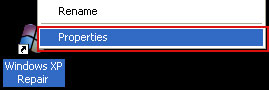


The location of the malware is in the Target box.


On computers running Windows XP, malware hides in:
C:\Documents and Settings\All Users\Application Data\

NOTE: by default, Application Data folder is hidden. Malware files are hidden as well. To see hidden files and folders, please read Show Hidden Files and Folders in Windows.

Under the Hidden files and folders section, click Show hidden files and folders, and remove the checkmark from the checkbox labeled:

- Hide extensions for known file types
- Hide protected operating system files

Click OK to save the changes. Now you will be able to see all files and folders in the Application Data directory.

On computers running Windows Vista/7, malware hides in:
C:\ProgramData\

3. Look for suspect ".exe" files in the given directories depending on the Windows version you have.

Example Windows XP:
C:\Documents and Settings\All Users\Application Data\24436516.exe
C:\Documents and Settings\All Users\Application Data\jTNIGvyiwfxUlB.exe

Example Windows Vista/7:
C:\ProgramData\24436516.exe
C:\ProgramData\jTNIGvyiwfxUlB.exe

Basically, there will be a couple of ".exe" file named with a series of numbers or letters.
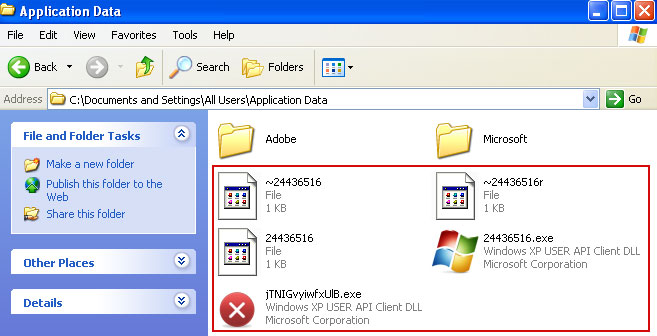


Rename those files to 24436516.vir, jTNIGvyiwfxUlB.vir etc. For example:
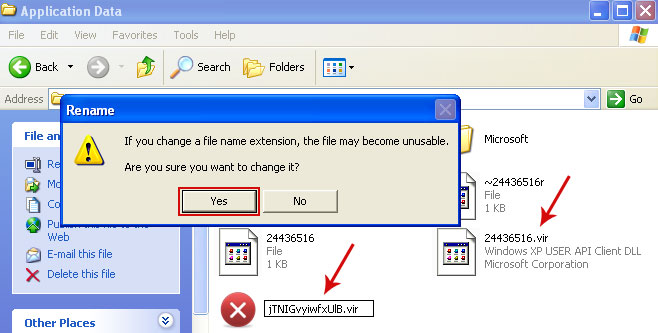


It should be: C:\Documents and Settings\All Users\Application Data\24436516.vir

Instead of: C:\Documents and Settings\All Users\Application Data\24436516.exe

4. Restart your computer. The malware should be inactive after the restart.

5. Open Internet Explorer and download TDSSKiller. This malware usually (but not always) comes bundled with TDSS rootkit. Removing this rootkit from your computer is very important (if exists). Run TDSSKiller and remove the rootkit.


6. Download free anti-malware software from the list below and run a full system scan.
NOTE: in some cases the rogue program may block anti-malware software. Before saving the selected program onto your computer, you may have to rename the installer to iexplore.exe or winlogon.exe With all of these tools, if running Windows 7 or Vista they MUST be run as Auto Infoistrator. Launch the program and follow the prompts. Don't forget to update the installed program before scanning.

7. New threats appear every day. In order to protect your PC from such (new) infections we strongly recommend you to use ESET Smart Security.


Associated Windows XP Fix, Windows Vista Fix or Windows 7 Fix files and registry values:

Files:

Windows XP:
  • %AllUsersProfile%\Application Data\[SET OF RANDOM CHARACTERS]
  • %AllUsersProfile%\Application Data\[SET OF RANDOM CHARACTERS].exe
  • %UsersProfile%\Desktop\Windows XP Fix.lnk
  • %UsersProfile%\Start Menu\Programs\Windows XP Fix\
  • %UsersProfile%\Start Menu\Programs\Windows XP Fix\Windows XP Fix.lnk
  • %UsersProfile%\Start Menu\Programs\Windows XP Fix\Uninstall Windows XP Fix.lnk
%AllUsersProfile% refers to: C:\Documents and Settings\All Users
%UserProfile% refers to: C:\Documents and Settings\[User Name]

Windows Vista/7:
  • %AllUsersProfile%\[SET OF RANDOM CHARACTERS]
  • %AllUsersProfile%\[SET OF RANDOM CHARACTERS].exe
  • %UsersProfile%\Desktop\Windows Vista Fix.lnk
  • %UsersProfile%\Start Menu\Programs\Windows Vista Fix\
  • %UsersProfile%\Start Menu\Programs\Windows Vista Fix\Windows Vista Fix.lnk
  • %UsersProfile%\Start Menu\Programs\Windows Vista Fix\Uninstall Windows Vista Fix.lnk
%AllUsersProfile% refers to: C:\ProgramData
%UserProfile% refers to: C:\Users\[User Name]

Registry values:
  • HKEY_CURRENT_USER\Software\Microsoft\Windows\CurrentVersion\Run "[SET OF RANDOM CHARACTERS].exe"
  • HKEY_CURRENT_USER\Software\Microsoft\Windows\CurrentVersion\Run "[SET OF RANDOM CHARACTERS]"
  • HKEY_CURRENT_USER\Software\Microsoft\Windows\CurrentVersion\Policies\Associations "LowRiskFileTypes" = '/{hq:/s`s:/ogn:/uyu:/dyd:/c`u:/bnl:/ble:/sdf:/lrh:/iul:/iulm:/fhg:/clq:/kqf:/`wh:/lqf:/lqdf:/lnw:/lq2:/l2t:/v`w:/rbs:'
  • HKEY_CURRENT_USER\Software\Microsoft\Windows\CurrentVersion\Policies\Attachments "SaveZoneInformation" = '1'
  • HKEY_CURRENT_USER\Software\Microsoft\Internet Explorer\Download "CheckExeSignatures" = 'no'
  • HKEY_CURRENT_USER\Software\Microsoft\Internet Explorer\Main "Use FormSuggest" = 'yes'
Share this information with other people: