Thursday, March 18, 2010

How to remove Security Guard fake program (Free removal)

Security Guard is a fake antivirus program from the same family as CleanUP Antivirus. Basically, Security Guard is a rename of CleanUP Antivirus with several partial modifications. If you are reading this article then your computer is probably infected with Security Guard virus. Thankfully, you can use free anti-malware applications to remove this infection from your computer for free. Please note, this fake program may block anti-malware applications. That's why you may have to complete several additional steps before installing and running anti-malware software.


You probably already know what Security Guard and where it usually comes from? In short, it's fake antivirus program. Most of the time, it's promoted through the use of trojans or come bundled with other malicious software. Trojans enter a computer through software vulnerabilities without user's consent. That's why you may find comments from other people saying that this fake program just came up like from nowhere. Security Guard is also distributed via fake online scanners, malicious online video sites or even on Facebook, Twitter, MySpace and etc.

Once installed, the rogue program simulates a system scan and reports numerous false system security threats to make you think that your computer is infected when actually it's not. It also displays fake warnings about serious security and privacy problems. It may claim that your computer is under attack from a remote computer or that your data might be deleted. Furthermore, Security Guard hijacks Internet Explorer and displays fake warnings about insecure Internet connection. As you can see, it's nothing more but a scam. It goes without saying that you should remove Security Guard from your computer upon detection. Please follow the removal instructions bellow. If you have any questions just leave a comment. Good luck and be safe!


Security Guard removal instructions (method #1):

Download one of the following legitimate anti-malware applications and run a quick system scan. Don’t forget to update it first. All programs a free.
NOTE1: if you can't run any of the above programs you must rename the installer of selected program before saving it on your PC. For example: if you choose MalwareBytes then you have to rename mbam-setup.exe to iexplore.exe, explorer.exe or any random name like test123.exe before saving it.

NOTE2: if you still can't run the renamed file then you need to change file extension too not only the name.
1. Go to "My Computer".
2. Select "Tools" from menu and click "Folder Options".
3. Select "View" tab and uncheck the checkbox labeled "Hide file extensions for known file types". Click OK.
4. Rename mbam-setup.exe to either test123.com or test123.pif
5. Double-click to run renamed file.


Removing Security Guard in Safe Mode with Networking (method #2):

1. Reboot your computer is "Safe Mode with Networking". As the computer is booting tap the "F8 key" continuously which should bring up the "Windows Advanced Options Menu" as shown below. Use your arrow keys to move to "Safe Mode with Networking" and press Enter key. Read more detailed instructions here: http://www.computerhope.com/issues/chsafe.htm
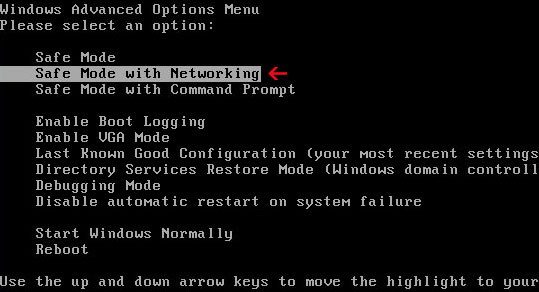


NOTE: Login as the same user you were previously logged in with in the normal Windows mode.
If you can't reboot your PC in Safe Mode with Networking, download SafeBootKeyRepair and run it. If the rogue program blocks it then download and run this file RenamedSBKRepair. Follow the prompts. Then reboot your PC in Safe Mode with Networking.

2.Download one of the following legitimate anti-malware applications and run a quick system scan. Don’t forget to update it first. All programs a free.


CleanUp Antivirus files and registry values:

Folders and files:
  • C:\Documents and Settings\All Users\Application Data\345d567
  • C:\Documents and Settings\All Users\Application Data\345d567\24.mof
  • C:\Documents and Settings\All Users\Application Data\345d567\mozcrt19.dll
  • C:\Documents and Settings\All Users\Application Data\345d567\SG345d.exe
  • C:\Documents and Settings\All Users\Application Data\345d567\SGD.ico
  • C:\Documents and Settings\All Users\Application Data\SGZIQYEXRD
  • C:\Documents and Settings\All Users\Application Data\SGZIQYEXRD\SGWNLED.cfg
  • %UserProfile%\Application Data\Security Guard
  • C:\Program Files\Mozilla Firefox\searchplugins\search.xml
Registry values:
  • HKEY_CURRENT_USER\Software\3
  • HKEY_CLASSES_ROOT\SG345d.DocHostUIHandler
  • HKEY_USERS\.DEFAULT\Software\Microsoft\Internet Explorer\SearchScopes "URL" = "http://findgala.com/?&uid=1002&q={searchTerms}"
  • HKEY_CURRENT_USER\Software\Classes\Software\Microsoft\Internet Explorer\SearchScopes "URL" = "http://findgala.com/?&uid=1002&q={searchTerms}"
  • HKEY_CURRENT_USER\Software\Microsoft\Internet Explorer "PRS" = "http://127.0.0.1:27777/?inj=%ORIGINAL%"
  • HKEY_CURRENT_USER\Software\Microsoft\Internet Explorer\Download "RunInvalidSignatures" = "1"
  • HKEY_CURRENT_USER\Software\Microsoft\Windows\CurrentVersion\Internet Settings\5.0\User Agent\Post Platform "layout/2.01002"
  • HKEY_CURRENT_USER\Software\Microsoft\Windows\CurrentVersion\Run "Security Guard"
  • HKEY_CLASSES_ROOT\Software\Microsoft\Internet Explorer\SearchScopes "URL" = "http://findgala.com/?&uid=1002&q={searchTerms}"

Share this information with other people:

Tuesday, March 16, 2010

How to remove "Attention! 22 threats found!" warning (Free removal)

"Attention! 22 threats found!" is a fake warning that comes from the rogue anti-virus program called Antivirus 7. The fake program may report more or less threats, but don't worry about that because all reported threats are false. Fake security alert is the first sign of malware infection. In this case, if you see Attention! 22 threats found! fake alert then your computer is infected with Antivirus 7 scareware (it's actually a trojan virus that pretends to be a legitimate antivirus program).

So, what you should do next? Well, first of all you should read Antivirus 7 removal instructions. Please note that stopping "Attention! 22 threats found!" fake alert alone won't solve your problem. Fake alert is a part of malware infection. Besides, there might be additionally installed malware on your computer that may come bundled with Antrivirus 7. If Antivirus 7 removal instructions fails then you will have to perform additional steps in order to clean your PC. If you have any questions, don't hesitate ans ask or just post a comment. Good luck and be safe!


Share this information with other people:

Monday, March 15, 2010

How to remove Worm.Win32.Netsky (Free removal)

Worm.Win32.Netsky is a fake infection, false system security threat. Another commonly reported fake infection is Win32.Netsky.Q. You may find some references of infections called W32.Netsky or Email-Worm.Win32.NetSky on the Internet. These infections are real, but please note that "Worm.Win32.Netsky" is not related to them. It's fake infection that appears on fake security warnings that usually come from fake (rogue) anti-virus programs.

This fake alert may come in various forms. It is used by newly created malware, so there are many new fake alerts every day that reports Worm.Win32.Netsky infection in compromised infections. Usually, fake security warning appears with the following title:

"Security alert
Security Warning!
Worm.Win32.Netsky detected on your machine"

And it may look like this fake warning in the image below.


If you area reading this article, then your computer is probably infected with trojans or rogue program that display fake Worm.Win32.Netsky infection. Thankfully, there is a way to remove this infection from your computer for free using legitimate anti-malware programs.

Also note that trojan viruses that display this fake infection my also change your desktop background and disable Windows system tools such as Task Manager and Registry Editor or even block antivirus programs. That's why you will have to end malicious process related to Worm.Win32.Netsky first. That would be: winlogon86.exe and winupdate86.exe. Of course, there might be other malicious processes too, but these are most common ones. Now, please follow the removal instructions below. If you have any questions, don't hesitate and ask or leave a comment if you have something valuable to add. Good luck and be safe!


Worm.Win32.Netsky removal instructions:


1. Download iexplore.exe (NOTE: iexplore.exe file is renamed HijackThis tool from TrendMicro).
Launch the iexplore.exe and click "Do a system scan only" button.
If you can't open iexplore.exe file then download explorer.scr and run it.

2. Search for such entries in the scan results:
F2 – REG:system.ini: Shell=Explorer.exe logon.exe
F2 – REG:system.ini: UserInit=C:\WINDOWS\system32\winlogon86.exe
O4 – HKLM\..\Run: [winupdate86.exe] C:\WINDOWS\system32\winupdate86.exe
Select all such entries and click once on the "Fix checked" button. Close HijackThis tool.

3. Download the file LSPFix.zip and extract it into a folder on your PC.
Launch LSPFix. Place a tick in the "I know what I'm doing".
In the KEEP box select winhelper86.dll and press ">>" button.
Press Finish>> button. Wait while LSPFix removes winhelper86.dll and displays a summary. Press OK.

4. Download one of the following legitimate anti-malware applications and run a quick system scan. Don’t forget to update it first. All programs a free.
NOTE1: if you can't run any of the above programs you must rename the installer of selected program before saving it on your PC. For example: if you choose MalwareBytes then you have to rename mbam-setup.exe to iexplore.exe, explorer.exe or any random name like test123.exe before saving it.

NOTE2: if you still can't run the renamed file then you need to change file extension too not only the name.
1. Go to "My Computer".
2. Select "Tools" from menu and click "Folder Options".
3. Select "View" tab and uncheck the checkbox labeled "Hide file extensions for known file types". Click OK.
4. Rename mbam-setup.exe to either test123.com or test123.pif
5. Double-click to run renamed file.


Worm.Win32.Netsky files and registry values:

Files:
  • C:\windows\system32\winhelper86.dll
  • C:\windows\system32\winupdate86.exe
  • C:\windows\system32\winlogon86.exe
  • C:\windows\system32\AVR10.exe
  • C:\windows\system32\critical_warning.html
Registry keys and values:
  • HKEY_LOCAL_MACHINE\SOFTWARE\Microsoft\Windows\CurrentVersion\Run\winupdate86.exe

Share this information with other people:

Saturday, March 13, 2010

Remove "Identity theft attempt detected" fake warning (Free removal)

"Warning! Identity theft attempt detected" is a fake security warning from the rogue anti-virus program called Antivirus7. It's a typical fake security alert. In this case it claims that your Antivirus 7 has detected an identity theft attempt from a remote computer. Obviously that's not true. It just wants to make you think that your computer is under attack and that you need to purchase Antivirus 7 scareware in order to protect yourself. If you see this "Warning! Identity theft attempt detected" or similar warnings on your PC then you are infected with malware. Please read Antivirus 7 removal instructions and remove this infection from your computer for free as soon as possible. Good luck and be safe!


Share this information with other people:

Remove "WARNING WINDOWS SECURITY CENTER!" alert ransomware (Free removal)

"WARNING WINDOWS SECURITY CENTER ! DANGEROUS TROJANS, KEYLOGGERS AND SPYWARES DETECTED IN YOUR COMPUTER !!!" is a fake warning (ransomware) that is used to promote the rogue antivirus program called Security Tool. The main goal of this malware is obvious - to make you think that your computer is infected with trojans, keyloggers and other spyware. The fake warning reads:
"WARNING WINDOWS SECURITY CENTER ! DANGEROUS TROJANS, KEYLOGGERS AND SPYWARES DETECTED IN YOUR COMPUTER !!!
For Security of your data computer is locked... To unlock your computer buy the antispyware software below and remove all viruses as soon as possible. In case trojans are not removed from your computer in 3 hours, all data in the computer will deleted. Enter the serial number you are given after buying the antispyware below and unlock your computer and clean the spywares"


Security Tool ransomware video: (thanks to rogueamp)


As you can see, this fake warning claims that you will lost all your data if you won't remove trojan viruses with Security Tool. Of course, that's not true. This is nothing more but a scam. Don't buy Security Tool. Otherwise you will simply lose your money. If you already bought it then you should contact your credit card company and dispute the charges. Enter any serial number with 12 or more characters to remove this ransomware from your screen. Then you should run a full system scan with legitimate anti-malware software to remove the infection. Read removal recommendations below.

Thanks to S!Ri h for the information. Original article http://siri-urz.blogspot.com/2010/03/security-tool-ransomware.html


Removal recommendation:

Download one of the following legitimate anti-malware applications and run a quick system scan. Don’t forget to update it first. All programs a free.
NOTE1: if you can't run any of the above programs you must rename the installer of selected program before saving it on your PC. For example: if you choose MalwareBytes then you have to rename mbam-setup.exe to iexplore.exe, explorer.exe or any random name like test123.exe before saving it.

NOTE2: if you still can't run the renamed file then you need to change file extension too not only the name.
1. Go to "My Computer".
2. Select "Tools" from menu and click "Folder Options".
3. Select "View" tab and uncheck the checkbox labeled "Hide file extensions for known file types". Click OK.
4. Rename mbam-setup.exe to either test123.com or test123.pif
5. Double-click to run renamed file.

Share this information with other people:

Friday, March 12, 2010

Browsersecurecheck.com scam (Free removal)

Browsersecurecheck.com is a misleading site classified as a browser hijacker. This browser hijacker promotes the fake anti-virus program called Antivirus 7. The rogue program spreads very fast and one of the main malicious sites used to promote Antivirus 7 is Browsersecurecheck.com. That's why you should avoid that site at any cost. If you were redirected to this bogus site from other malicious website or advertisement then you should leave it immediately.

Usually, users are being redirected to Browsersecurecheck.com/block.php. That page displays fake security warning "Warning! Visiting this site may harm your computer!". There are two options "Continue Unprotected" and "Get Security software". No matter which one you choose you will be redirected to the pay page of Antivirus 7 scareware.

However, if you see Browsersecurecheck.com's warnings constantly then your computer is probably infected with Antivirus 7 or trojans that promote this rogue program. One way or another you should remove system security threats as soon as possible. Please follow Antivirus 7 removal instructions and remove this virus from your computer upon detection. Good luck and be safe!


Share this information with other people:

Thursday, March 11, 2010

Remove Antivirus 7 fake antivirus program (Free removal)

Antivirus 7 is a fake anti-virus program. It reports false system security threats and displays fake warnings to make you think that your computer is infected with malicious software. Basically, it's typical scareware and it prompts you to pay for a full version of the program in order to remove supposedly found infections and to ensure full system protection. Don't purchase it! Otherwise, you probably won't get your money back. But if you already paid for Antivirus 7 then you should contact your credit card company immediately and dispute the charges.


If you are reading this bog post then your PC is probably infected with this virus. Thankfully, there is a way to remove Antivirus 7 for free. However, please note that you may have to use more than one program to completely remove this infection from your computer. Besides, Antivirus7 may come bundled with other malware and so may block legitimate antivirus and antispyware programs. In such case you will have to reboot your computer is Safe Mode with Networking and run free malware removal tool from there. Please read the removal instructions below.

Antivirus 7 malware also displays fake security warnings about identity theft attempts or newly detected virus. Some of the fake alerts you will probably see on your screen while you are infected:

"Resident Shield: New virus detected
Warning! New virus detected
Please click "Remove All" button to heal all infected files and protect your PC"


As a typical rogue program, Antivirus 7 comes from fake online scanners, fake sites, infected PDF files and malicious advertisements. Very often cyber criminals distribute their malicious software on well know websites too, such as Facebook, MySpace or Twitter. If you receive a message from person you don't know don't click on any links unless you are 100% sure that they won't redirect you to misleading. Good luck and be safe!


Antivirus 7 removal instructions (method #1):

1. (Proceed to step 2 if you your web browser is not hijacked) Open Internet Explorer. Go to: Tools->Manage Add-ons. Find and select UpdateExplorer.dll from the list of add-ons. Click "Disable" button and close Manager Add-ons windows. Close Internet Explorer and run it once again.
2. Download one of the following legitimate anti-malware applications and run a quick system scan. Don’t forget to update it first. All programs a free.
NOTE1: if you can't run any of the above programs you must rename the installer of selected program before saving it on your PC. For example: if you choose MalwareBytes then you have to rename mbam-setup.exe to iexplore.exe, explorer.exe or any random name like test123.exe before saving it.

NOTE2: if you still can't run the renamed file then you need to change file extension too not only the name.
1. Go to "My Computer".
2. Select "Tools" from menu and click "Folder Options".
3. Select "View" tab and uncheck the checkbox labeled "Hide file extensions for known file types". Click OK.
4. Rename mbam-setup.exe to either test123.com or test123.pif
5. Double-click to run renamed file.


Removing Antivirus 7 in Safe Mode with Networking (method #2):

1. Reboot your computer is "Safe Mode with Networking". As the computer is booting tap the "F8 key" continuously which should bring up the "Windows Advanced Options Menu" as shown below. Use your arrow keys to move to "Safe Mode with Networking" and press Enter key. Read more detailed instructions here: http://www.computerhope.com/issues/chsafe.htm


NOTE: Login as the same user you were previously logged in with in the normal Windows mode.
If you can't reboot your PC in Safe Mode with Networking, download SafeBootKeyRepair and run it. If the rogue program blocks it then download and run this file RenamedSBKRepair. Follow the prompts. Then reboot your PC in Safe Mode with Networking.

2.Download one of the following legitimate anti-malware applications and run a quick system scan. Don’t forget to update it first. All programs a free.

Antivirus 7 files and registry values:

Files:
  • C:\Documents and Settings\All Users\Start Menu\AV7
  • C:\Program Files\AV7
  • C:\Program Files\AV7\antivirus7.exe
  • C:\WINDOWS\SoftwareDistribution\DataStore\Logs\tmp.edb
  • C:\WINDOWS\system32\UpdateExplorer.dll
Registry values:
  • HKEY_CURRENT_USER\Software\EVA246
  • HKEY_CLASSES_ROOT\CLSID\{E2BFE352-A303-4EA8-88FE-CE35361D7E8B}
  • HKEY_LOCAL_MACHINE\SOFTWARE\Microsoft\Windows\CurrentVersion\Explorer\Browser Helper Objects\{E2BFE352-A303-4EA8-88FE-CE35361D7E8B}
  • HKEY_CURRENT_USER\Software\Microsoft\Windows\CurrentVersion\Run "AV7"
  • HKEY_LOCAL_MACHINE\SOFTWARE\Microsoft\Windows\CurrentVersion\Internet Settings\5.0\User Agent\Post Platform "WinNT-EVI 12.03.2010"
Share this information with other people: