Showing posts with label Rogue programs. Show all posts

Thursday, November 17, 2011

How to Remove AV Protection 2011 (Uninstall Guide)

AV Protection 2011 is a form of malware that tries to trick users into paying for the program to remove fictitious virus threats. Internet users face the challenge of distinguishing between legitimate and malicious software. Besides, fake anti-virus programs display truly convincing but unfortunately fraudulent security alerts in order to make you think that your computer is infected with spyware, keyloggers, trojans and other dangerous stuff. Such combination can easily trick unsuspecting users into purchasing completely bogus security product. Cyber criminals use numerous distribution methods to distribute AV Protection 2011 and other malicious software. Spamming and blackhat search engine optimization techniques are very popular but cyber crooks may also use exploit packs, fake virus scanners and social engineering to earn significant returns on the investment. Very often they use pay-per-install business model to monetize botnets' operations. So, as you can see, cyber criminals have everything required to set up and to maintain malware, including AV Protection 2011 and similar scareware. To remove AV Protection 2011 from your computer, please follow the removal instructions below.


When run, AV Protection 2011 blocks legitimate antivirus software and certain malware removal tools. What is more, it may lock down Windows functionality to protect itself from being removed. In conjunction with rootkits, very often TDSS or other sophisticated malware, this rogue antivirus can cause a lot of problems especially if you are not computer savvy. If you're having a hard time removing it, it's because your removal procedure is hopelessly flawed. By far the most easiest way to remove AV Protection 2011 is to use this debugged registration key 9992665263 and then scan your computer with anti-malware software. However, you can follow alternate removal methods described below as well. Just follow the removal instructions below very carefully. Most importantly, do not purchase it. And if it's too late, then call your credit card company and cancel the charges. That's probably the only way to get your money back. If you need assistance removing AV Protection 2011, please leave a comment below. Good luck and be safe online!

http://computertipsandguide.blogspot.com


AV Protection 2011 removal instructions:

1. First of all, download and run ZeroAccess/Sirefef/MAX++ removal tool. (works on 32-bit systems only! If you have 64-bit system, proceed to the next step)

2. Then use TDSSKiller.

3. And finally, download recommended anti-malware software (STOPzilla) to remove this virus from your computer.

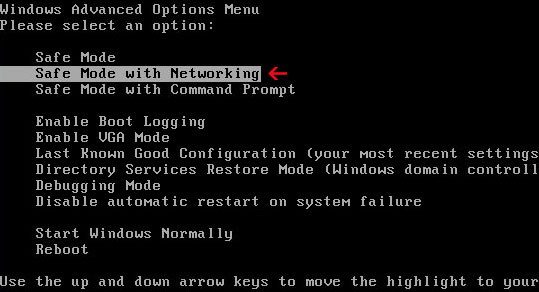
If you can't download it, please reboot your computer is "Safe Mode with Networking". As the computer is booting tap the "F8 key" continuously which should bring up the "Windows Advanced Options Menu" as shown below. Use your arrow keys to move to "Safe Mode with Networking" and press Enter key. Open Internet Explorer and download STOPzilla. Once finished, go back into Normal Mode and run it. That's It!

Read more detailed instructions here: http://www.computerhope.com/issues/chsafe.htm

NOTE: Login as the same user you were previously logged in with in the normal Windows mode.


Manual AV Protection 2011 removal guide:

1. Right-click on AV Protection 2011 icon and select Properties. Then select Shortcut tab.

The location of the malware is in the Target box.

2. In our case the malicious file was located in C:\Windows\System32 folder. Select the malicious file, rename it and change a file name extension.

Original file: TcS22bF3nGaQWKf.exe


Renamed file: TcS22bF3nGaQWKf.vir


3. Restart your computer. After a reboot, download free anti-malware software from the list below and run a full system scan.

4. First, use TDSSKiller. Then download recommended anti-malware software (STOPzilla) and run a full system scan.


Manual activation and AV Protection 2011 removal:

1. Choose to remove threats and manually activate the rogue program. Enter one of the following codes to activate AV Protection 2011.

9992665263
1148762586
1171249582
1186796371
1196121858
1225242171
1354156739
1579859198
1789847197

2. Download recommended anti-malware software (STOPzilla) and run a full system scan. This program will remove the virus from your computer.


Associated AV Protection 2011 files and registry values:

Files:
  • C:\WINDOWS\system32\AV Protection 2011v121.exe
  • %AppData%\dwme.exe
  • %AppData%\ldr.ini
  • %DesktopDir%\AV Protection 2011.lnk
  • %Programs%\AV Protection 2011\AV Protection 20112.lnk
  • %Programs%\AV Protection 2011
Registry values:
  • HKEY_LOCAL_MACHINE\SOFTWARE\Microsoft\Windows\CurrentVersion\Run "[SET OF RANDOM CHARACTERS]"
Share this information with your friends:

Tuesday, November 15, 2011

Remove "System Fix" (Uninstall Guide)

System Fix is a type of malware commonly known as rogueware that attempts to steal money from victims by luring them into paying to fix nonexistent system errors and threats. If you think that it does have some rudimentary PC repair software functionality then you are wrong. With such a generic name and Microsoft trademarks, System Fix tries to pass off as a legitimate computer repair program. However, it's nothing more but a scam. Rogue programs are considered one of the most prevalent and dangerous threats lurking on the Web today. The goal of cyber crooks is to profit from malicious software. Infected computer are widely used for malicious criminal activities such as spamming and distributing malware.

If this fake PC repair program took over your computer, there's a great chance it also installed more sophisticated malware, very often TDL3/4 rootkit or Rootkit.Boot.SST, to avoid antivirus detection and to block malware removal tools. Most rogues don't show suspicious behaviors, so antivirus companies have to focus on signatures. In a previous writeup, we examined how to remove a rogue program called Data Recovery. System Fix is from the same family of malware and it hasn't been updated recently. It's just another name, but the infection is 100% the same. We'll show you how to rid of it or at least disabled it long enough to remove it. To remove System Fix malware from your computer, please follow the removal instructions below.


Rogues share a number of commonalities:
  • blocks legitimate anti-malware software
  • displays fake hard drive pre-failure warnings and notifications
  • mimics genuine products
  • complete system scan is super fast and completely false
  • it proceeded to pretend to fix the critical problems it claimed to have found on a brand-new
  • installation of Windows
  • hides Windows icons and shortcuts to make you think that your hard drive is going to fail
Fake system errors:


Most rogue programs go beyond aggressive marketing to sell software that has no functionality. System Fix is a good example of such misleading software. Users, naturally worried about the supposed critical system error, will often buy the license. Don't blame yourself if you fell for this scam. Cyber crooks adopted scareware on a massive scale and about 2-3% of victims will probably buy it. Instead of blaming yourself, call your credit card company and dispute the charges. Or even better, cancel your credit card and create a new one. Cyber cooks may use stolen credit card details again. Last, but not least, install solid antivirus software and keep it up to date. And next time, do a research before paying for software you didn't go looking for it. Good luck and be safe online!

Before continuing with the removal instructions, you can use cracked registration key and fake email to register System Fix. This will allow you to download and run any malware removal tool you like and restore hidden files and shortcuts.

mail@mail.com
1203978628012489708290478989147


http://computertipsandguide.blogspot.com

Important! First of all, please follow the removal instructions outlined on this page. Full write-up and manual removal guide can be found here: http://computertipsandguide.blogspot.com/2011/09/how-to-remove-data-recovery-uninstall.html (works with System Fix malware too). Follow it in case the removal guide below didn't work out. Good luck!


System Fix removal instructions:

1. Open Internet Explorer. If the shortcut is hidden, pelase Select Run... from the Start Menu or just hit the key combination CTRL+R on your keyboard. In the Open: field, enter iexplore.exe and hit Enter or click OK.


2. Download and run this utility to restore missing icons and shortcuts.

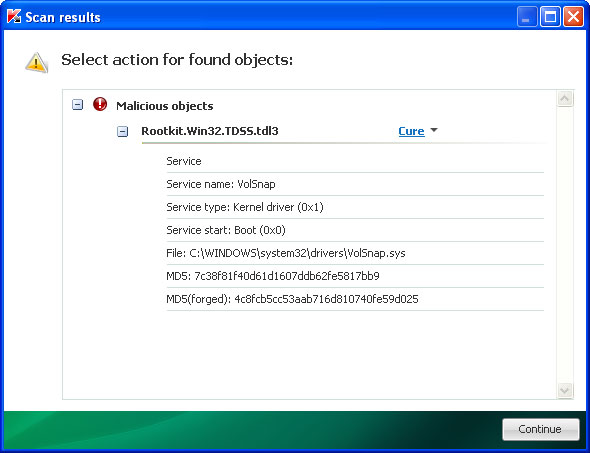
3. Now, please download TDSSKiller and run a system scan. Remove found rootkits as shown in the image below. Reboot your computer if required.


Please note that your computer might be rootkit free, not all version of System Fix comes bundled with rootkits. Don't worry if TDSSKiller didn't find a rootkit.

4. Finally, download and run recommend anti-malware software (STOPzilla) to remove this virus from your computer.

NOTE: With all of these tools, if running Windows 7 or Vista they MUST be run as Auto Infoistrator. Launch the program and follow the prompts. Don't forget to update the installed program before scanning.

5. The virus should be gone. If certain icons and shortcuts are still missing, please use restoresm.zip.

Share this information with your friends:

Wednesday, November 9, 2011

How to Remove AV Security 2012 (Uninstall Guide)

AV Security 2012 is a rogue anti-virus program that displays fraudulent security alerts in attempt to dupe you into paying for a full version of the program. Rogue AV is evolved into the general term "malware". It is relatively easy to clean up if the extras don't come along for the ride. Infection methods are truly common: social engineering, drive-by-download attacks, websites designed to install rogue AVs, and botnets. The most easiest way to infect a computer is to convince a user voluntarily install the fake antivirus. And unfortunately it works, we are getting a ton of repair jobs regarding AV Security 2012 and similar scareware. No antispyware program is 100% effective, so you should really do some research on unknown software before you start the installation process. If your computer is infected with this rogue antivirus, please follow the steps in the removal guide below.

When run, AV Security 2012 pretends to scan your computer for malicious software. It may lock down Windows functionality to prevent accessing system utilities and legitimate anti-malware software. Although, the rogue program itself cannot delete your files or steal login credentials, we have observed that it may contain backdoor capabilities, enabling software to download additional malware onto your computer or install spyware modules. Very often, AV Security 2012 comes bundled with a rootkit from the TDSS family. Interestingly, this rootkit is able to block anti-virus products and install click fraud modules. It's not a coincidence that users infected with fake AVs are redirected to malicious and spammy websites every time you click on a Google or Bing search results. Cyber crooks act to maximize profits.

Here's what the rogue antivirus called AV Security 2012 looks like.


A couple of fake security alerts you may see when this rogue antivirus is active.


If you're having a hard time removing it, it's because your removal procedure is hopelessly flawed. Just don't purchase AV Security 2012 and do not wait until your computer becomes a part of a botnet. By far the most easiest way to get rid of System Security 2012 is to use the debugged activation code 9992665263 and run anti-malware software. However, you can follow alternate removal methods described below as well. Manual removal might be somehow more complicated but it works. Just follow the removal instructions below very carefully. If you need any extra assistance removing AV Security 2012, please leave a comment below. Good luck and be safe online!

http://computertipsandguide.blogspot.com


AV Security 2012 removal instructions:

1. First of all, download and run ZeroAccess/Sirefef/MAX++ removal tool. (works on 32-bit systems only! If you have 64-bit system, proceed to the next step)

2. Then use TDSSKiller.

3. And finally, download recommended anti-malware software (STOPzilla) to remove this virus from your computer.

If you can't download it, please reboot your computer is "Safe Mode with Networking". As the computer is booting tap the "F8 key" continuously which should bring up the "Windows Advanced Options Menu" as shown below. Use your arrow keys to move to "Safe Mode with Networking" and press Enter key. Open Internet Explorer and download STOPzilla. Once finished, go back into Normal Mode and run it. That's It!

Read more detailed instructions here: http://www.computerhope.com/issues/chsafe.htm


NOTE: Login as the same user you were previously logged in with in the normal Windows mode.


Manual AV Security 2012 removal guide:

1. Right-click on AV Security 2012 icon and select Properties. Then select Shortcut tab.

The location of the malware is in the Target box.

2. In our case the malicious file was located in C:\Windows\System32 folder. Select the malicious file, rename it and change a file name extension.

Original file: TcS22bF3nGaQWKf.exe


Renamed file: TcS22bF3nGaQWKf.vir


3. Restart your computer. After a reboot, download free anti-malware software from the list below and run a full system scan.

4. Download recommended anti-malware software (STOPzilla) and run a full system scan.

NOTE: in some cases the rogue program may block anti-malware software. Before saving the selected program onto your computer, you may have to rename the installer to iexplore.exe or winlogon.exe With all of these tools, if running Windows 7 or Vista they MUST be run as Auto Infoistrator. Launch the program and follow the prompts. Don't forget to update the installed program before scanning.

5. Remove the TDSS/ZeroAccess rootkit (if exists). Please follow this removal guide: http://computertipsandguide.blogspot.com/2010/03/tdss-alureon-tidserv-tdl3-removal.html


Manual activation and AV Security 2012 removal:

1. Choose to remove threats and manually activate the rogue program. Enter one of the following codes to activate System Security 2012.

9992665263
1148762586
1171249582
1186796371
1196121858
1225242171
1354156739
1579859198
1789847197

2. Download recommended anti-malware software (STOPzilla) and run a full system scan. This program will remove the virus from your computer.

3. Remove the TDSS/ZeroAccess rootkit (if exists). Please follow this removal guide: http://computertipsandguide.blogspot.com/2010/03/tdss-alureon-tidserv-tdl3-removal.html


Associated AV Security 2012 files and registry values:

Files:
  • C:\WINDOWS\system32\[SET OF RANDOM CHARACTERS].exe
  • %AppData%\jGteKoRdoSdLrJs\AV Security 2012.ico
  • %AppData%\ldr.ini
  • %DesktopDir%\System Security 2012.lnk
  • %Programs%\AV Security 2012\AV Security 2012.lnk
  • %Programs%AV Security 2012
Registry values:
  • HKEY_LOCAL_MACHINE\SOFTWARE\Microsoft\Windows\CurrentVersion\Run "[SET OF RANDOM CHARACTERS]"
Share this information with your friends:

Sunday, November 6, 2011

Remove "Privacy Protection" (Uninstall Guide)

Privacy Protection is a rogue antivirus program which allegedly generates false malware warnings saying that your computer is infected with a variety of viruses and spyware. In a common scenario, victim's computer screen is taken over by very annoying security alerts and 'balloon' notifications. The rogue program blocks legitimate security products as well as certain system utilities to evade signature and heuristic detection. Finally, the fake AV says that you need to by the security software in order to remove found viruses and to protect your computer against other sophisticated malware.

Many people have already fell for the ruse by giving their credit card information to cyber crooks. Although, Privacy Protection is not the most sophisticated malware out there, it may cause millions of dollars in damages. The Privacy Protection malware family, which spreads via infected adult websites as well as keygens and file storage services, has been in development for over two years now. The malware is currently in its fifth or sixth version, can't remember exactly because they are very common but the propagation mechanisms wasn't updated, that's for sure. Anyway, if your computer is infected with this virus, please follow the steps in the removal guide below. Privacy Protection designed to protect is a total scam, do not pay for it!

Here's what the rogue antivirus looks like.


A couple of fake security alerts you may see when this rogue antivirus is active.


Privacy Protection may claim that your web browser or any other problem really, was infected by some form of malware that may send your sensitive information to a remove computer or make your computer unusable, e.g., W32/Blaster.Worm.
iexplore.exe can not start
File iexplore.exe is infected by W32/Blaster.worm
Please activate Malware Protection to protect your computer.


It's worth mentioning, that Privacy Protection may come bundled with the TDSS rootkit. This malware has the ability to download an array of malicious programs, including spyware, adware, and click fraud bots. You can remove the rogue program manually, but not the rootkit I'm afraid. Removing the rootkit is very important; otherwise it will re-download malicious programs onto your computer after a couple of hours and you will experience system slow downs and fake alerts again. So, to remove Privacy Protection and associated malware from your computer, please follow the removal instructions below. If you have any questions or you need help removing this virus, please leave a comment below. Good luck and be safe online!

http://computertipsandguide.blogspot.com


Manual Privacy Protection removal instructions:

1. Right click on the "Privacy Protection" icon, click Properties in the drop-down menu, then click the Shortcut tab.


The location of the malware is in the Target box.


NOTE: by default, Application Data folder is hidden. Malware files are hidden as well. To see hidden files and folders, please read Show Hidden Files and Folders in Windows.

Under the Hidden files and folders section, click Show hidden files and folders, and remove the checkmark from the checkbox labeled:

- Hide extensions for known file types
- Hide protected operating system files

Click OK to save the changes. Now you will be able to see all files and folders in the Application Data/Program Data directory.

3. Rename malicious process.

File location, Windows XP:
C:\Documents and Settings\All Users\Application Data\privacy.exe

File location, Windows Vista/7:
C:\ProgramData\privacy.exe


Rename privacy.exe to virus.exe or whatever you like. For example:


4. Restart your computer. The malware should be inactive after the restart.

5. Open Internet Explorer and download TDSSKiller. This malware usually (but not always) comes bundled with TDSS rootkit. Removing this rootkit from your computer is very important (if exists). Run TDSSKiller and remove the rootkit.


6. And finally, download and run recommend anti-malware software (STOPzilla) to remove Privacy Protection and associated malware from your computer. That's it!


Privacy Protection removal instructions in Safe Mode with Networking:

1. Please reboot your computer is "Safe Mode with Networking". As the computer is booting tap the "F8 key" continuously which should bring up the "Windows Advanced Options Menu" as shown below. Use your arrow keys to move to "Safe Mode with Networking" and press Enter key.

Read more detailed instructions here: http://www.computerhope.com/issues/chsafe.htm


NOTE: Login as the same user you were previously logged in with in the normal Windows mode.

2. Open Internet Explorer and download TDSSKiller. Run the utility.

3. Then download recommended anti-malware software (STOPzilla). Once finished, reboot your computer (choose Normal Mode) and run STOPzilla to remove the virus from your computer. Remember! DO NOT run anti-malware software in Safe Mode with Networking.


Manual activation and Privacy Protection removal:

1. Choose to remove threats and manually activate the rogue program. Enter one of the following code Y76REW-T65FD5-U7VBF5A (and any email) to activate Privacy Protection.

2. Download recommended anti-malware software (STOPzilla) and run a full system scan. This program will remove the virus from your computer.

NOTE: in some cases the rogue program may block anti-malware software. Before saving the selected program onto your computer, you may have to rename the installer to iexplore.exe or winlogon.exe With all of these tools, if running Windows 7 or Vista they MUST be run as Auto Infoistrator. Launch the program and follow the prompts. Don't forget to update the installed program before scanning.

3. Remove the TDSS/ZeroAccess rootkit (if exists). Please follow this removal guide: http://computertipsandguide.blogspot.com/2010/03/tdss-alureon-tidserv-tdl3-removal.html


Privacy Protection associated files and registry values:

Files:
  • C:\Documents and Settings\All Users\Application Data\privacy.exe
Registry values:
  • HKEY_CURRENT_USER\Software\Microsoft\Windows\CurrentVersion\Run "Privacy Protection"
Share this information with other people:

Friday, November 4, 2011

How to Remove System Security 2012 (Uninstall Guide)

System Security 2012 is a phony anti-virus program, anyone following the internet security space has no doubt recognized this fraud. The tactic is common. Trojan masquerades as antivirus software, detects a bunch of critical infections, system vulnerabilities or zero-day attacks to scare you into believing that your computer has been infected with malicious code. Growing complaints from Windows users raised awareness of scareware, but unfortunately System Security 2012 and similar malware outbreak continues. Rogue antivirus products use social engineering to gain access to the system. For example, this rogue AV may masquerade as a custom flash player update package (we found it on a fake youtube web page). Web drive-by attacks are a subset of this attack vector when simply visiting an infected website is enough to trigger web browser vulnerabilities and as a result allow malicious code to be executed.

Vulnerabilities can be patched, but the problem is that users can be tricked into installing malware on their machines. It is always a good idea to to do some research on unknown software before you start the installation process. I bet you won't find a single positive review about System Security 2012. If you feel you were deceived when you installed a program you need to uninstall it as soon as you can. The best way to remove System Security 2012 is to scan your computer with at least one, and ideally a few, anti-malware products. We don't recommend uninstalling this fake antivirus manually, because very often it comes bundled with rootkits. Rootkit is a very sophisticated piece of malicious code that injects system files, blocks legitimate security products and downloads additional malware onto the infected computer. You can't remove rootkits manually. To remove System Security 2012 and associated malware from your computer, please follow the removal instructions below.

Last, but not least, System Security 2012 has been regarded and low system security threat. It can't delete your files, steal login credentials, credit card numbers, etc. It may however, slow down your computer a little. Just don't purchase this bogus security products. If you already did, please contact your credit card company and dispute the charges. Good luck and be safe online!

Here's what the rogue antivirus called System Security 2012 looks like.


A couple of fake security alerts you may see when this rogue antivirus is active.


By far the most easiest way to get rid of System Security 2012 is to use the debugged activation code 9992665263 and run anti-malware software.

http://computertipsandguide.blogspot.com


System Security 2012 removal instructions:

1. First of all, download and run ZeroAccess/Sirefef/MAX++ removal tool. (works on 32-bit systems only! If you have 64-bit system, proceed to the next step)

2. Then use TDSSKiller.

3. And finally, download recommended anti-malware software (STOPzilla) to remove this virus from your computer.

NOTE: in some cases the rogue program may block anti-malware software. Before saving the selected program onto your computer, you may have to rename the installer to iexplore.exe or winlogon.exe With all of these tools, if running Windows 7 or Vista they MUST be run as Auto Infoistrator. Launch the program and follow the prompts. Don't forget to update the installed program before scanning.

If you can't download it, please reboot your computer is "Safe Mode with Networking". As the computer is booting tap the "F8 key" continuously which should bring up the "Windows Advanced Options Menu" as shown below. Use your arrow keys to move to "Safe Mode with Networking" and press Enter key. Open Internet Explorer and download STOPzilla. Once finished, go back into Normal Mode and run it. That's It!

Read more detailed instructions here: http://www.computerhope.com/issues/chsafe.htm


NOTE: Login as the same user you were previously logged in with in the normal Windows mode.


Manual System Security 2012 removal guide:

1. Right-click on System Security 2012 icon and select Properties. Then select Shortcut tab.

The location of the malware is in the Target box.

2. In our case the malicious file was located in C:\Windows\System32 folder. Select the malicious file, rename it and change a file name extension.

Original file: TcS22bF3nGaQWKf.exe


Renamed file: TcS22bF3nGaQWKf.vir


3. Restart your computer. After a reboot, download free anti-malware software from the list below and run a full system scan.

4. Download recommended anti-malware software (STOPzilla) and run a full system scan.

NOTE: in some cases the rogue program may block anti-malware software. Before saving the selected program onto your computer, you may have to rename the installer to iexplore.exe or winlogon.exe With all of these tools, if running Windows 7 or Vista they MUST be run as Auto Infoistrator. Launch the program and follow the prompts. Don't forget to update the installed program before scanning.

5. Remove the TDSS/ZeroAccess rootkit (if exists). Please follow this removal guide: http://computertipsandguide.blogspot.com/2010/03/tdss-alureon-tidserv-tdl3-removal.html


Manual activation and System Security 2012 removal:

1. Choose to remove threats and manually activate the rogue program. Enter one of the following codes to activate System Security 2012.

9992665263
1148762586
1171249582
1186796371
1196121858
1225242171
1354156739
1579859198
1789847197

2. Download recommended anti-malware software (STOPzilla) and run a full system scan. This program will remove the virus from your computer.

NOTE: in some cases the rogue program may block anti-malware software. Before saving the selected program onto your computer, you may have to rename the installer to iexplore.exe or winlogon.exe With all of these tools, if running Windows 7 or Vista they MUST be run as Auto Infoistrator. Launch the program and follow the prompts. Don't forget to update the installed program before scanning.

3. Remove the TDSS/ZeroAccess rootkit (if exists). Please follow this removal guide: http://computertipsandguide.blogspot.com/2010/03/tdss-alureon-tidserv-tdl3-removal.html


Associated System Security 2012 files and registry values:

Files:
  • C:\WINDOWS\system32\[SET OF RANDOM CHARACTERS].exe
  • %AppData%\hkRdkTdkFrGrPhT\System Security 2012.ico
  • %AppData%\ldr.ini
  • %DesktopDir%\System Security 2012.lnk
  • %Programs%\System Security 2012\System Security 2012.lnk
  • %Programs%\System Security 2012
Registry values:
  • HKEY_LOCAL_MACHINE\SOFTWARE\Microsoft\Windows\CurrentVersion\Run "[SET OF RANDOM CHARACTERS]"
Share this information with your friends:

Sunday, October 23, 2011

How to Remove System Security 2011 (Uninstall Guide)

System Security 2011 is scareware (a form of scam) that tries to frighten you into purchasing worthless anti-virus product. Don't be fooled! It poses as a legitimate security product, displays a bunch of bogus security alerts, and claims that it's necessary to remove critical malware infections from your computer (which do not even exist). To identify fake antivirus product is pretty simple, however, if that's the first time you've got infected by fake AV you may not recognize this scam right away. Online promotions for fake antivirus products has decreased recently, however, System Security 2011and similar scareware still proliferate across the Internet. So, what should you do if your computer got infected with this malware? First of all, take a deep breath and remain calm. Fake AVs are not so dangerous but very annoying. They can't delete your files, monitor financial transactions, steal Facebook password, etc.

The motivation for malware creators is profit. Do not pay for System Security 2011. If you've already bought it, please contact your credit card company and dispute the charges. You should also consider closing your current credit card and creating a new one. Cyber crooks may sell your credit card information on the underground forums. And finally, please follow the removal instructions below to remove System Security 2011 and associated malware from your computer. It's worth mentioning that System Security 2011 may come bundled with a rootkit. Rootkit is a are very sophisticated malware and may block legitimate anti-malware products. It is wise to run a rootkit removal tool before using anti-malware or anti-virus scanner. Hopefully, I made it a bit clear. Now, as you know what's going on, please follow the steps in the removal guide below very carefully. Especially the alternate manual removal guide, if you choose to remove this virus manually. Last, but not least, if you need any help, please leave a comment below. Good luck and be safe online!

Here's what the rogue antivirus called System Security 2011 looks like. Unique design, looks like an iPad to me :)


A couple of fake security alerts you may see when this rogue antivirus is active.


By far the most easiest way to get rid of System Security 2011 is to use the debugged activation code 9992665263 and run anti-malware software.

http://computertipsandguide.blogspot.com


System Security 2011 removal instructions:

1. First of all, download and run ZeroAccess/Sirefef/MAX++ removal tool. (works on 32-bit systems only!)

2. Then use TDSSKiller.

3. And finally, download recommended anti-malware software (STOPzilla) to remove this virus from your computer.

NOTE: in some cases the rogue program may block anti-malware software. Before saving the selected program onto your computer, you may have to rename the installer to iexplore.exe or winlogon.exe With all of these tools, if running Windows 7 or Vista they MUST be run as Auto Infoistrator. Launch the program and follow the prompts. Don't forget to update the installed program before scanning.

If you can't download it, please reboot your computer is "Safe Mode with Networking". As the computer is booting tap the "F8 key" continuously which should bring up the "Windows Advanced Options Menu" as shown below. Use your arrow keys to move to "Safe Mode with Networking" and press Enter key. Open Internet Explorer and download STOPzilla. Once finished, go back into Normal Mode and run it. That's It!

Read more detailed instructions here: http://www.computerhope.com/issues/chsafe.htm


NOTE: Login as the same user you were previously logged in with in the normal Windows mode.


Manual System Security 2011 removal guide:

1. Right-click on System Security 2011 icon and select Properties. Then select Shortcut tab.

The location of the malware is in the Target box.

2. In our case the malicious file was located in C:\Windows\System32 folder. Select the malicious file, rename it and change a file name extension.

Original file: TcS22bF3nGaQWKf.exe


Renamed file: TcS22bF3nGaQWKf.vir


3. Restart your computer. After a reboot, download free anti-malware software from the list below and run a full system scan.

4. Download recommended anti-malware software (STOPzilla) and run a full system scan.

NOTE: in some cases the rogue program may block anti-malware software. Before saving the selected program onto your computer, you may have to rename the installer to iexplore.exe or winlogon.exe With all of these tools, if running Windows 7 or Vista they MUST be run as Auto Infoistrator. Launch the program and follow the prompts. Don't forget to update the installed program before scanning.

5. Remove the TDSS/ZeroAccess rootkit (if exists). Please follow this removal guide: http://computertipsandguide.blogspot.com/2010/03/tdss-alureon-tidserv-tdl3-removal.html


Manual activation and System Security 2011 removal:

1. Choose to remove threats and manually activate the rogue program. Enter one of the following codes to activate System Security 2011.

9992665263
1148762586
1171249582
1186796371
1196121858
1225242171
1354156739
1579859198
1789847197

2. Download recommended anti-malware software (STOPzilla) and run a full system scan. This program will remove the virus from your computer.

NOTE: in some cases the rogue program may block anti-malware software. Before saving the selected program onto your computer, you may have to rename the installer to iexplore.exe or winlogon.exe With all of these tools, if running Windows 7 or Vista they MUST be run as Auto Infoistrator. Launch the program and follow the prompts. Don't forget to update the installed program before scanning.

3. Remove the TDSS/ZeroAccess rootkit (if exists). Please follow this removal guide: http://computertipsandguide.blogspot.com/2010/03/tdss-alureon-tidserv-tdl3-removal.html


Associated System Security 2011 files and registry values:

Files:
  • C:\WINDOWS\system32\[SET OF RANDOM CHARACTERS].exe
  • C:\Documents and Settings\[UserName]\Application Data\csrss.exe
  • C:\Documents and Settings\[UserName]\Application Data\hTrkd58DeORldrQSystem Security 2011.ico
  • C:\Documents and Settings\[UserName]\Application Data\Microsoft\csrss.exe
  • C:\Documents and Settings\[UserName]\Desktop\System Security 2011.lnk
  • C:\Documents and Settings\[UserName]\Local Settings\Temp\[SET OF RANDOM CHARACTERS].tmp
  • C:\Documents and Settings\[UserName]\Start Menu\Programs\System Security 2011\System Security 2011.lnk
Registry values:
  • HKEY_LOCAL_MACHINE\SOFTWARE\Microsoft\Windows\CurrentVersion\Run "[SET OF RANDOM CHARACTERS]"
Share this information with your friends:

Wednesday, October 19, 2011

How to Remove AV Protection Online (Uninstall Guide)

AV Protection Online is a fake anti-virus program that tries to deceive you into paying for software that doesn't do what is advertised. It's quite difficult to document all rogue antivirus programs but they usually share common characteristics: misleading pop-ups suggesting your computer has been infected and fake computer scans. AV Protection Online reports the same infections on every single infected computer. It floods infected computer with numerous clearly fake security alerts and balloon pop-ups claiming that AV Protection Online has found infected files and detected Zeus keyloggers activities. If you believe that you have this virus on your computer, you should follow the steps in the removal instructions below.

AV Protection Online scareware is rampant on the Internet. Such malware is usually promoted through the use of Trojans and other malicious software. Trojans masquerade as a legitimate applications, usually Flash players, Windows updates, codec packs, etc. Trojans then request files from the internet and install rogue security product on infected machine. On the other hand, cyber criminals use sophisticated social engineering attacks to distribute malicious code that at a first glance may appear legitimate. Is AV Protection Online a security risk? Yes, it is. Especially if it comes bundled with rootkits and trojans with keyloggin modules. AV Protection Online interest in financial transactions.


AV Protection Online may block legitimate security products and Windows utilities. The eradication of rogue AVs combined with Trojans requires advanced knowledge of the most recent methods and techniques for computer cleansing. Although, you can remove the the rogue program manually, we recommend you to use anti-malware software instead. Oh, and by the way, this virus may display online stores selling ebooks and audio books, don't fall for a scam like this. If you have already purchased AV Protection Online, you should contact your credit card company and dispute the charges. To remove AV Protection Online, please follow the removal instructions below. Last, but not least, the only recommended method of protecting your PC is to have installed fully functioning antivirus software with the latest virus definitions. If you have any questions about virus or computer security in general, please leave a comment below or just email us. Good luck and be safe online!

http://computertipsandguide.blogspot.com


AV Protection Online removal instructions:

1. Download recommended anti-malware software (STOPzilla) to remove this virus from your computer.

NOTE: in some cases the rogue program may block anti-malware software. Before saving the selected program onto your computer, you may have to rename the installer to iexplore.exe or winlogon.exe With all of these tools, if running Windows 7 or Vista they MUST be run as Auto Infoistrator. Launch the program and follow the prompts. Don't forget to update the installed program before scanning.

If you can't download it, please reboot your computer is "Safe Mode with Networking". As the computer is booting tap the "F8 key" continuously which should bring up the "Windows Advanced Options Menu" as shown below. Use your arrow keys to move to "Safe Mode with Networking" and press Enter key. Open Internet Explorer and download STOPzilla. Once finished, go back into Normal Mode and run it. That's It!

Read more detailed instructions here: http://www.computerhope.com/issues/chsafe.htm


NOTE: Login as the same user you were previously logged in with in the normal Windows mode.


Manual AV Protection Online removal guide:

1. Right-click on AV Protection Online icon and select Properties. Then select Shortcut tab.

The location of the malware is in the Target box.

2. In our case the malicious file was located in C:\Windows\System32 folder. Select the malicious file, rename it and change a file name extension.

Original file: TcS22bF3nGaQWKf.exe


Renamed file: TcS22bF3nGaQWKf.vir


3. Restart your computer. After a reboot, download free anti-malware software from the list below and run a full system scan.

4. Download recommended anti-malware software (STOPzilla) and run a full system scan.

NOTE: in some cases the rogue program may block anti-malware software. Before saving the selected program onto your computer, you may have to rename the installer to iexplore.exe or winlogon.exe With all of these tools, if running Windows 7 or Vista they MUST be run as Auto Infoistrator. Launch the program and follow the prompts. Don't forget to update the installed program before scanning.

5. Remove the TDSS/ZeroAccess rootkit (if exists). Please follow this removal guide: http://computertipsandguide.blogspot.com/2010/03/tdss-alureon-tidserv-tdl3-removal.html


Manual activation and AV Protection Online removal:

1. Choose to remove threats and manually activate the rogue program. Enter one of the following codes to activate AV Protection Online.

9992665263
1148762586
1171249582
1186796371
1196121858
1225242171
1354156739
1579859198
1789847197

2. Download recommended anti-malware software (STOPzilla) and run a full system scan. This program will remove the virus from your computer.

NOTE: in some cases the rogue program may block anti-malware software. Before saving the selected program onto your computer, you may have to rename the installer to iexplore.exe or winlogon.exe With all of these tools, if running Windows 7 or Vista they MUST be run as Auto Infoistrator. Launch the program and follow the prompts. Don't forget to update the installed program before scanning.

3. Remove the TDSS/ZeroAccess rootkit (if exists). Please follow this removal guide: http://computertipsandguide.blogspot.com/2010/03/tdss-alureon-tidserv-tdl3-removal.html


Associated AV Protection Online files and registry values:

Files:
  • C:\WINDOWS\system32\[SET OF RANDOM CHARACTERS].exe
  • C:\Documents and Settings\[UserName]\Application Data\csrss.exe
  • C:\Documents and Settings\[UserName]\Application Data\hTrkd58DeORldrQAV Protection Online.ico
  • C:\Documents and Settings\[UserName]\Application Data\Microsoft\csrss.exe
  • C:\Documents and Settings\[UserName]\Desktop\AV Protection Online.lnk
  • C:\Documents and Settings\[UserName]\Local Settings\Temp\[SET OF RANDOM CHARACTERS].tmp
  • C:\Documents and Settings\[UserName]\Start Menu\Programs\AV Protection Online\AV Protection Online.lnk
Registry values:
  • HKEY_LOCAL_MACHINE\SOFTWARE\Microsoft\Windows\CurrentVersion\Run "[SET OF RANDOM CHARACTERS]"
Share this information with your friends:

Thursday, October 13, 2011

How to Remove System Restore (Rogue Software)

"System Restore" is a rogue Windows registry cleaner and HDD repair program that claims to fix common cause of Windows crashes and error messages (please see the image below). The name of this malicious software is truly misleading. As you probably know, there's a valuable and genuine Windows utility called System Restore. It solves major Windows problems and restores Windows system files while the fake one reports non-existent system errors and HDD failures. System Restore (fake) is from the same family as Data Recovery malware. If your computer is infected with System Restore malware, please refer to the following web page for specific removal instructions for this type of malicious software: http://computertipsandguide.blogspot.com/2011/09/how-to-remove-data-recovery-uninstall.html. You can read the rest of the write-up on that web page too. If you have problems removing System Restore, please leave a comment below. We will be more than happy to help you find the appropriate removal method. Good luck and be safe online!


Before continuing with the removal instructions, you can use cracked registration key and fake email to register the program. This will allow you to download and run any malware removal tool you like and restore hidden files and shortcuts.

any@email.com
1203978628012489708290478989147


http://computertipsandguide.blogspot.com


Share this information with other people:

Monday, October 10, 2011

How to Remove Cloud Protection (Uninstall Guide)

Cloud Protection is yet another rogue anti-virus product shaped like an iPhone or maybe more like an iPad just right after Jobs's death. I've just received an email from one of our readers saying just how terrible people cyber criminals can be, it's just sick, wrong. Just a few days ago they released Guard Online malware and now there's an exact copy of this malware attempting to lure people into paying for completely useless security product. As we said before, Cloud Protection can not protect your computer from hackers, viruses, scams, and other security threats. Just because it looks nice doesn't mean anything. It can't remove viruses, spyware and other malicious software, so don't even think about purchasing it. Fake AVs continue to be more prevalent than any other type of virus trying to lure people into obtain credit card details. If your computer is infected with Cloud Protection, please follow the steps in the removal guide below.


OK, so, just like the previous version of this scareware, Cloud Protection will actually drop a rootkit onto your computer. It's the ZeroAccess rootkit. This rootkit is being distributed very actively, thankfully, there at least a couple of tools that can handle this very sophisticated malware. You can use either TDSSKiller or ZeroAceess removal tool by Webroot. Both are completely free, except the the second one does't work on 64-bit systems. Anyway, to remove Cloud Protection from your computer, please follow the removal instructions below. And one more thing, if you choose to remove this virus manually, you should still run a full system scan with anti-malware tool and TDSSKiller. If you have any questions, please leave a comment below. Good luck and be safe online!

http://computertipsandguide.blogspot.com


Cloud Protection removal instructions:

1. Download recommended anti-malware software (STOPzilla) to remove this virus from your computer.

NOTE: in some cases the rogue program may block anti-malware software. Before saving the selected program onto your computer, you may have to rename the installer to iexplore.exe or winlogon.exe With all of these tools, if running Windows 7 or Vista they MUST be run as Auto Infoistrator. Launch the program and follow the prompts. Don't forget to update the installed program before scanning.

If you can't download it, please reboot your computer is "Safe Mode with Networking". As the computer is booting tap the "F8 key" continuously which should bring up the "Windows Advanced Options Menu" as shown below. Use your arrow keys to move to "Safe Mode with Networking" and press Enter key. Open Internet Explorer and download STOPzilla. Once finished, go back into Normal Mode and run it. That's It!

Read more detailed instructions here: http://www.computerhope.com/issues/chsafe.htm


NOTE: Login as the same user you were previously logged in with in the normal Windows mode.

2. Remove the TDSS/ZeroAccess rootkit (if exists). Please follow this removal guide: http://computertipsandguide.blogspot.com/2010/03/tdss-alureon-tidserv-tdl3-removal.html


Manual Cloud Protection removal guide:

1. Right-click on Guard Online icon and select Properties. Then select Shortcut tab.

The location of the malware is in the Target box.

2. In our case the malicious file was located in C:\Windows\System32 folder. Select the malicious file, rename it and change a file name extension.

Original file: TcS22bF3nGaQWKf.exe


Renamed file: TcS22bF3nGaQWKf.vir


3. Restart your computer. After a reboot, download free anti-malware software from the list below and run a full system scan.

4. Download recommended anti-malware software (STOPzilla) and run a full system scan.

NOTE: in some cases the rogue program may block anti-malware software. Before saving the selected program onto your computer, you may have to rename the installer to iexplore.exe or winlogon.exe With all of these tools, if running Windows 7 or Vista they MUST be run as Auto Infoistrator. Launch the program and follow the prompts. Don't forget to update the installed program before scanning.

5. Remove the TDSS/ZeroAccess rootkit (if exists). Please follow this removal guide: http://computertipsandguide.blogspot.com/2010/03/tdss-alureon-tidserv-tdl3-removal.html


Manual activation and Cloud Protection removal:

1. Choose to remove threats and manually activate the rogue program. Enter one of the following codes to activate Cloud Protection.

9992665263
1148762586
1171249582
1186796371
1196121858
1225242171
1354156739
1579859198
1789847197
1835437232
1837663686
1961232582

2. Download recommended anti-malware software (STOPzilla) and run a full system scan.

NOTE: in some cases the rogue program may block anti-malware software. Before saving the selected program onto your computer, you may have to rename the installer to iexplore.exe or winlogon.exe With all of these tools, if running Windows 7 or Vista they MUST be run as Auto Infoistrator. Launch the program and follow the prompts. Don't forget to update the installed program before scanning.

3. Remove the TDSS/ZeroAccess rootkit (if exists). Please follow this removal guide: http://computertipsandguide.blogspot.com/2010/03/tdss-alureon-tidserv-tdl3-removal.html


Associated Cloud Protection files and registry values:

Files:
  • C:\WINDOWS\system32\[SET OF RANDOM CHARACTERS].exe
  • C:\Documents and Settings\[UserName]\Application Data\csrss.exe
  • C:\Documents and Settings\[UserName]\Application Data\hTrkd58DeORldrQCloud Protection.ico
  • C:\Documents and Settings\[UserName]\Application Data\Microsoft\csrss.exe
  • C:\Documents and Settings\[UserName]\Desktop\Cloud Protection.lnk
  • C:\Documents and Settings\[UserName]\Local Settings\Temp\[SET OF RANDOM CHARACTERS].tmp
  • C:\Documents and Settings\[UserName]\Start Menu\Programs\Cloud Protection\Cloud Protection.lnk
Registry values:
  • HKEY_LOCAL_MACHINE\SOFTWARE\Microsoft\Windows\CurrentVersion\Run "[SET OF RANDOM CHARACTERS]"
Share this information with your friends:

Saturday, October 8, 2011

How to Remove Guard Online (Uninstall Guide)

Guard Online is a re-branded and re-designed version of the AV Guard Online scareware. It does the usual stuff -- displays fake virus alerts claiming that your computer is infected with spyware, Trojans, and other malcode and blocks legitimate security products and Windows utilities. Buying rogue antivirus program won't help because it can't remove anything and it obviously won't protect your computer against emerging security threats, you know, viruses, spam emails, keyloggers, etc. However, malware creators are constantly coming up with new ways to deceive people into paying for bogus security products. Just take a look at this rogue. It's an iPad. Guard Online looks almost exactly the same. I find it truly disrespectful that they decided to make such rogue in the context of the recent news about Steve Jobs.


But that's not all, cyber criminals decided that it would be a lot better to drop a rootkit from the notorious TDSS malware family to make the removal procedure a lot more complicated. To remove Guard Online from your computer, please follow the removal instructions below. Although, the removal guide was originally created to help you to remove the AV Guard Online scareware, this guide identifies the procedures to be followed to ensure appropriate Guard Online removal as well. If you have any questions, please leave a comment below. Good luck and be safe online!

http://computertipsandguide.blogspot.com


Guard Online removal instructions:

1. Reboot your computer is "Safe Mode with Networking". As the computer is booting tap the "F8 key" continuously which should bring up the "Windows Advanced Options Menu" as shown below. Use your arrow keys to move to "Safe Mode with Networking" and press Enter key. Read more detailed instructions here: http://www.computerhope.com/issues/chsafe.htm


NOTE: Login as the same user you were previously logged in with in the normal Windows mode.

2. Download free anti-malware software from the list below and run a full system scan.
NOTE: in some cases the rogue program may block anti-malware software. Before saving the selected program onto your computer, you may have to rename the installer to iexplore.exe or winlogon.exe With all of these tools, if running Windows 7 or Vista they MUST be run as Auto Infoistrator. Launch the program and follow the prompts. Don't forget to update the installed program before scanning.

3. Remove the TDSS rootkit (if exists). Please follow this removal guide: http://computertipsandguide.blogspot.com/2010/03/tdss-alureon-tidserv-tdl3-removal.html


Manual Guard Online removal guide:

1. Right-click on Guard Online icon and select Properties. Then select Shortcut tab.

The location of the malware is in the Target box.

2. In our case the malicious file was located in C:\Windows\System32 folder. Select the malicious file, rename it and change a file name extension.

Original file: TcS22bF3nGaQWKf.exe


Renamed file: TcS22bF3nGaQWKf.vir


3. Restart your computer. After a reboot, download free anti-malware software from the list below and run a full system scan.
NOTE: in some cases the rogue program may block anti-malware software. Before saving the selected program onto your computer, you may have to rename the installer to iexplore.exe or winlogon.exe With all of these tools, if running Windows 7 or Vista they MUST be run as Auto Infoistrator. Launch the program and follow the prompts. Don't forget to update the installed program before scanning.

4. Remove the TDSS rootkit (if exists). Please follow this removal guide: http://computertipsandguide.blogspot.com/2010/03/tdss-alureon-tidserv-tdl3-removal.html


Manual activation and Guard Online removal:

1. Choose to remove threats and manually activate the rogue program. Enter one of the following codes to activate AV Guard Online.

9992665263
1148762586
1171249582
1186796371
1196121858
1225242171
1354156739
1579859198
1789847197
1835437232
1837663686
1961232582

2. Download free anti-malware software from the list below and run a full system scan.
NOTE: in some cases the rogue program may block anti-malware software. Before saving the selected program onto your computer, you may have to rename the installer to iexplore.exe or winlogon.exe With all of these tools, if running Windows 7 or Vista they MUST be run as Auto Infoistrator. Launch the program and follow the prompts. Don't forget to update the installed program before scanning.

3. Remove the TDSS rootkit (if exists). Please follow this removal guide: http://computertipsandguide.blogspot.com/2010/03/tdss-alureon-tidserv-tdl3-removal.html


Associated Guard Online files and registry values:

Files:

  • C:\WINDOWS\system32\[SET OF RANDOM CHARACTERS].exe
  • C:\Documents and Settings\[UserName]\Application Data\csrss.exe
  • C:\Documents and Settings\[UserName]\Application Data\hTrkd58DeORldrQGuard Online.ico
  • C:\Documents and Settings\[UserName]\Application Data\Microsoft\csrss.exe
  • C:\Documents and Settings\[UserName]\Desktop\Guard Online.lnk
  • C:\Documents and Settings\[UserName]\Local Settings\Temp\[SET OF RANDOM CHARACTERS].tmp
  • C:\Documents and Settings\[UserName]\Start Menu\Programs\Guard Online\Guard Online.lnk

Registry values:
  • HKEY_LOCAL_MACHINE\SOFTWARE\Microsoft\Windows\CurrentVersion\Run "[SET OF RANDOM CHARACTERS]"
Share this information with your friends: