Tuesday, June 14, 2011

How to Remove "Security Protection" (Uninstall Guide)

Security Protection is a fake antivirus program that pretends to scan your computer for security problems. This malware, often called scareware, fabricates a list of security threats it has found on your machine. It also generates false or misleading security alerts to make you think that your computer is infected with malicious software. To remove the non-existent infections and protect your self from malware, you will be prompted to buy the "full-version" of Security Protection designed to protect. That's one of the most common ways for cybercriminals to steal money from people. It's very important to remember that by purchasing such rogue security software you are submitting your credit card details and personal information to cyber-crooks. As a result, you may become a victim of credit card scam or even identity theft. So, if you thought that Security Protection was a legitimate software and have already purchased it, please contact your credit card company and dispute the charges. To remove Security Protection from your computer, please follow the removal instructions below.


Security Protection is distributed though the use of fake online scanners; that's probably the most popular malware distribution mechanism. For example, if you search for something on Google and then click on a search result or image you are taken to a webpage which serves up a fake online scanner. It claims to detect a large number of nonexistent threats and urges you to install malware removal tool or anti-virus software. Once downloaded to your computer, Security Protection runs a fake system scan. It displays fake security alerts, pop-up windows and notifications like very one or two minutes saying that your computer is infected.

Fake Security Protection alerts:


What is more, Security Protection blocks other programs on your computer, including your web browser and takes you to a web page where you can purchase it. It displays fake notification saying that Internet Explorer or any other program is infected with W32/Blaster.worm.
iexplore.exe can not start
File iexplore.exe is infected by W32/Blaster.worm
Please activate Malware Protection to protect your computer.


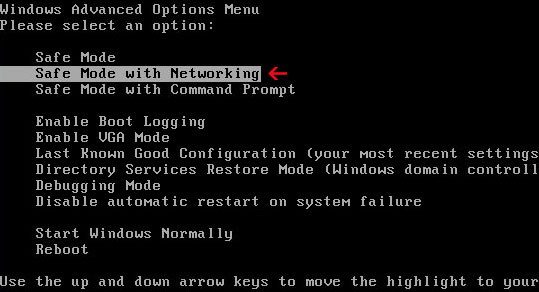
The good news is that your computer is not infected with W32/Blaster worm and other viruses as this rogue programs claims. However, you should remove Security Protection from your computer as soon as possible. Just restart your computer in Safe Mode with Networking, download anti-malware software and run a full system scan.

OPTIONAL: In case you can't boot your PC in Safe Mode with Networking or you can't delete the malicious files manually, you can use this code SL55J-T54YHJ61-YHG88 and any email to register the rogue application in order to stop the fake security alerts.


Once this is done, you are free to install anti-malware software and remove the rogue anti-virus program from your computer properly. If you need help in removing Security Protection from your computer, please leave a comment below. Additional information about this malware and comments are welcome too. Good luck and be safe online.

Related malware:

Security Protection removal instructions (in Safe Mode with Networking):

1. Reboot your computer is "Safe Mode with Networking". As the computer is booting tap the "F8 key" continuously which should bring up the "Windows Advanced Options Menu" as shown below. Use your arrow keys to move to "Safe Mode with Networking" and press Enter key. Read more detailed instructions here: http://www.computerhope.com/issues/chsafe.htm


NOTE: Login as the same user you were previously logged in with in the normal Windows mode.

2. Download free anti-malware software from the list below and run a full system scan.
NOTE: in some cases the rogue program may block anti-malware software. Before saving the selected program onto your computer, you may have to rename the installer to iexplore.exe or winlogon.exe With all of these tools, if running Windows 7 or Vista they MUST be run as Auto Infoistrator. Launch the program and follow the prompts. Don't forget to update the installed program before scanning.

3. New threats appear every day. In order to protect your PC from such (new) infections we strongly recommend you to use ESET Smart Security.


Security Protection associated files and registry values:

Files:

Windows XP:
  • C:\Documents and Settings\All Users\Application Data\defender.exe
Windows Vista/7:
  • C:\ProgramData\defender.exe
Registry values:
  • HKEY_CURRENT_USER\Software\Microsoft\Windows\CurrentVersion\Run "Security Protection"
Share this information with other people:

Thursday, June 9, 2011

How to Remove Milestone Antivirus (Uninstall Guide)

Milestone Antivirus is a rogue security program that will pretend to scan your computer for viruses and report threats that do not really exist to scare you into believing your system is infected. It's designed to mimic real anti-virus software and it's pretty much useless. It will display fake security alerts about viruses, spyware or other malware found on your computer and it won't stop until a payment is made. Milestone Antivirus will take you to a very well crafted, bogus online store where you can buy a full version of this program for $50. The cyber crooks behind rogue anti-virus software are continuing to improve their social engineering attacks to be more successful so you should really think twice before installing software without doing some basic research about it. Fortunately, Milestone Antivirus is easy to remove if you know what to look for. If you have a PC infected with this rogue anti-virus application, please follow the steps in the removal guide.


Milestone Antivirus video:


While running, Milestone Antivirus will gives you loads of fake security alerts and error messages that just seem to pop up constantly. It claims that your computer is infected by spyware.


Security warning:
The file C:\WINDOWS\regedit.exe is infected.
Running of application is impossible.


Here's an example of a very well designed svchost.exe error message that may trick novice Windows users.


And worse, it may block you from running anti-malware tools. Milestone Antivirus also hijacks a file association for executable files, that's why you will probably see the "Open with..." dialog box when you try to open a program. Thankfully, there's an easy fix for this problem. Just follow the removal instructions below.

A screen shot of what the Milestone Antivirus online store looks like:


As you can see, Milestone Antivirus is a threat that comes under the guise of a genuine antivirus program. It's pure malware. Our recommendations: remove Milestone Antivirus from the system as soon as possible and install a solid antivirus software. Better safe than sorry. If you need help removing this pesky malware from your computer, please leave a comment below. Good luck and be safe online!

Related malware:
Optional: you can use this serial significantother to uninstall the rogue application.


Once this is done, you are free to install anti-malware software and remove the rogue anti-virus program from your computer properly.


Milestone Antivirus removal instructions:

1. Go to Start → Run or press WinKey+R. Type in "command" and press Enter key.


2. In the command prompt window type "notepad". Notepad will come up.


3. Copy all the text in blue color below and paste into Notepad.

Windows Registry Editor Version 5.00
[HKEY_CLASSES_ROOT\exefile\shell\open\command]
@="\"%1\" %*"

4. Save file as regfix.reg to your Desktop. NOTE: (Save as type: All files)


regfix.reg is available for download here, in case you can't make your own or it doesn't work.

5. Double-click on regfix.reg file to run it. Click "Yes" for Registry Editor prompt window. Then click OK.
6. Download free anti-malware software from the list below and run a full system scan.
NOTE: in some cases the rogue program may block anti-malware software. Before saving the selected program onto your computer, you may have to rename the installer to iexplore.exe, explorer.exe or winlogon.exe With all of these tools, if running Windows 7 or Vista they MUST be run as Auto Infoistrator. Launch the program and follow the prompts. Don't forget to update the installed program before scanning.

7. New threats appear every day. In order to protect your PC from such (new) infections we strongly recommend you to use ESET Smart Security.


Associated Milestone Antivirus files and registry values:

Files:
  • C:\Program Files\conhost.exe
  • C:\Program Files\csrss.exe
  • C:\Program Files\Milestone Antivirus.ico
  • C:\Program Files\Milestone Antivirus\
  • C:\Program Files\Milestone Antivirus\Milestone Antivirus.exe
  • C:\Program Files\scdata\
  • C:\Program Files\scdata\wispex.html
  • C:\Program Files\scdata\wskinn.exe
  • C:\Program Files\scdata\images\
  • %UserProfile%\Desktop\Milestone Antivirus.exe.txt
  • %UserProfile%\Desktop\Milestone Antivirus.lnk
  • %UserProfile%\Start Menu\Programs\Milestone Antivirus\
  • %UserProfile%\Start Menu\Programs\Milestone Antivirus\Milestone Antivirus.lnk
Registry values:
  • HKEY_CURRENT_USER\Software\Milestone Antivirus
  • HKEY_LOCAL_MACHINE\SYSTEM\CurrentControlSet\Services\QTUpdate
  • HKEY_CLASSES_ROOT\exefile\shell\open\command "(Default)" = 'C:\Program Files\conhost.exe "%1" %*'
Share this information with other people:

Wednesday, June 8, 2011

Remove Vista Antispyware 2012, Win 7 Internet Security 2012 (Uninstall Guide)

Vista Antispyware 2012, Win 7 Internet Security 2012, Win 7 Security 2012 are only a few names of the rogue security program that pretends to scan your computer for viruses and then claims to find a bunch of malicious files that aren’t really there. It will prompt you to register the fake antivirus application for a fee in order to remove the non-existent threats and to make the incessant malware warnings disappear. It can be quite persistent in its attempts to convince you into buying the full version of the program. If you have accidentally installed this fake antivirus, go ahead and uninstall it. To remove Vista Antispyware 2012, Win 7 Internet Security 2012 and other variants of this scareware from your computer, please follow the steps in the removal guide below.

This rogue security application goes by many different program names listed below.

Windows Vista rogue names:
  Windows 7 rogue names:
Vista Antispyware 2012   Win 7 Antispyware 2012
Vista Antivirus 2012   Win 7 Antivirus 2012
Vista Security 2012   Win 7 Security 2012
Vista Home Security 2012   Win 7 Home Security 2012
Vista Internet Security 2012   Win 7 Internet Security 2012


Vista Antispyware 2012, Win 7 Internet Security 2012, Win 7 Security 2012 is one of many fake antivirus applications just like the '11 version of this malware described on this page Vista Antispyware 2011, Vista Security 2011 and Vista Antimalware 2011. If you take a closer look at these fake antivirus applications you'll see that they are almost identical. While running, the fake antivirus will launch pop-up windows with false or misleading alerts. It states that your computer is under attack from a remote server and that there is a piece of malware running on your computer that may steal your sensitive information.


It also displays this fake Windows Security Center which looks quite convincing and professional.


Vista Antispyware 2012, Win 7 Internet Security 2012 prevents you from visiting antivirus vendor websites, it may disable certain Windows utilities and block legitimate software. Actually, it hijacks Internet Explorer and other browsers and it might be that you won't be able to visit any website. The fake alert states: Visiting this site may pose a security threat to your system!


Here's another fake security alert which is displayed every time you attempt to run legitimate software:
Vista Antivirus 2012 Firewall Alert
Vista Antivirus 2012 has blocked a program from accessing the
internet
Internet Explorer is infected with Trojan-BNK.Win32.Keylogger.gen


And probably the most annoying thing about this malware, is that Vista Antispyware 2012, Win 7 Internet Security 2012, Win 7 Security 2012 hijacks a file association for executable (.EXE) files.

In the worst case scenario, if can't reboot your computer in safe mode and install anti-malware software to remove Vista Antispyware 2012, Win 7 Internet Security 2012, Win 7 Security 2012, you can use this serial 1147-175591-6550 or 2233-298080-3424 to register the rogue application in order to stop the fake security alerts.


Once this is done, you are free to install anti-malware software and remove the rogue anti-virus program from your computer properly. Without a doubt, this security application is nothing more but a scam. Don't end up handing your credit card information over to the people most likely to defraud you. If you need help in removing this annoying malware from your computer, please leave a comment below. Good luck and be safe online.


Vista Antispyware 2012, Win 7 Internet Security 2012, Win 7 Security 2012 removal instructions:

1. Click Start->Run or press WinKey+R. Type in "command" and press Enter key.


2. In the command prompt window type "notepad" and press Enter key. Notepad will come up.


3. Copy all the text in blue color below and paste to Notepad.

Windows Registry Editor Version 5.00

[-HKEY_CURRENT_USER\Software\Classes\.exe\shell\open\command]
[-HKEY_CURRENT_USER\Software\Classes\secfile\shell\open\command]
[-HKEY_CLASSES_ROOT\.exe\shell\open\command]
[HKEY_CLASSES_ROOT\.exe]
@="exefile"
"Content Type"="application/x-msdownload"

[-HKEY_CLASSES_ROOT\secfile]

4. Save file as fix.reg to your Desktop. NOTE: (Save as type: All files)


5. Double-click on the fix.reg file to run it. Click "Yes" for Registry Editor prompt window. Then click OK.

6. Download free anti-malware software from the list below and run a full system scan.
NOTE: in some cases the rogue program may block anti-malware software. Before saving the selected program onto your computer, you may have to rename the installer to iexplore.exe or winlogon.exe. With all of these tools, if running Windows 7 or Vista they MUST be run as Auto Infoistrator. Launch the program and follow the prompts. Don't forget to update the installed program before scanning.

7. New threats appear every day. In order to protect your PC from such (new) infections we strongly recommend you to use ESET NOD32 Antivirus 4.


Alternate removal instructions:

Make sure that you can see hidden and operating system protected files in Windows. For more in formation, please read Show Hidden Files and Folders in Windows.

Under the Hidden files and folders section, click Show hidden files and folders, and remove the checkmarks from the checkboxes labeled:
  • Hide extensions for know file types
  • Hide protected operating system files
Click OK to save the changes.


1. Go into C:\Users\[UserName]\AppData\Local\ folder.

For example: C:\Users\Michael\AppData\Local\


2. Find hidden executable file(s) in this folder. In our case it was called vkl.exe, but I'm sure that the file name will be different in your case. Rename vkl.exe to vkl.vir and click "Yes" to confirm file rename. Then restart your computer.


3. After a restart, open Internet Explorer. Download exefix.reg and save it to your Desktop. Double-click on exefix.reg to run it. Click "Yes" for Registry Editor prompt window. Click OK.

4. Download free anti-malware software from the list below and run a full system scan.
NOTE: in some cases the rogue program may block anti-malware software. Before saving the selected program onto your computer, you may have to rename the installer to iexplore.exe or winlogon.exe. With all of these tools, if running Windows 7 or Vista they MUST be run as Auto Infoistrator. Launch the program and follow the prompts. Don't forget to update the installed program before scanning.

5. New threats appear every day. In order to protect your PC from such (new) infections we strongly recommend you to use ESET NOD32 Antivirus 4.


Associated Vista Antispyware 2012, Win 7 Internet Security 2012, Win 7 Security 2012 and registry values:

Files:
  • C:\Users\[UserName]\AppData\Local\[3 RANDOM CHARACTERS].exe
  • C:\Users\[UserName]\AppData\Local\[SET OF RANDOM CHARACTERS]
  • C:\Users\[UserName]\AppData\Local\[SET OF RANDOM CHARACTERS]
  • C:\Users\[UserName]\AppData\Local\Temp\[SET OF RANDOM CHARACTERS]
Registry values:
  • HKEY_USERS\.DEFAULT\Software\Microsoft\Internet Explorer\BrowserEmulation "TLDUpdates" = '1'
  • HKEY_CURRENT_USER\Software\Classes\.exe\shell\open\command "(Default)" = '"C:\Users\[UserName]\AppData\Local\[3 RANDOM CHARACTERS].exe" -a "%1" %*'
  • HKEY_CURRENT_USER\Software\Classes\exefile\shell\open\command "(Default)" = '"C:\Users\[UserName]\AppData\Local\[3 RANDOM CHARACTERS].exe" -a "%1" %*'
  • HKEY_CLASSES_ROOT\.exe\shell\open\command "(Default)" = '"C:\Users\[UserName]\AppData\Local\[3 RANDOM CHARACTERS].exe" -a "%1" %*'
  • HKEY_LOCAL_MACHINE\SOFTWARE\Clients\StartMenuInternet\FIREFOX.EXE\shell\open\command "(Default)" = '"C:\Users\[UserName]\AppData\Local\[3 RANDOM CHARACTERS].exe" -a "C:\Program Files\Mozilla Firefox\firefox.exe"'
  • HKEY_LOCAL_MACHINE\SOFTWARE\Clients\StartMenuInternet\FIREFOX.EXE\shell\safemode\command "(Default)" = '"C:\Users\[UserName]\AppData\Local\[3 RANDOM CHARACTERS].exe" -a "C:\Program Files\Mozilla Firefox\firefox.exe" -safe-mode'
  • HKEY_LOCAL_MACHINE\SOFTWARE\Clients\StartMenuInternet\IEXPLORE.EXE\shell\open\command "(Default)" = '"C:\Users\[UserName]\AppData\Local\[3 RANDOM CHARACTERS].exe" -a "C:\Program Files\Internet Explorer\iexplore.exe"'
  • HKEY_LOCAL_MACHINE\SOFTWARE\Microsoft\Security Center "AntiVirusOverride" = '1'
  • HKEY_LOCAL_MACHINE\SOFTWARE\Microsoft\Security Center "FirewallOverride" = '1'
Share this information with other people:

Tuesday, June 7, 2011

Remove Trojan-BNK.Win32.Keylogger.gen (Uninstall Guide)

Trojan-BNK.Win32.Keylogger.gen is a fake virus warning (a pop-up window that says your PC is infected). It deceives people into downloading/installing various malware voluntarily. Trojan-BNK.Win32.Keylogger.gen is a non-existent virus. It may also prompt users to obtain a full version of fake anti-virus software in order to remove threats which do not even exist. If the Trojan-BNK.Win32.Keylogger.gen keeps popping up on your computer, please use legitimate anti-malware to remove it. You should protect yourself with common sense and legitimate anti-virus software. Don't forget, cyber criminals will use every dirty trick in the book to get their hands on your money. Good luck and be safe online!

XP Internet Security 2011 or XP Antispyware 2012 Firewall Alert saying that your web browser is infected with Trojan-BNK.Win32.Keylogger.gen. The fake warning states that your sensitive information can be stolen.


Trojan-BNK.Win32.Keylogger.gen removal instructions:

1. Download free anti-malware software from the list below and run a full system scan.
NOTE: in some cases the rogue program may block anti-malware software. Before saving the selected program onto your computer, you may have to rename the installer to iexplore.exe or winlogon.exe With all of these tools, if running Windows 7 or Vista they MUST be run as Auto Infoistrator. Launch the program and follow the prompts. Don't forget to update the installed program before scanning.

2. New threats appear every day. In order to protect your PC from such (new) infections we strongly recommend you to use ESET Smart Security.

Remove XP Antispyware 2012, XP Internet Security 2012 (Uninstall Guide)

XP Antispyware 2012, XP Internet Security 2012, XP Security 2012 are only a few names of the same fake rogue anti-virus application. It pretends to scan your computer for viruses and reports non-existent security threats in order to scare you into thinking that your computer is infected with malicious software. The scan is free but if you want to remove the fraudulently-reported infections, you need to pay. Just for the record, XP Antispyware 2012 cannot remove any malware from your computer and once you've paid, it just states that your computer is perfectly fine and protected against the latest Windows security threats. This rogue AV software simply lulls users into a false sense of security, believing that their systems are protected which is even worse than knowing that your computer is not protected at all. Anyway, if you are infected with this fake antivirus application, please follow the steps in the removal guide below to remove XP Antispyware 2012, XP Internet Security 2012 or XP Security 2012 from your computer as soon as possible.

This rogue security program goes by many different names listed below.
  • XP Antispyware 2012
  • XP Antivirus 2012
  • XP Security 2012
  • XP Home Security 2012
  • XP Internet Security 2012


While running, this rogue antivirus constantly displays fake security alerts and notifications about serious security threats every few minutes.


Privacy threat!
Spyware intrusion detected. Your system is infected. System integrity is at risk. Private data can be stolen by third parties, including credit card details and passwords. Click here to perform a security repair.


What is more, the fake AV may open up Internet Explorer and load random pornographic websites. It could be anything actually, fake pharmacy or health care web pages, gay porn and similar websites. However, most of the time it just blocks other applications, including Internet Explorer, stating that it's infected with Trojan-BNK.Win32.Keylogger.gen.

It also displays a fake Internet Explorer Security Alert which basically says that pretty much every website that you're about to visit is malicious and may infect your computer. It blocks other web browsers too.


This rogue antivirus application also displays a fake Windows Security Center window which states that your computer is not protected and that you should install anti-virus software. Of course, it promotes rogue anti-virus applications, XP Antispyware 2012, XP Security 2012 and others.


XP Antispyware 2012 prompts the users of the infected computer to register the program in order to remove the threats which do not even exist. Here's a screenshot of what the fake payment page looks like:


You can use one of these serials 1147-175591-6550 or 2233-298080-3424 to register the rogue application in order to stop the fake security alerts. Just click the Registration button and then select "Activate manually".


Once this is done, you are free to install anti-malware software and remove the rogue anti-virus program from your computer properly.

XP Antispyware 2012, XP Internet Security 2012 removal instructions are outlined below. If you need help removing this annoying malware from your computer just leave a comment below. And if you have any additional information that you think may help our readers, just let us know. Good luck and be safe online!


XP Antispyware 2012, XP Internet Security 2012, XP Security 2012 removal instructions:

1. Click Start->Run or press WinKey+R. Type in "command" and press Enter key.


2. In the command prompt window type "notepad" and press Enter key. Notepad will come up.


3. Copy all the text in blue color below and paste to Notepad.

Windows Registry Editor Version 5.00

[-HKEY_CURRENT_USER\Software\Classes\.exe]
[-HKEY_CURRENT_USER\Software\Classes\secfile]
[-HKEY_CLASSES_ROOT\secfile]
[-HKEY_CLASSES_ROOT\.exe\shell\open\command]

[HKEY_CLASSES_ROOT\exefile\shell\open\command]
@="\"%1\" %*"

[HKEY_CLASSES_ROOT\.exe]
@="exefile"
"Content Type"="application/x-msdownload"

4. Save file as fix.reg to your Desktop. NOTE: (Save as type: All files)


5. Double-click on fix.reg file to run it. Click "Yes" for Registry Editor prompt window. Then click OK.
6. Download recommended anti-malware software (STOPzilla) and run a full system scan to remove this virus from your computer.

NOTE: With all of these tools, if running Windows 7 or Vista they MUST be run as Auto Infoistrator. Launch the program and follow the prompts. Don't forget to update the installed program before scanning.


Alternate removal instructions:

Make sure that you can see hidden and operating system protected files in Windows. For more in formation, please read Show Hidden Files and Folders in Windows.

Under the Hidden files and folders section, click Show hidden files and folders, and remove the checkmarks from the checkboxes labeled:
  • Hide extensions for know file types
  • Hide protected operating system files
Click OK to save the changes.


1. Go into C:\Documents and Settings\[UserName]\Local Settings\Application Data\ folder.

For example: C:\Documents and Settings\Michael\Local Settings\Application Data\


2. Find hidden executable file in this folder. In our case it was called wmi.exe, but I'm sure that the file name will be different in your case. Rename wmi.exe to wmi.dl_ and click Yes to confirm file rename. Then restart your computer.


3. After a restart, open Internet Explorer. Download xp_exe_fix.reg and save it to your Desktop. Double-click on xp_exe_fix.reg to run it. Click "Yes" for Registry Editor prompt window. Click OK.


4. Download recommended anti-malware software (STOPzilla) and run a full system scan to remove the virus from your computer.

NOTE: With all of these tools, if running Windows 7 or Vista they MUST be run as Auto Infoistrator. Launch the program and follow the prompts. Don't forget to update the installed program before scanning.


Associated XP Antispyware 2012, XP Internet Security 2012, XP Security 2012 files and registry values:

Files:
  • C:\Documents and Settings\All Users\[SET OF RANDOM CHARACTERS]
  • C:\Documents and Settings\[UserName]\Application Data\[SET OF RANDOM CHARACTERS]
  • C:\Documents and Settings\[UserName]\Local Settings\Application Data\[3 RANDOM CHARACTERS].exe
  • C:\Documents and Settings\[UserName]\Templates\[SET OF RANDOM CHARACTERS]
  • C:\Documents And Settings\[UserName]\Local Settings\Temp\[SET OF RANDOM CHARACTERS]
Registry values:
  • HKEY_USERS\.DEFAULT\Software\Microsoft\Internet Explorer\BrowserEmulation "TLDUpdates" = '1'
  • HKEY_CURRENT_USER\Software\Classes\.exe\shell\open\command "(Default)" = '"C:\Documents and Settings\[UserName]\Local Settings\Application Data\[3 RANDOM CHARACTERS].exe" -a "%1" %*'
  • HKEY_CURRENT_USER\Software\Classes\exefile\shell\open\command "(Default)" = '"C:\Documents and Settings\[UserName]\Local Settings\Application Data\[3 RANDOM CHARACTERS].exee" -a "%1" %*'
  • HKEY_CLASSES_ROOT\.exe\shell\open\command "(Default)" = '"C:\Documents and Settings\[UserName]\Local Settings\Application Data\[3 RANDOM CHARACTERS].exe" -a "%1" %*'
  • HKEY_LOCAL_MACHINE\SOFTWARE\Clients\StartMenuInternet\FIREFOX.EXE\shell\open\command "(Default)" = '"%LocalAppData%\kdn.exe" -a "C:\Program Files\Mozilla Firefox\firefox.exe"'
  • HKEY_LOCAL_MACHINE\SOFTWARE\Clients\StartMenuInternet\FIREFOX.EXE\shell\safemode\command "(Default)" = '"%LocalAppData%\kdn.exe" -a "C:\Program Files\Mozilla Firefox\firefox.exe" -safe-mode'
  • HKEY_LOCAL_MACHINE\SOFTWARE\Clients\StartMenuInternet\IEXPLORE.EXE\shell\open\command "(Default)" = '"C:\Documents and Settings\[UserName]\Local Settings\Application Data\[3 RANDOM CHARACTERS].exe" -a "C:\Program Files\Internet Explorer\iexplore.exe"'
  • HKEY_LOCAL_MACHINE\SOFTWARE\Microsoft\Security Center "AntiVirusOverride" = '1'
  • HKEY_LOCAL_MACHINE\SOFTWARE\Microsoft\Security Center "FirewallOverride" = '1'
Share this information with other people:

Monday, June 6, 2011

How to Remove Security Essentials Ultimate Pack (Uninstall Guide)

Security Essentials Ultimate Pack is a rogue security application that will detect a bunch of non-existent viruses, spyware and adware infections on your computer. The previous version of this rogue AV was called Security Essentials 2011 and like all the other rogue antivirus applications, it will display fake scanning results to scare you into thinking that your computer is infected with malicious software. To remove Security Essentials Ultimate Pack from your computer, please follow the steps in the removal guide below.


Security Essentials Ultimate Pack will display misleading security alerts as well and it has this very annoying splash screen or maybe it's more like a fake security warning titled "Windows Advanced Security Center" which loads up instead of your Windows Desktop.


It claims that there's something wrong with your computer and that you have to wait about two minutes or activate Security Essentials Ultimate Pack to clean the system supposedly. Hopefully, you can bring up the Task Manager and close it. Instead of waiting click on the Ctrl + Alt + Delete button at the same time to bring up the Windows Task Manager. Click on the Processes tab and end the process called SecEls.exe. Now click on the File menu and select New Task (Run...) from the menu. Type explorer.exe into the Open: field and press the OK button. After a minute or so you should be back at your Windows desktop. Then just download anti-malware software and run a full system scan.

Security Essentials Ultimate Pack security alerts:


If you can't close the Security Essentials Ultimate Pack scanner or it keeps blocking your web browser/other applications, you can use this serial AAS17-F7D9M-G3B2A orAAS17F7D9MG3B2A and any email to register the rogue application in order to stop the fake security alerts.


Once this is done, you are free to install anti-malware software and remove the rogue anti-virus program from your computer properly. If you need help in removing this annoying scareware from your computer, please leave a comment below. And remember, do not pay for this fake security application. Good luck and be safe online.


Security Essentials Ultimate Pack removal video:


Security Essentials Ultimate Pack removal instructions:

1. Open Task Manager and end the Security Essentials Ultimate Pack process:
  • SecEls.exe
2. Download free anti-malware software from the list below and run a full system scan.
NOTE: in some cases the rogue program may block anti-malware software. Before saving the selected program onto your computer, you may have to rename the installer to iexplore.exe, explorer.exe or winlogon.exe With all of these tools, if running Windows 7 or Vista they MUST be run as Auto Infoistrator. Launch the program and follow the prompts. Don't forget to update the installed program before scanning.

3. New threats appear every day. In order to protect your PC from such (new) infections we strongly recommend you to use ESET Smart Security.


Alternate Security Essentials Ultimate Pack removal instructions (in Safe Mode with Networking):

1. Reboot your computer is "Safe Mode with Networking". As the computer is booting tap the "F8 key" continuously which should bring up the "Windows Advanced Options Menu" as shown below. Use your arrow keys to move to "Safe Mode with Networking" and press Enter key. Login as the same user you were previously logged in with in the normal Windows mode. Read more detailed instructions here: http://www.computerhope.com/issues/chsafe.htm


2. Download free anti-malware software from the list below and run a full system scan.
NOTE: in some cases the rogue program may block anti-malware software. Before saving the selected program onto your computer, you may have to rename the installer to iexplore.exe, explorer.exe or winlogon.exe With all of these tools, if running Windows 7 or Vista they MUST be run as Auto Infoistrator. Launch the program and follow the prompts. Don't forget to update the installed program before scanning.

3. New threats appear every day. In order to protect your PC from such (new) infections we strongly recommend you to use ESET Smart Security.


Security Essentials Ultimate Pack associated files and registry values:

Windows XP:
  • C:\Documents and Settings\All Users\Application Data\Security Essentials Ultimate Pack\SecEls.exe
Windows Vista/7:
  • C:\ProgramData\Security Essentials Ultimate Pack\SecEls.exe
Registry values:
  • HKEY_CURRENT_USER\Software\SE2010
  • HKEY_CLASSES_ROOT\CLSID\{3F2BBC05-40DF-11D2-9455-00104BC936FF}
  • HKEY_CLASSES_ROOT\SecEls.DocHostUIHandler
  • HKEY_CURRENT_USER\Software\Microsoft\Windows\CurrentVersion\Run "updatesst"
  • HKEY_CURRENT_USER\Software\Microsoft\Windows NT\CurrentVersion\Winlogon "Shell" = "%AllUsersProfile%\Application Data\Security Essentials Ultimate Pack\SecEls.exe" /hide
Share this information with other people:

Wednesday, June 1, 2011

Parental Controls and Internet Filters

Parental Controls Basics

Nowadays computer and internet has become an inevitable part of our lives, however as much they can be beneficial as much they can be harmful for your child. Parents should be aware that children can be not only playing games, chatting with their friends or hitting their favorite things online, but also accidentally or purposely accessing the websites which are improper for children to view or playing games unsuitable for their age.

Moreover there are always privacy and security threats, which should be considered, as well as the possibility that your data might be deleted by your curious little son or daughter. Therefore, a growing need of Parental Control Software is noticed and if you are considering using it, then this guide is for you.


Parental control software gives you the ability to take control of the computer and to protect your children from unsuitable Internet content no matter where you are. For example, you can determine and limit the child’s access to the web or hours during which they can enter. Even turning on/off computer can be controlled as well as permission to play games, run programs or download files. When the access to the Web, programs, games or downloading is blocked, the specific message appears on the screen and you should confirm your access rights, otherwise you won’t be able to access them.

Usually parental controls are free and come together with operating system of your computer. Therefore they vary depending on which computer you use: Windows or Mac. We will explain all the differences by presenting what kind of parental controls you can expect on each system and showing how to access and set up them. Another way to get the parental controls package is to buy dedicated parental control software, download freely from internet, or to ask your internet service provider for it.


What can parental controls do?

Using parental controls is not only protecting your child from unsuitable content or saving your computer from losses, but also helps children to understand the responsibility of their actions. Nevertheless, it is recommended to use other child protecting tools as well, because combining them always gives better results.

Parental controls can be useful in the following areas:
  • PC system protection
  • Your computer system can be protected from undesirable alteration by limiting user’s chances of doing so. This means that certain users may not be able to change system settings, delete any data except their own, add or remove programs. Thereby according to the Auto Infoistrative rights you want to ensure for each user, choose between “Limited” or “Standard” user accounts and your computer will be protected.
  • Setting a specific time limit
  • Setting a time limit on the amount of time your child can spend on the computer or internet is probably the main function of most parental control systems. However only the best ones enable you to define how many hours per week and which person can use your computer. Moreover, you can find this feature already included in PC, because it comes together with the basics of parental controls. Also they are often included with third-party parental control software.
  • Restricting access to games and applications
  • There might be some programs or games you don’t want your children to use and therefore you can restrict access to them by using program-blocking facility included in parental control software. This means that you can either prevent users from running specific program, or set an age limit.
  • Web content filtering
  • This tool is standard for most of the parental controls and allows you to protect your child from unsuitable web content. Parental controls use a database of blacklisted inappropriate websites or keywords which may lead to reaching them. Sometimes, there is a possibility to adjust this list according to your needs: to add or remove sites and banned keywords. In many cases the blacklist is updated regularly by software.
  • Reporting feature
  • Activity reports is important Parental Control feature too, because it gives an opportunity to review your children’s computer activities: from turning on/off frequency to games played or websites visited. Thereby a general overview of how your family is using computer can be revealed.
Even if you don’t have parental control software, it is still possible to monitor child reachable web content. For example, sometimes web filtering tools are already built in your computer or you can easily add it by yourself. Moreover, you can use child-friendly search engines, such as Ask Kids or Yahooligans, where unsuitable websites are filtered out automatically, or Google SafeSearch tool by which you can customize the filtering options of the regular search engine.


What parental controls do I need?

Comparing parental controls. It may be that you already have some parental control tools on your computer, depending on the operational system, programs and services you use.

Parental controls in Windows XP

Unfortunately, the parental controls in Windows XP are not greatly developed, however the possibility to set up a "Limited" user account is built in. It means that some activities can be restricted for certain users.

Parental controls in Windows Vista

In contrast to Windows XP, Windows Vista has probably the best developed parental control features of any operating system. It is possible to:
  • create an individual "Standard" user account for each child;
  • limit the amount of time when and how long children can spend on the computer;
  • restrict or allow access to specific games and applications according to the age of user or user itself;
  • try a web filter, which can protect your child from accessing unsuitable type of websites or specific websites as well as restrict downloading files;
  • set up activity reports generation for better overview of your family activities on the computer;
  • apply other safety settings.
Parental controls in Windows 7

The newest version of Windows (i.e. Windows 7) provides less flexible and complex parental controls as the previous Windows version (Vista). Yet, you are able:
  • set up different settings on specific ‘Standard’ user accounts;
  • determine time limits;
  • prevent access to specific programs;
  • prevent access to games under the specific age.
As you can see, there is no web filtering tool in Windows 7. However it is possible to add it by downloading a Windows Live Essentials pack, which also includes Windows Mail and Movie Maker that are missing in Windows 7 too. By the way, the Family Safety component from Live Essentials also includes a contact management utility, which can protect children from chatting with undesirable people in Windows Live Messenger and Hotmail.

Parental controls in Mac OSX

Comparing with Windows, Apple is not much worse in the Parental controls. For example, OSX operating system includes well-chosen parental control software, which, after creating individual accounts to your children, allows you to apply following settings:
  • weekday and weekend time limits;
  • access to particular programs;
  • internet content filters;
  • Mail and iChat contacts list restriction;
  • activity logs overview.


Internet security suites and ISPs

Many security suites includes not only anti-virus protection, firewall, anti-spyware, spam filtering and backup facilities in their package, but also contains some of the parental control features as the additional tool for computer safety. For example, if you are buying Norton 360 Premier Edition, Kaspersky Pure, McAfee Total Protection, Trend Micro Titanium Maximum Security or Panda Global Protection, additional expenses on parental control software are unnecessary (it is already included).

Similarly, do not rush to buy parental controls before you have a contact with your broadband internet service provider (ISP). Actually, many broadband companies offer their package together with security software, which most of the time includes a parental control element too.


Dedicated parental control package

In case you are disappointed with parental controls included in your computer, internet security suite or ISPs package, you may consider buying a dedicated parental control package. Some of the best known are:
The good thing is that dedicated parental control software often includes more functions and opportunities. For example, Net Nanny provides the ability to track your child network activity: pictures posted, friends’ listed and personal information used. Also dedicated parental control software usually includes remote management, which means that you can be up-to-date about your kid recent activities even if you are at work. However probably the biggest benefit of these parental controls is continually updated web content filter and database of inappropriate websites as it ensures the safe environment for our kids.