Showing posts with label Fake Alerts. Show all posts

Thursday, August 25, 2011

Remove "Update your browser" Fake Warning (Uninstall Guide)

A new scareware campaign is circulating that appears to be a Mozilla Firefox (could be any other web browser) update warning. It seems that cyber crooks continue to make improvements to their social engineering lures. Fake online virus scanners when users get standard "My Computer" dialog may not work anymore because they become very well documented recently. Here's a screenshot of what the fake browser update notification looks like:
Update your browser
This page does not support your version of browser
Please update your software
Browser update

Unfortunately, it could be a successful social engineering attack against Internet users who are still using old and out-of-date web browsers. Besides, there are safe websites that use JavaScript to inform users about out-of-date web browser and in some cases, MSN forum for example, you can leave a reply with Internet Explorer only. If you visit their forum with Firefox or Chrome, you'll get a notification that your web browser is not supported. So, it could be rather difficult for some Internet users to distinguish between "Update your browser" scareware attack and legit update notifications. If you have you received this fake "Update your browser" warnings, chances that your computer is infected with a rootkit. Do not click "Browser update" button, otherwise you'll download more malware onto your computer. Also, if you wan't to check for updates, use web browser's options, ignore notifications from websites even if they appear to be from well know and popular sites. To remove the fake Update your browser warning and associated malware, please follow the removal instructions below. If you have any questions, please leave a comment below or email us. Good luck and be safe online!


"Update your browser" removal instructions:

1. Scan your computer with TDSSKiller and ZeroAccess rootkit removal tool.
2. Download free anti-malware software from the list below and run a full system scan.
NOTE: in some cases the rogue program may block anti-malware software. Before saving the selected program onto your computer, you may have to rename the installer to iexplore.exe or winlogon.exe With all of these tools, if running Windows 7 or Vista they MUST be run as Auto Infoistrator. Launch the program and follow the prompts. Don't forget to update the installed program before scanning.

3. Run CCleaner to remove temporarily and unnecessary files from your computer.
4. If the problem persists, please read this web document and follow the steps carefully: http://computertipsandguide.blogspot.com/2010/02/remove-google-redirect-virus.html

Share this information with other people:

Thursday, July 28, 2011

Remove "Your computer is infected with Spyware!" Alert (Uninstall Guide)

We understand that sometimes it could be difficult to distinguish between legitimate security alerts and fake warnings saying that your computer is infected with spyware, adware, Trojans and other malware. Rogue security programs and similar scareware use fake security alerts to trick users into paying for completely useless security software or installing additional malware files on the compromised computer. Yesterday we stumbled upon some fake security alerts and error messages that we thing are worth mentioning here. "Your computer is infected with Spyware!" is a fake alert caused by malicious software, specifically a Trojan horse. Here's how the fake error notification about spyware looks like:
Error
Your computer is infected with Spyware! Detected malicious programs can damage your computer and compromise your privacy. It is strongly recommended to remove them immediately.


First thing that should caught your attention is the title of this security alert. Error. What does this say to you? Probably nothing because it's unclear what causes this alert. Is this your anti-virus software or maybe it's Windows system notification? If you can't tell that right away then it might be a sign of malware infection on your computer. In such case, you should scan your computer with legitimate anti-malware application. Here's another example:
Error
Surfing without protection tool installed may cause spyware intrusion through security holes in the Web browser or in other software.


Very often, cyber criminals use fake system warnings from the system tray saying that Spyware protection is disabled or your sensitive information can be stolen to make users think that they should install some sort of computer protection software. Here are some examples of fake system warnings:
System warning
Spyware protection is disabled. Your personal data is at high risk of being stolen or misused.

System warning
Keep your computer safe from viruses and malicious programs that can slow down or break your system


Such fake security alerts are very common right now. You should always check twice before clicking on suspicious notifications or running potentially unwanted applications; otherwise you may end up with heavily infected computer. If you're experiencing such fake security alerts, please scan your computer with anti-malware software listed below. If you have any questions or need help removing malware from your computer, please leave a comment below. Good luck and be safe online!


"Your computer is infected with Spyware!" removal instructions:

1. Download recommended anti-malware software (STOPzilla) to remove this virus from your computer.

NOTE: in some cases the rogue program may block anti-malware software. Before saving the selected program onto your computer, you may have to rename the installer to iexplore.exe or winlogon.exe With all of these tools, if running Windows 7 or Vista they MUST be run as Auto Infoistrator. Launch the program and follow the prompts. Don't forget to update the installed program before scanning.


Associated "Your computer is infected with Spyware!" files and registry values:

Files:
  • C:\Documents and Settings\[UserName]\Desktop\FakeAV\[SET OF RANDOM CHARACTERS].exe
  • C:\Documents and Settings\LocalService\Local Settings\Application Data\[SET OF RANDOM CHARACTERS].exe

Registry values:
  • HKEY_LOCAL_MACHINE\SOFTWARE\Microsoft\Windows\CurrentVersion\RunOnce\[SET OF RANDOM CHARACTERS].exe
Share this information with other people:

Wednesday, July 27, 2011

Norton AntiVirus ENHANCED PROTECTION MODE

"Norton AntiVirus ENHANCED PROTECTION MODE" is a fake security alert that pretends to be a notification from Norton AntiVirus about virus detected on your computer. However, Norton doesn't have such protection mode, so this security alert is obviously fake and hides the presence of the malware in the system. If you've got this fake security alert then your computer is infected by a Trojan Horse.


Norton AntiVirus
ENHANCED PROTECTION MODE
Attention!
Norton AntiVirus operates under enhanced
protection mode.
This is temporary measure
necessary for immediate response to
the threat from virus.
No action is required from you.
The Trojan horse displays this fake Norton AntiVirus update notification too.


The fake security alert runs from (command line): C:\WINDOWS\update.tray-10-0-lnk\svchost.exe tray 10-0 1

In order to remove the Trojan that causes the fake Norton AntiVirus ENHANCED PROTECTION MODE alert, please scan your computer with legitimate anti-malware applications listed below. You can read more about this infection here: Avast ENHANCED PROTECTION MODE. Good luck and be safe online!


Download free anti-malware software from the list below and run a full system scan.
NOTE: in some cases the rogue program may block anti-malware software. Before saving the selected program onto your computer, you may have to rename the installer to iexplore.exe or winlogon.exe With all of these tools, if running Windows 7 or Vista they MUST be run as Auto Infoistrator. Launch the program and follow the prompts. Don't forget to update the installed program before scanning.

Share this information with other people:

Microsoft Defender ENHANCED PROTECTION MODE

"Microsoft Defender ENHANCED PROTECTION MODE" is a fake security alert and it has nothing to do with the legitimate Microsoft Windows Defender. It doesn't even have such protection mode, so this security alert is obviously fake and hides the presence of the malware in the system. If you've got this fake security alert then your computer is infected by a Trojan Horse.


Microsoft Defender
ENHANCED PROTECTION MODE
Attention!
Microsoft Defender operates under enhanced
protection mode.
This is temporary measure
necessary for immediate response to
the threat from virus.
No action is required from you.
The Trojan horse displays this fake Microsoft Defender update notification too.


The fake security alert runs from (command line): C:\WINDOWS\update.tray-15-0-lnk\svchost.exe tray 15-0 1

In order to remove the Trojan that causes the fake Microsoft Defender ENHANCED PROTECTION MODE alert, please scan your computer with legitimate anti-malware applications listed below. You can read more about this infection here: Avast ENHANCED PROTECTION MODE. Good luck and be safe online!


Download free anti-malware software from the list below and run a full system scan.
NOTE: in some cases the rogue program may block anti-malware software. Before saving the selected program onto your computer, you may have to rename the installer to iexplore.exe or winlogon.exe With all of these tools, if running Windows 7 or Vista they MUST be run as Auto Infoistrator. Launch the program and follow the prompts. Don't forget to update the installed program before scanning.

Share this information with other people:

Microsoft Security Essentials ENHANCED PROTECTION MODE

"Microsoft Security Essentials ENHANCED PROTECTION MODE" is a fake security alert which clearly indicates that your computer is infected with malicious software. It's designed to trick you into thinking that your computer is protected against malicious software. Microsoft Security Essentials doesn't have such protection mode, so this security alert is obviously fake and hides the presence of the malware in the system. If you've got this fake security alert then your computer is infected by a Trojan Horse.


Microsoft Security Essentials
ENHANCED PROTECTION MODE
Attention!
Microsoft Security Essentials operates under enhanced
protection mode.
This is temporary measure
necessary for immediate response to
the threat from virus.
No action is required from you.
The Trojan horse displays this fake Microsoft Security Essentials update notification too.


In order to remove the Trojan that causes the fake Microsoft Security Essentials ENHANCED PROTECTION MODE alert, please scan your computer with legitimate anti-malware applications listed below. You can read more about this infection here: Avast ENHANCED PROTECTION MODE. Good luck and be safe online!


Download free anti-malware software from the list below and run a full system scan.
NOTE: in some cases the rogue program may block anti-malware software. Before saving the selected program onto your computer, you may have to rename the installer to iexplore.exe or winlogon.exe With all of these tools, if running Windows 7 or Vista they MUST be run as Auto Infoistrator. Launch the program and follow the prompts. Don't forget to update the installed program before scanning.

Share this information with other people:

McAfee ENHANCED PROTECTION MODE

"McAfee ENHANCED PROTECTION MODE" is a fake security warning designed to trick you into thinking that your computer is protected against malware. McAfee anti-virus doesn't have such protection mode, so this security alert is obviously fake and hides the presence of the malware in the system. If you've got this fake security alert then your computer is infected by a Trojan Horse.


McAfee
ENHANCED PROTECTION MODE
Attention!
McAfee operates under enhanced
protection mode.
This is temporary measure
necessary for immediate response to
the threat from virus.
No action is required from you.
The Trojan horse displays this fake McAfee update notification too.


The fake security alert runs from (command line): C:\WINDOWS\update.tray-9-0-lnk\svchost.exe tray 9-0 1

In order to remove the Trojan that causes the fake McAfee ENHANCED PROTECTION MODE alert, please scan your computer with legitimate anti-malware applications listed below. You can read more about this infection here: Avast ENHANCED PROTECTION MODE. Good luck and be safe online!


Download free anti-malware software from the list below and run a full system scan.
NOTE: in some cases the rogue program may block anti-malware software. Before saving the selected program onto your computer, you may have to rename the installer to iexplore.exe or winlogon.exe With all of these tools, if running Windows 7 or Vista they MUST be run as Auto Infoistrator. Launch the program and follow the prompts. Don't forget to update the installed program before scanning.

Share this information with other people:

Dr.Web ENHANCED PROTECTION MODE

"Dr.Web ENHANCED PROTECTION MODE" is a misleading security warning designed to trick you into thinking that your computer is protected against malware when in reality Trojan horse downloads and installs addition malcode on your computer. Dr.Web anti-virus doesn't have such protection mode, so this security alert is obviously fake. If you've got this fake security alert then your computer is infected by a Trojan Horse.


Dr.Web
ENHANCED PROTECTION MODE
Attention!
Dr.Web operates under enhanced
protection mode.
This is temporary measure
necessary for immediate response to
the threat from virus.
No action is required from you.
The Trojan horse displays this fake Dr.Web update notification too.


The fake security alert runs from (command line): C:\WINDOWS\update.tray-11-0-lnk\svchost.exe tray 11-0 1

In order to remove the Trojan that causes the fake Dr.Web ENHANCED PROTECTION MODE alert, please scan your computer with legitimate anti-malware applications listed below. You can read more about this infection here: Avast ENHANCED PROTECTION MODE. Good luck and be safe online!


Download free anti-malware software from the list below and run a full system scan.
NOTE: in some cases the rogue program may block anti-malware software. Before saving the selected program onto your computer, you may have to rename the installer to iexplore.exe or winlogon.exe With all of these tools, if running Windows 7 or Vista they MUST be run as Auto Infoistrator. Launch the program and follow the prompts. Don't forget to update the installed program before scanning.

Share this information with other people:

Comodo ENHANCED PROTECTION MODE

"Comodo ENHANCED PROTECTION MODE" is a fake security alert designed to trick you into thinking that your computer is protected and hide presence of malware. Comodo anti-virus doesn't have such protection mode. If you've got this fake security alert then your computer is infected by a Trojan Horse.


Comodo
ENHANCED PROTECTION MODE
Attention!
Comodo operates under enhanced
protection mode.
This is temporary measure
necessary for immediate response to
the threat from virus.
No action is required from you.
The Trojan horse displays this fake Comodo update notification too.


The fake security alert runs from (command line): C:\WINDOWS\update.tray-5-0-lnk\svchost.exe tray 5-0 1

In order to remove the Trojan that causes the fake Comodo ENHANCED PROTECTION MODE alert, please scan your computer with legitimate anti-malware applications listed below. You can read more about this infection here: Avast ENHANCED PROTECTION MODE. Good luck and be safe online!


Download free anti-malware software from the list below and run a full system scan.
NOTE: in some cases the rogue program may block anti-malware software. Before saving the selected program onto your computer, you may have to rename the installer to iexplore.exe or winlogon.exe With all of these tools, if running Windows 7 or Vista they MUST be run as Auto Infoistrator. Launch the program and follow the prompts. Don't forget to update the installed program before scanning.

Share this information with other people:

Avira AntiVir ENHANCED PROTECTION MODE

"Avira AntiVir ENHANCED PROTECTION MODE" is a fake security alert, Avira AntiVir doesn't have such protection mode. If you've got this fake security alert then your computer is infected by a Trojan Horse. It displays this fake security alert and restricts access to the legitimate Avira AntiVir security software to make you think that your computer is protected against malware when in reality it's not.


Avira AntiVir
ENHANCED PROTECTION MODE
Attention!
Avira AntiVir operates under enhanced
protection mode.
This is temporary measure
necessary for immediate response to
the threat from virus.
No action is required from you.
The Trojan horse displays fake Avira AntiVir update notification.


In order to remove the Trojan that causes the fake Avira AntiVir ENHANCED PROTECTION MODE alert, please scan your computer with legitimate anti-malware applications listed below. You can read more about this infection here: Avast ENHANCED PROTECTION MODE. Good luck and be safe online!


Download free anti-malware software from the list below and run a full system scan.
NOTE: in some cases the rogue program may block anti-malware software. Before saving the selected program onto your computer, you may have to rename the installer to iexplore.exe or winlogon.exe With all of these tools, if running Windows 7 or Vista they MUST be run as Auto Infoistrator. Launch the program and follow the prompts. Don't forget to update the installed program before scanning.

Share this information with other people:

Tuesday, July 26, 2011

Remove "Avast ENHANCED PROTECTION MODE" Trojan (Uninstall Guide)

"Avast ENHANCED PROTECTION MODE" is a fake security alert that gives a false sense of security, the legitimate Avast! anti-virus doesn't have such protection mode. If you've got this fake security alert then your computer is infected by a Trojan horse. Cyber crooks use various methods, including social engineering, to distribute malicious software. Malicious links began to spread on Facebook and through MSN Messenger. Here's an example of the chat conversation snippet:

[friend]: hi, how are you?
[you]: hey
[friend]: Wanna laugh?
[you]: sure
[friend]: It is you on the video? )) want to see?)
[you]: ???
[friend]: [malicious domain]


The malicious link usually has the following structure http://[domain]/FacebookUserID and it redirects users to fake Youtube websites. In order to watch the video the user has to install the latest version of Flash player, Flash-Player.exe. Obviously, it's not a legitimate Flash player but a Trojan horse. Once executed, it returns the following error:


While running, it downloads and installs additional components on your computer. "Avast ENHANCED PROTECTION MODE" Trojan uninstalls or blocks your anti-virus application, created new shortcuts and displays the following security alert:
Avast
ENHANCED PROTECTION MODE
Attention!
Avast operates under enhanced
protection mode.
This is temporary measure
necessary for immediate response to
the threat from virus.
No action is required from you.


Here's how the legitimate Avast! virus notification looks like:


As you can see, the Trojan horse clearly want to trick you into thinking that your computer is protected and that you shouldn't take any actions to remove the virus which actually does not even exists. The Trojan also displays fake Avast update notification in the bottom right hand corner of your computer screen.


The legitimate Avast! update notification looks entirely different. If you have the "Avast ENHANCED PROTECTION MODE" Trojan on your computer, please follow the removal instructions below to remove it from your computer. Obviously, you won't be able to use your anti-virus software, so you will have to use other malware removal tools listed below. If you have any questions or need help remove this malicious software from your computer, please leave a comment below. Good luck and be safe online!

Update: the Trojan blocks other anti-virus software too and displays the same security alerts.

"Avast ENHANCED PROTECTION MODE" Trojan removal instructions:

Download recommended anti-malware software (STOPzilla) to remove this virus from your computer.

NOTE: in some cases the rogue program may block anti-malware software. Before saving the selected program onto your computer, you may have to rename the installer to iexplore.exe or winlogon.exe With all of these tools, if running Windows 7 or Vista they MUST be run as Auto Infoistrator. Launch the program and follow the prompts. Don't forget to update the installed program before scanning.

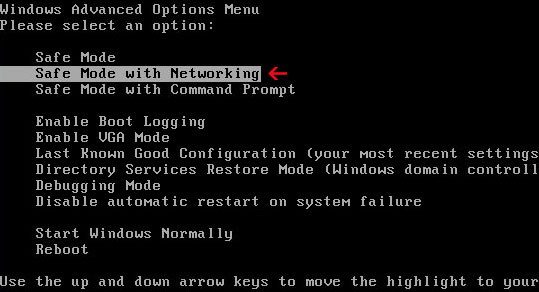
If you can't download it, please reboot your computer is "Safe Mode with Networking". As the computer is booting tap the "F8 key" continuously which should bring up the "Windows Advanced Options Menu" as shown below. Use your arrow keys to move to "Safe Mode with Networking" and press Enter key. Open Internet Explorer and download STOPzilla. Once finished, go back into Normal Mode and run it. That's It!

Read more detailed instructions here: http://www.computerhope.com/issues/chsafe.htm


NOTE: Login as the same user you were previously logged in with in the normal Windows mode.


Associated "Avast ENHANCED PROTECTION MODE" files and registry values:

Files:
  • C:\WINDOWS\btc_client_iplist.txt
  • C:\WINDOWS\ddh_iplist.txt
  • C:\WINDOWS\front_ip_list.txt
  • C:\WINDOWS\geoiplist
  • C:\WINDOWS\geoiplist.rar
  • C:\WINDOWS\iecheck_iplist.txt
  • C:\WINDOWS\info1
  • C:\WINDOWS\iplist.txt
  • C:\WINDOWS\l1rezerv.exe
  • C:\WINDOWS\phoenix
  • C:\WINDOWS\phoenix.rar
  • C:\WINDOWS\proc_list1.log
  • C:\WINDOWS\rpcminer
  • C:\WINDOWS\rpcminer.rar
  • C:\WINDOWS\services32.exe
  • C:\WINDOWS\sysdriver32.exe
  • C:\WINDOWS\sysdriver32_.exe
  • C:\WINDOWS\systemup.exe
  • C:\WINDOWS\ufa
  • C:\WINDOWS\ufa.rar
  • C:\WINDOWS\unrar.exe
  • C:\WINDOWS\update.1
  • C:\WINDOWS\update.2
  • C:\WINDOWS\update.5.0
  • %Temp%\[SET OF RANDOM CHARACTERS].exe
Share this information with other people:

Remove "Your codec version is too old" (Uninstall Guide)

"Your codec version is too old" is a fake error message designed to trick you into thinking that the video cannot be played because you either do not have the latest version of codecs or the video format is not supported.
Your codec version is too old
This video format is not supported


Usually, right after this fake error message gets displayed, another one appears in the bottom right hand corner telling you to update the video codec.
Video error
This video cannot be played due to old version of
your codecs


If you choose to update the codec, it will give you the payment page, asking you to purchase the bogus Home Codec pack and video converter suite.


"Your codec version is too old" payment page:


The Trojans displaying this fake "Your codec version is too old" are being distributed in pretty much the same way as rogue security products, i.e., through the use of fake online virus scanners, infected websites and social engineering. Cyber crooks have probably decided to mix up things a little. Besides, rogue codec packs are nothing new.

It's worth mentioning that you shouldn't install every codec pack available; otherwise you may end up with such scareware on your computer. By default, Windows Media Player supports all popular video and audio file formats, however video and audio content can be compressed with a wide variety of codecs and if the appropriate codecs are not installed on your computer, you won't be able to play the video file. In such case, you should install only legitimate and known codec pack: DivX, Cinepak, Indeo and some others. Or you can use VLC multimedia player for various audio and video formats. If you have any questions or suggestions, please leave a comment below. Good luck and be safe online!


"Your codec version is too old" removal instructions:

1. Download free anti-malware software from the list below and run a full system scan.
NOTE: in some cases the rogue program may block anti-malware software. Before saving the selected program onto your computer, you may have to rename the installer to iexplore.exe or winlogon.exe With all of these tools, if running Windows 7 or Vista they MUST be run as Auto Infoistrator. Launch the program and follow the prompts. Don't forget to update the installed program before scanning.

2. New threats appear every day. In order to protect your PC from such (new) infections we strongly recommend you to use ESET Smart Security.


Associated "Your codec version is too old" files and registry values:

Files:

Windows XP
  • C:\Documents and Settings\All Users\Application Data\[SET OF RANDOM CHARACTERS].exe
  • C:\Documents and Settings\All Users\Application Data\ip\[SET OF RANDOM CHARACTERS].exe
  • C:\Documents and Settings\All Users\Application Data\ip\FRed32.dll
  • C:\Documents and Settings\All Users\Application Data\ip\instr.ini
  • C:\Documents and Settings\All Users\Application Data\ip\SmartGeare.exe
  • C:\Documents and Settings\All Users\Application Data\ip\spoof.avi
  • C:\WINDOWS\system32\[SET OF RANDOM CHARACTERS].nls
Windows Vista/7
  • C:\ProgramData\[SET OF RANDOM CHARACTERS].exe
  • C:\ProgramData\ip\[SET OF RANDOM CHARACTERS].exe
  • C:\ProgramData\ip\FRed32.dll
  • C:\ProgramData\ip\instr.ini
  • C:\ProgramData\ip\SmartGeare.exe
  • C:\ProgramData\ip\spoof.avi
  • C:\WINDOWS\system32\[SET OF RANDOM CHARACTERS].nls
Share this information with other people:

Tuesday, June 7, 2011

Remove Trojan-BNK.Win32.Keylogger.gen (Uninstall Guide)

Trojan-BNK.Win32.Keylogger.gen is a fake virus warning (a pop-up window that says your PC is infected). It deceives people into downloading/installing various malware voluntarily. Trojan-BNK.Win32.Keylogger.gen is a non-existent virus. It may also prompt users to obtain a full version of fake anti-virus software in order to remove threats which do not even exist. If the Trojan-BNK.Win32.Keylogger.gen keeps popping up on your computer, please use legitimate anti-malware to remove it. You should protect yourself with common sense and legitimate anti-virus software. Don't forget, cyber criminals will use every dirty trick in the book to get their hands on your money. Good luck and be safe online!

XP Internet Security 2011 or XP Antispyware 2012 Firewall Alert saying that your web browser is infected with Trojan-BNK.Win32.Keylogger.gen. The fake warning states that your sensitive information can be stolen.


Trojan-BNK.Win32.Keylogger.gen removal instructions:

1. Download free anti-malware software from the list below and run a full system scan.
NOTE: in some cases the rogue program may block anti-malware software. Before saving the selected program onto your computer, you may have to rename the installer to iexplore.exe or winlogon.exe With all of these tools, if running Windows 7 or Vista they MUST be run as Auto Infoistrator. Launch the program and follow the prompts. Don't forget to update the installed program before scanning.

2. New threats appear every day. In order to protect your PC from such (new) infections we strongly recommend you to use ESET Smart Security.

Sunday, May 15, 2011

Remove Apple security center (Uninstall Guide)

Apple security center is a fake virus scanner that reports non-existent infections on your computer. It is in no way associated with Apple Company. It's a JavaScript-based fake scanner that looks just like a Mac OS X Finder window. It doesn't actually scan your computer. The fake Apple security center displays predetermined list of falsified infections, e.g., Trojan.OSX.RSPlug.P, Exploit.OSX.Small, Virus.MacOS.Init17, etc. Please note, cyber criminals may use real Mac malware names in case you would search for a certain malware name to is if it actually exists. The fake virus scanner also indicates that it is part of Apple Security Alert. Apple security center distributes other malware, usually fake anti-virus software, e.g, MAC Defender, Mac Security, Mac Protector. When you click or close the fake scanner page you are prompted to download a .zip or a.mpkg file onto your Mac. Merely visiting the Apple security center scanner doesn't compromise your Mac. As long as you don't install anything, you're fine. You should protect yourself with common sense and legitimate anti-virus software. If you suspect that your computer is infected, run a full system scan with Sophos Antivirus or ESET Cybersecurity. If you have any questions, please leave a comment below. Good luck and be safe online!

Wednesday, May 4, 2011

Remove "Warning! Spyware detected on your computer!" (Uninstall Guide)

If your computer has a blue desktop background and a yellow/blue warning in the middle saying "Warning! Spyware detected on your computer! Install an antivirus or spyware remover to clean your computer" then your computer is infected with a Trojan horse. Although, it's an old fake security warning, it's still being used by cyber-criminals to scare you into believing that your computer is infected with viruses. The Trojan horse that displays this fake warning distributes rogue security software and other malware. This fake "Warning! Spyware detected on your computer!" Trojan creates a couple of randomly named .scr and .bmp files in C:\Windows\System32 folder and replaces the original values in Windows registry. It also drops other offending files that download/request other malicious files from Internet. Fake security warnings are nothing new for Windows users. If you Desktop background was replaced with a fake warning sign or you keep getting random pop-ups, please run a full system scan with anti-malware software. Good luck and be safe online!


Download free anti-malware software from the list below and run a full system scan.
NOTE: in some cases the rogue program may block anti-malware software. Before saving the selected program onto your computer, you may have to rename the installer to iexplore.exe, explorer.exe or winlogon.exe. With all of these tools, if running Windows 7 or Vista they MUST be run as Auto Infoistrator. Launch the program and follow the prompts. Don't forget to update the installed program before scanning.

New threats appear every day. In order to protect your PC from such (new) infections we strongly recommend you to use ESET NOD32 Antivirus 4.


Associated files and registry values:

Files:
  • C:\WINDOWS\system32\[SET OF RANDOM CHARACTERS].scr
  • C:\WINDOWS\system32\[SET OF RANDOM CHARACTERS].bmp
Registry values:
  • HKEY_CURRENT_USER\Control Panel\Desktop SCRNSAVE.EXE "C:\WINDOWS\system32\[SET OF RANDOM CHARACTERS].scr"
  • HKEY_CURRENT_USER\Control Panel\Desktop ConvertedWallpaper "C:\WINDOWS\system32\[SET OF RANDOM CHARACTERS].bmp"
  • HKEY_CURRENT_USER\Control Panel\Desktop OriginalWallpaper "C:\WINDOWS\system32\[SET OF RANDOM CHARACTERS].bmp"
  • HKEY_CURRENT_USER\Control Panel\Desktop Wallpaper "C:\WINDOWS\system32\[SET OF RANDOM CHARACTERS].bmp"
Share this information with other people:

Tuesday, April 5, 2011

Remove Critical Hard Disk Drive Error Warning (Uninstall Guide)

"Critical Hard Disk Drive Error" is a fake warning that you may see when the fake Windows Repair program is installed on your computer. The same fake error message may pop-up when your computer is infected with Windows Diagnostic and Windows Restore rogue applications. It states that a critical hard disk drive error (a bad sector) has been detected! It may supposedly cause data corruption, hard drive inaccessibility, and system errors or failures. In order to fix these errors you will be prompted to pay for a full version of the fake Windows Repair tool or it could be any other scareware from this family, e.g. Windows Restore. Please do not give them your credit card details because there is no guarantee that your credit card details aren't going to be sold to other third parties. If you got this "Critical Hard Disk Drive Error" warning as shown in the image below, scan your computer with anti-malware software. If you want to learn more about this scareware or you need help removing it, please follow this removal guide. Good luck and be safe online!

Friday, October 1, 2010

Remove Antimalware Doctor Protection Center (Uninstall Guide)

Antimalware Doctor Protection Center is a fake pop up window that impersonates the legitimate Microsoft Security Center. It claims that you should activate Antimalware Doctor in order to protect your computer against malicious software. It also claims that all three main Windows security settings: firewall, automatic updates and anti-virus protection are turned off. Antimalware Doctor Protection Center as well as Antimalware Doctor is nothing more but a scam. If you choose to pay for this bogus program you will simple lose your money. What is more, you credit card information can be soled to cyber criminals. So, please don't purchase it. If you have already paid for for Antimalware Doctor then please contact your credit card company and dispute the charges. Antimalware Doctor Protection Center is not a standalone malware. It's a part of Antimalware Doctor scam. This fake security center won't go away if you won't remove Antimalware Doctor from your computer. Here's an excellent step by step guide on how to remove Antimalware Doctor malware from your computer for free using legitimate anti-malware programs. If you have any questions or additional information about this malicious software please leave a comment. Good luck and be safe online!

A screen shot of Antimalware Doctor Protection Center:


Share the knowledge:

Saturday, September 18, 2010

Remove Win64.BIT.Looker.exe (Uninstall Guide)

Win64.BIT.Looker.exe is a false security threat. The real threat is either a rogue program or Trojan horse that displays fake security warnings or notifications about an infection called Win64.BIT.Looker.exe. Recently, this false infection has been displayed alongside a rogue anti-spyware program called Desktop Security 2010. This fake anti-spyware program displays fake Security Center alert that with the following text:
Security Center Alert
To help protect your computer, Security Center has blocked some features of this program
Name: Win64.BIT.Looker.exe
Risk: High
Description: Win64.BIT.Looker software that puts high physical demand on hardware may damage it by excessive wear and tear. This worm can be blocked from firewall and antivirus software.


If you find that your computer is infected with this malware please follow instructions on how to remove Desktop Security 2010. Also, if you have any questions or additional information about this infection, please leave a comment. Good luck and be safe!

Friday, September 10, 2010

Remove fake Media Access threat (Uninstall Guide)

"Media Access threat has been detected" is a fake security warning pop-up from the rogue anti-malware program called Malware Destructor 2011. The text of this alert is:
Warning!
Threat module detected on your PC!
Media Access threat has been detected. This threat module advertises websites with explicit content. Be advised of such content being possibly illegal. Please click button below to locate and remove this threat now.
Threat name: Media Access
Infected files: C:\WINDOWS\system32\NOTEPAD.EXE
Alert level: High
Suggestion: It is highly recommended to remove this threat from your PC


As you can see, Malware Destructor 2011 claims to found a threat which may compromise your computer. This threat is false. If you choose to remove this fake threat, the rogue program will take you to its payment page to purchase a full version of Malware Destructor 2011. It claims that only registered version can remove this threat. Obviously, that's not true. First of all, there is no security threat and secondly it won't remove any threat anyway because Malware Destructor 2011 is a scam. If you find that your computer is infected with this rogue program or you somehow ended up with the fake Media Access threat warning then please follow our instructions on how to remove Malware Destructor 2011 from the computer. If you have any questions about this malware please don't hesitate and leave a comment using the form below. Good luck and be safe online!

Share this information with other people:

Sunday, August 1, 2010

Remove "Attention! Your web page request has been cancelled." (Free Removal)

"Attention! Your web page request has been cancelled." is a fake security warning. It looks just like the legitimate safe browsing warning which you probably have seen if you use Mozilla Firefox.

Fake "Attention! Your web page request has been cancelled." warning:


Legitimate "Reported Attack Site" warning:


The fake one pushes rogue anti-virus programs. If you click the "Fix Now" button you will be prompted to download or install a fake anti-virus program. The legitimate one doesn't promote any security software at all. It simply states that the website you're about to visit is currently listed as suspicious. Please note the differences between these two security warnings. If you see the Attention! Your web page request has been cancelled. warning, be sure that it's a fake one and that your computer is infected with some sort of malware, most likely Trojan Horse. Thankfully, there are some free anti-malware applications that you may use to remove malware. You should scan your PC with at least two anti-malware programs from the list below. Good luck and be safe!

Download at least one anti-malware program from the list below and run a full system scan.
NOTE: before saving the selected program onto your computer, please rename the installer to winlogon.exe or iexplore.exe. With all of these tools, if running Windows 7 or Vista they MUST be run as Auto Infoistrator. Launch the program and follow the prompts. Don't forget to update the installed program before scanning.

Share this information with other people:

Saturday, July 31, 2010

Remove "ATTENTION! SPYWARE ALERT" warning (Free Removal)

"ATTENTION! SPYWARE ALERT" is a fake warning that comes from the rogue anti-virus program called Antivir Solution Pro. It claims that your computer is infected. The text of the fake alerts is:
ATTENTION! SPYWARE ALERT
Vulnerabilities found.
Your computer is infected by spyware - 34 serious threats have been found while scanning your files and registry. It is strongly recommended that you disinfect your computer and active realtime secure protection against future intrusions.


As you can see, the fake security warning prompts you to active your antivirus software (which is Antivir Solution Pro of course) to protect your computer against malware. However, the truth is that Antivir Solution Pro is absolutely useless software. It won't protect your computer simply because it's an infection itself. It goes without saying that you should uninstall this misleading program and its bogus warnings like "attention! spyware alert" from your computer as soon as possible. For more details, please read how to remove Antivir Solution Pro from the computer for free using legitimate anti-malware programs. Your questions are more than welcome. Good luck and be safe!

Share this informaiton with other people: