Thursday, March 11, 2010

Remove Smart Security fake antivirus program (Free removal)

Smart Security is a fake (rogue) anti-virus program. Smart Security is a clone of widely spread scareware called Security Tool. It reports false system security threats to make you think that your computer is infected with worms, trojans and other malicious software. This fake program also displays bogus security warnings and pop-ups. If you are reading this article then your PC is probably infected with SmartSecurity scareware. Thankfully, there is a way to remove this virus from your computer for free using legitimate anti-malware applications. Just follow free Smart Security removal instructions below.


UPDATE: (09/30/2010) There is another rogue security program with exactly the same name Smart Security but different graphical user interface (GUI) and files. This one is clone of My Security Shield malware. The new Smart Security reports false system security threats as well. It constantly displays fake security warnings about spyware activity, infected files or identity theft attempts and it does the pig squeal. It blocks legitimate security software and hijacks web browsers. The rogue program sets up a local proxy server on your computer to reroute traffic to malicious websites or web pages with online Ads. So, as you can see SmartSecurity is the virus itself. It won't steal your password and it won't delete your files, so don't worry. However, you should remove Smart Security from your computer as soon as possible because it may download additional malware onto your computer, i.e. Trojans, rootkits or other adware. And, of course, don't pay for this bogus program. It won't remove any infections, believe me. Instead, it will give you a false sense of security. You will have to reboot your computer in safe mode with networking in order to remove this rogue program from your computer because it blocks nearly all programs in normal mode. Please follow removal instructions below.


(Thanks to rogueamp)

As a typical fake program it enters a computer with the help of trojans that come from fake online scanners, misleading sites, malicious PDFs or bundled with other malware. Once installed, Smart Security simulates a system scan and reports numerous infections on your computer. Then it claims that you have to pay for a full version of the program if you want to remove the infections. So basically, it prompts you to buy needless software in order to remove infections which don't even exist. It goes without saying - Smart Security is 100% scam.

Furthermore, the rogue program displays fake and very annoying security warnings like every one or two minutes. That's another sign that Smart Security is not legitimate program, because reputable security software doesn't flood user with notifications, at least not so many in a minute.
Smart Security Warning
Spyware.IEMonster activity detected. This is spyware that attempts to steal passwords from Internet Explorer, Mozilla Firefox, Outlook and other programs.
Click here to remove it immediately with SecurityTool.


However, the worst thing is that this virus blocks legitimate anti-virus and anti-spyware programs. It also hijacks Internet Explorer and blocks security sites. There may be other restrictions as well if the rogue program comes bundled or downloads other malicious software that blocks certain system tools.

If you find that your computer is infected with this virus then read the removal instructions below and remove Smart Security from your computer as soon as possible. Most importantly, don't purchase it! If it's already too late and you bought it then you should contact your credit card company immediately and dispute the charges. If you have any questions, don't hesitate and ask or leave a comment. Good luck!

Please note that there is a perfectly legitimate Internet security suite from ESET called ESET Smart Security. Don't confuse these two programs. SmartSecurity (the fake one) application is not related to ESET.


Removing Smart Security in Safe Mode with Networking:

1. Reboot your computer is "Safe Mode with Networking". As the computer is booting tap the "F8 key" continuously which should bring up the "Windows Advanced Options Menu" as shown below. Use your arrow keys to move to "Safe Mode with Networking" and press Enter key. Read more detailed instructions here: http://www.computerhope.com/issues/chsafe.htm
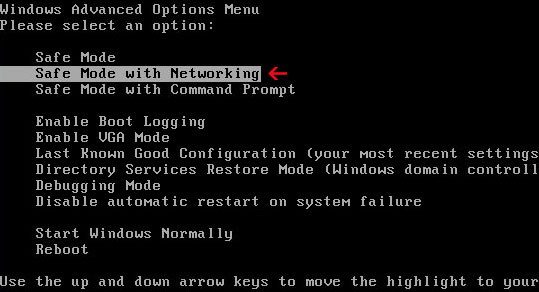

NOTE: Login as the same user you were previously logged in with in the normal Windows mode.

2. Launch Internet Explorer. In Internet Explorer go to: Tools->Internet Options->Connections tab.
Click Lan Settings button and uncheck the checkbox labeled Use a proxy server for your LAN. Click OK.
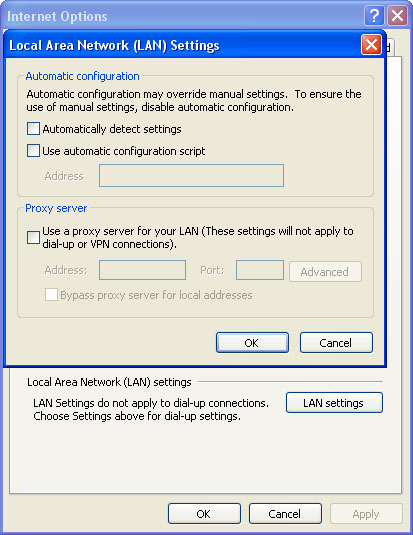


3. Download free anti-malware software from the list below and run a full system scan.
NOTE: before saving the selected program onto your computer, please rename the installer to iexplore.exe or winlogon.exe. With all of these tools, if running Windows 7 or Vista they MUST be run as Auto Infoistrator. Launch the program and follow the prompts. Don't forget to update the installed program before scanning.

4. New threats appear every day. In order to protect your PC from such (new) infections we strongly recommend you to use ESET Smart Security.


Smart Security removal instructions using HijackThis:

1. Download iexplore.exe (NOTE: iexplore.exe file is renamed HijackThis tool from TrendMicro).
Launch the iexplore.exe and click "Do a system scan only" button.
If you can't open iexplore.exe file then download explorer.scr and run it.

2. Search for such entry in the scan results:
O4 – HKCU\..\Run: [Smart Security] “C:\Documents and Settings\All Users\Application Data\a322fb\SMfe2_145.exe” /s /d
Select all such entries and click once on the "Fix checked" button. Close HijackThis tool.

3. Download one of the following legitimate anti-malware applications and run a quick system scan. Don’t forget to update it first. All programs a free.

NOTE: before saving the selected program onto your computer, please rename the installer to iexplore.exe or winlogon.exe. With all of these tools, if running Windows 7 or Vista they MUST be run as Auto Infoistrator. Launch the program and follow the prompts. Don't forget to update the installed program before scanning.

4. New threats appear every day. In order to protect your PC from such (new) infections we strongly recommend you to use ESET Smart Security.


Associated Smart Security files and registry values:

Files and folder:
  • C:\Documents and Settings\All Users\Application Data\a322fb\
  • C:\Documents and Settings\All Users\Application Data\a322fb\537.mof
  • C:\Documents and Settings\All Users\Application Data\a322fb\mozcrt19.dll
  • C:\Documents and Settings\All Users\Application Data\a322fb\SMfe2_145.exe
  • C:\Documents and Settings\All Users\Application Data\a322fb\SMS.ico
  • C:\Documents and Settings\All Users\Application Data\a322fb\sqlite3.dll
  • C:\Documents and Settings\All Users\Application Data\a322fb\BackUp\
  • C:\Documents and Settings\All Users\Application Data\a322fb\Quarantine Items\
  • C:\Documents and Settings\All Users\Application Data\a322fb\SMSSys\
  • C:\Documents and Settings\All Users\Application Data\SMUVZICOS\
  • %UserProfile%\Application Data\Smart Security\
  • %UserProfile%\Application Data\Smart Security\cookies.sqlite
  • %UserProfile%\Application Data\Smart Security\Instructions.ini
  • %UserProfile%\My Documents\hijackthis.log
  • %UserProfile%\Recent\ANTIGEN.drv
  • %UserProfile%\Recent\CLSV.tmp
  • %UserProfile%\Recent\eb.dll
  • %UserProfile%\Recent\eb.exe
  • %UserProfile%\Recent\eb.sys
  • %UserProfile%\Recent\fan.drv
  • %UserProfile%\Recent\fan.sys
  • %UserProfile%\Recent\fix.exe
  • %UserProfile%\Recent\kernel32.exe
  • %UserProfile%\Recent\kernel32.tmp
  • %UserProfile%\Recent\PE.sys
  • %UserProfile%\Recent\PE.tmp
  • %UserProfile%\Recent\sld.drv
Old Smart Security
  • C:\Documents and Settings\All Users\Start Menu\Programs\Smart Security
  • C:\Program Files\Smart Security
  • C:\Program Files\Smart Security\SmartSecurity.exe
  • C:\Program Files\Smart Security\unins000.dat
  • C:\Program Files\Smart Security\unins000.exe
%UserProfile% refers to the current user's profile folder. A typical path is C:\Documents and Settings\ for Windows 2000/XP; C:\Users\ for Windows Vista&7.

Registry keys and values:
  • HKEY_CURRENT_USER\Software\3
  • HKEY_CLASSES_ROOT\CLSID\{3F2BBC05-40DF-11D2-9455-00104BC936FF}
  • HKEY_CLASSES_ROOT\SMae0_289.DocHostUIHandler
  • HKEY_USERS\.DEFAULT\Software\Microsoft\Internet Explorer\SearchScopes "URL" = "http://findgala.com/?&uid=289&q={searchTerms}"
  • HKEY_CURRENT_USER\Software\Classes\Software\Microsoft\Internet Explorer\SearchScopes "URL" = "http://findgala.com/?&uid=289&q={searchTerms}"
  • HKEY_CURRENT_USER\Software\Microsoft\Internet Explorer "PRS" = "http://127.0.0.1:27777/?inj=%ORIGINAL%"
  • HKEY_CURRENT_USER\Software\Microsoft\Internet Explorer\Download "RunInvalidSignatures" = "1"
  • HKEY_CURRENT_USER\Software\Microsoft\Windows\CurrentVersion\Internet Settings "ProxyServer" = "http=127.0.0.1:25567"
  • HKEY_CURRENT_USER\Software\Microsoft\Windows\CurrentVersion\Policies\Explorer "DisallowRun" ="1"
  • HKEY_CURRENT_USER\Software\Microsoft\Windows\CurrentVersion\Run "Smart Security"
  • HKEY_CURRENT_USER\Software\Microsoft\Internet Explorer\Download "CheckExeSignatures" = "no"
  • HKEY_CURRENT_USER\Software\Microsoft\Windows\CurrentVersion\Internet Settings "ProxyEnable" = "1"
Old Smart Security
  • HKEY_LOCAL_MACHINE\SOFTWARE\Microsoft\Windows\CurrentVersion\Uninstall\Smart Security_is1
  • HKEY_CURRENT_USER\Software\Microsoft\Windows\CurrentVersion\Run "SmartSecurity"
  • HKEY_LOCAL_MACHINE\SOFTWARE\Microsoft\Windows\CurrentVersion\Run "SmartSecurity"
Share the knowledge:

Remove CleanUp Antivirus fake antivirus program (Free removal)

CleanUp Antivirus is a fake antivirus program. As a typical rogue program, CleanUpAntivirus reports false threats and prompts you to pay for a full version of the program to remove the infections which don't actually exist. It's promoted and installed through the use of trojan viruses. As you may know, trojans usually come from fake online scanners, fake video/warez sites or bundled with other malicious software. Recently cyber criminals also use infected PDF files and online advertisements to distribute their bogus products.


So, what CleanUp Antivirus is all about? Well, basically this fake program creates many fake files filled with junk data and later detects those files as serious system security threats. Please note that the rogue program detects absolutely harmless files as infections. The scan results are false so you shouldn't worry much about those non-existing threats. The only thing you should worry about is the CleanUp Antivirus itself.

CleanUpAntivirus will probably replace Security Antivirus and My Security Wall malware. We wrote about these malicious programs one month ago. Of course, all three rogue programs can be promoted and the same time too. The home page of this misleading program is cleanupantivirus.com. Please avoid it!


Another very annoying thing about this fake program is that it constantly displays fake warnings, popups and error messages with absolutely ridiculous statements. Some of the fake CleanUpAntivirus alerts will claim that:

"System alert!
CleanUp Antivirus has detected potentially harmful software in
your system. It is strongly recommended that you register
CleanUp Antivirus to remove all found threats immediately."

"Warning! Virus detected
Warning! Identity theft attempt detected"


“Suspicious software which may be malicious has been detected on your PC. Click here to remove this threat immediately using Cleanup Antivirus. Click here to remove all potentially harmful programs found immediately using Cleanup Antivirus.”

Furthermore, the rogue program modifies Windows registry so that CleanUpAV.exe runs every time Windows starts. It also modifies Windows HOSTS file so you will have to fix it too (read the instructions below how to do that).

Last, but definitely not least, CleanUp Antivirus blocks legitimate anti-virus and anti-spyware programs and security sites. It hijacks Internet Explorer and displays search results from findgala.com instead of your default search engine. In some cases you will have to end its processes first in order to download and install anti-malware software. You may also try to reboot your PC in Safe Mode with Networking and download removal tool from there.

As you can see, this program is absolutely needless. First of all, don't buy it! If you already did that then contact your credit card company immediately and dispute the charges. Then use the removal instructions below to remove CleanUp Antivirus from your PC for free using legitimate anti-malware programs. If you have any questions please don't hesitate and leave a comment. Useful additional information is always welcome. Good luck and be safe!


CleanUp Antivirus removal instructions (method #1):

Download one of the following legitimate anti-malware applications and run a quick system scan. Don’t forget to update it first. All programs a free.
NOTE1: if you can't run any of the above programs you must rename the installer of selected program before saving it on your PC. For example: if you choose MalwareBytes then you have to rename mbam-setup.exe to iexplore.exe, explorer.exe or any random name like test123.exe before saving it.

NOTE2: if you still can't run the renamed file then you need to change file extension too not only the name.
1. Go to "My Computer".
2. Select "Tools" from menu and click "Folder Options".
3. Select "View" tab and uncheck the checkbox labeled "Hide file extensions for known file types". Click OK.
4. Rename mbam-setup.exe to either test123.com or test123.pif
5. Double-click to run renamed file.


Removing CleanUp Antivirus in Safe Mode with Networking (method #2):

1. Reboot your computer is "Safe Mode with Networking". As the computer is booting tap the "F8 key" continuously which should bring up the "Windows Advanced Options Menu" as shown below. Use your arrow keys to move to "Safe Mode with Networking" and press Enter key. Read more detailed instructions here: http://www.computerhope.com/issues/chsafe.htm


NOTE: Login as the same user you were previously logged in with in the normal Windows mode.
If you can't reboot your PC in Safe Mode with Networking, download SafeBootKeyRepair and run it. If the rogue program blocks it then download and run this file RenamedSBKRepair. Follow the prompts. Then reboot your PC in Safe Mode with Networking.

2.Download one of the following legitimate anti-malware applications and run a quick system scan. Don’t forget to update it first. All programs a free.


CleanUp Antivirus files and registry values:

Folders and files:
  • C:\Documents and Settings\All Users\Application Data\345d567\
  • C:\Documents and Settings\All Users\Application Data\345d567\46.mof
  • C:\Documents and Settings\All Users\Application Data\345d567\CU345d.exe
  • C:\Documents and Settings\All Users\Application Data\345d567\CUA.ico
  • C:\Documents and Settings\All Users\Application Data\345d567\mozcrt19.dll
  • C:\Documents and Settings\All Users\Application Data\345d567\sqlite3.dll
  • C:\Documents and Settings\All Users\Application Data\345d567\BackUp\
  • C:\Documents and Settings\All Users\Application Data\345d567\CUASys\
  • C:\Documents and Settings\All Users\Application Data\345d567\CUASys\vd952342.bd
  • C:\Documents and Settings\All Users\Application Data\345d567\Quarantine Items
  • C:\Documents and Settings\All Users\Application Data\CUCAISTUA\
  • C:\Program Files\Mozilla Firefox\searchplugins\search.xml
  • %UserProfile%\Application Data\CleanUp Antivirus
Registry values:
  • HKEY_CURRENT_USER\Software\3
  • HKEY_CLASSES_ROOT\CLSID\{3F2BBC05-40DF-11D2-9455-00104BC936FF}
  • HKEY_CLASSES_ROOT\CU345d.DocHostUIHandler
  • HKEY_USERS\.DEFAULT\Software\Microsoft\Internet Explorer\SearchScopes "URL" = "http://findgala.com/?&uid=195&q={searchTerms}"
  • HKEY_CURRENT_USER\Software\Classes\Software\Microsoft\Internet Explorer\SearchScopes "URL" = "http://findgala.com/?&uid=195&q={searchTerms}"
  • HKEY_CURRENT_USER\Software\Microsoft\Internet Explorer "PRS" = "http://127.0.0.1:27777/?inj=%ORIGINAL%"
  • HKEY_CURRENT_USER\Software\Microsoft\Internet Explorer\Download "RunInvalidSignatures" = "1"
  • HKEY_CURRENT_USER\Software\Microsoft\Windows\CurrentVersion\Internet Settings\5.0\User Agent\Post Platform "Library1.00195"
  • HKEY_CURRENT_USER\Software\Microsoft\Windows\CurrentVersion\Run "CleanUp Antivirus"
  • HKEY_CLASSES_ROOT\Software\Microsoft\Internet Explorer\SearchScopes "URL" = "http://findgala.com/?&uid=195&q={searchTerms}"
  • HKEY_LOCAL_MACHINE\SYSTEM\ControlSet001\Services\SharedAccess\Parameters\FirewallPolicy\StandardProfile\AuthorizedApplications\List "C:\Documents and Settings\All Users\Application Data\345d567\CU345d.exe"
  • HKEY_LOCAL_MACHINE\SYSTEM\CurrentControlSet\Services\SharedAccess\Parameters\FirewallPolicy\StandardProfile\AuthorizedApplications\List "C:\Documents and Settings\All Users\Application Data\345d567\CU345d.exe"
  • HKEY_CURRENT_USER\Software\Microsoft\Internet Explorer\Download "CheckExeSignatures" = "no"


Share this information with other people:

Monday, March 8, 2010

How to create a strong and secure password

There are many useful articles on password management on the Internet. Unfortunately, it seems like some people still don't take this seriously and use weak passwords. It goes without saying that strong passwords are very important for good computer security. Besides, unwisely created passwords can be broken in hours and so can be the weakest link in a computer security scheme. I'm not saying that you should create super strong passwords for each account or service, but anyway you should still consider two essentials passwords rules: password length and password complexity. Of course, password should be easy for you to remember, but difficult for others to crack or to guess.

A strong password should meet the following criteria:
1. Use at least 8 characters or more (14 characters would be ideal)
2. Use characters from each of the following groups (at least one from special symbols and numerals):
    a) Uppercase and lowercase A, B, C,...; a, b, c,...;
    b) Numerals 0, 1, 2, 3, 4, 5, 6, 7, 8, 9
    c) Special symbols ` ~ ! @ # $ % ^ & * ( ) _ + - = { } | [ ] \ : " ; ' < > ? , . /
3. Use significantly different password for each account.

Common password pitfalls to avoid:
1. Don't use your username or a part of it (hopefully such approach is not allowed by some websites)
2. Don't use your name, sure name, street name, birthday or other personal information such as driver's license, passport number, credit card number and etc.
3. Don't use computer terms and names
4. Don't use a set of characters in alphabetic or numeric order, sequences or repeated characters. For example: 123456, 11111 or abcdef, aabbcc
5. Don't use dictionary words in any language
6. Avoid words spelled backwards, common misspellings, and abbreviations
7. Don’t use a password that is listed as an example or public.


How to create a strong password you can remember
There are many ways to create a solid password. For example, you may use password generators, but the problem is that they generate complex passwords and you will have to learn those passwords by heart. A much better idea would be to think of something meaningful to you and write it down. Start with a sentence or two. For demonstration purposes, I will use this sentence: Remember the fifth of November the gunpowder treason and plot.

1. Use the first letter of each word and turn your sentences into a row of letters.
Remember the fifth of November the gunpowder treason and plot => rtfontgtap

2. Make only the letters in the first half of the alphabet uppercase (or conversely).
rtfontgtap => rtFontGtAp

3. Add numbers. Put two numbers that are meaningful to you. Decide where to put chosen numbers yourself. I will put one number at the beginning on another one at the end.
rtFontGtAp => 5rtFontGtAp9

4. Put a special symbol at the end or at the beginning.
5rtFontGtAp9 => 5rtFontGtAp9@

5. Put a punctuation mark at the end
5rtFontGtAp9@ => 5rtFontGtAp9@?


Test your password with a password checker
https://www.microsoft.com/protect/fraud/passwords/checker.aspx?WT.mc_id=Site_Link
http://www.passwordmeter.com/

Test results


My new password scored 84% (very strong) at passwordmeter.com. I got -12% because of repeated characters (t) and consecutive lowercase letters. You may fix this at any time if you'll get such warnings too. Microsoft password checker gave "best" score. So I'm quite pleased with results.


Other important recommendations:
1. Don’t type your password on a computer that does not belong to you or you don't have full control of it.
2. Don’t send your password to anybody in an email.
3. Don’t the same password for two different sites.
4. Don’t share with anyone.
5. You should change your password(s) every 6 months (or whenever possible, every 2 months).
6. Change your passwords immediately when they are compromised.

I hope this article was useful for you. If you have any additional information for creating strong passwords, please leave a comment and share your information with us. Good luck and be safe!

Useful links:
http://www.thegeekstuff.com/2008/06/the-ultimate-guide-for-creating-strong-passwords/
http://www.microsoft.com/protect/fraud/passwords/create.aspx
http://en.wikipedia.org/wiki/Password_strength
http://www.econsultant.com/articles/how-to-create-a-strong-password.html
http://www.cryptosmith.com/password-sanity/dilemma

Share this information with other people:

Sunday, March 7, 2010

Privacy Policy

Your privacy is important to us. If you give us personal information, we treat it according to the Google Privacy Policy. We do not otherwise share it.

What Information Do We Collect?
In order to post comments on computertipsandguide.blogspot.com, you may be asked to enter your name and e-mail address. You may, however, post comments anonymously. Comments are moderated and any bad links will be removed. E-mail or any other personal contact information (AIM, OpenID, Facebook) may be used to pass further information to you with your consent or if you have specifically asked for further assistance.

What do we use your information for?
We use personal information to improve computertipsandguide.blogspot.com. We customize our blog’s content and layout to better tailor it to meet users' needs.

Do We Use Cookies?
Yes. For more information, please read Google Privacy FAQ

Advertising and Privacy
The ads appearing on this blog are delivered to readers by Google AdSense. For more information, please read Google Advertising Cookie and Privacy Policies.

Links to Other Websites
This blog contains links to other websites that are not owned and controlled by computertipsandguide.blogspot.com. Please be aware that these third party websites have separate privacy policies and we are not responsible for the privacy practices of such other websites. This privacy statement applies only to information collected by this blog.

Your Consent
By using computertipsandguide.blogspot.com, you consent to this privacy policy.

Changes in This Privacy Policy
We may change this privacy policy from time to time. If we decide to change our privacy policy, we will post those changes to this privacy statement.

This privacy policy was last modified on 03/07/2011

Contacting Us
If you have any questions regarding this privacy policy or blog you can email us at kaur.michael@gmail.com. You can also leave a comment at the bottom of any post on this blog.

Spydetector2009.com scam (Free removal)

Spydetector2009.com is yet another misleading website that promotes the rogue anti-spyware program called Antivirus Live. In some parts of this bogus site the scammers claim to promote Antivirus Live 2010. Such product doesn't exist or at least it was not promoted until now. Besides, it's kind of strange to relate such domain name as Spydetector2009.com with Antivirus Live 2010. It's not logical.

Spydetector2009.com is was detected on Dec 25th 2009, but it's still active. It doesn't host harmful files, it's more like a pay page of Antivirus Live. However, you still shouldn't visit this site. Now, of Spydetector2009.com constantly pop-ups on your screen or you are being redirected to this malicious site from time to time then your computer is probably infected with Antivirus Live scareware or Trojans that promote it. In such case you read how to remove Antivirus Live virus from your PC for free using legitimate and free anti-malware software. Good luck!


Share this information with other people:

Friday, March 5, 2010

Pc-win-live.com, pc-winlive.com and pcwin-live.com scam (Free removal)

Yet another three domains added to the list of malicious sites: pc-win-live.com, pc-winlive.com and pcwin-live.com. These sites promote fake anti-spyware program called Windows Defender 2010. We had already mentioned that this fake program has nothing to do with Microsoft. Some people may confuse it with Microsoft Windows Defender which is perfectly legitimate anti-malware application. It goes without saying that that you shouldn't visit any of these sites: pc-win-live.com, pc-winlive.com and pcwin-live.com Otherwise your PC may get infected with malicious software. However, if at least one of these bogus sites constantly pop-ups on your screen then mostly likely you are infected with either Windows Defender 2010 scareware or trojan viruses that promote rogue products. If so, then you should read how to remove Windows Defender 2010 from your PC for free using free and legitimate anti-malware programs. If you have any questions, don't hesitate and ask. Good luck!

Screen shot of pcwin-live.com (pc-win-live.com and pc-winlive.com look the same)


Share this information with other people:

Thursday, March 4, 2010

Yahoo! Answers+Indiana State University+Koobface

Yahoo! Answers+Indiana State University+Koobface. What a strange combination you may say. Well, let me explain this to you. This happened on November 2009 or maybe later, I don't remember exactly. I bet you know what Yahoo! Answers is. I'm a big fan of Yahoo! Answers and especially computer security section. As you may know, there are many questions like this "How to remove...". So, there was a question how to remove certain malware from a system for free. And the first answer was quite strange or just unusual. A user just wrote hxxp://139.102.159.201 as an answer so obviously I had to check what is this all about.

After a few seconds I saw this fake site, a copy of Facebook (old version). As you can see in the image below I supposedly had to upgrade Flash player in order to view this video file. This so-called flash player upgrade was actually a variant of Koobface worm. I reported that answer immediately to Yahoo! answers team and it was removed within 30 minutes or maybe less.


Next, I checked 139.102.159.201 using who.is tool and got the following results (see image below). OrgName: Indiana State University and what is more, Address: Office of Information Technology.


The fake Facebook page was removed the same day. However, I'm still wondering who was behind this. I guess, the truth is somewhere out there :)