Friday, November 4, 2011

How to Remove System Security 2012 (Uninstall Guide)

System Security 2012 is a phony anti-virus program, anyone following the internet security space has no doubt recognized this fraud. The tactic is common. Trojan masquerades as antivirus software, detects a bunch of critical infections, system vulnerabilities or zero-day attacks to scare you into believing that your computer has been infected with malicious code. Growing complaints from Windows users raised awareness of scareware, but unfortunately System Security 2012 and similar malware outbreak continues. Rogue antivirus products use social engineering to gain access to the system. For example, this rogue AV may masquerade as a custom flash player update package (we found it on a fake youtube web page). Web drive-by attacks are a subset of this attack vector when simply visiting an infected website is enough to trigger web browser vulnerabilities and as a result allow malicious code to be executed.

Vulnerabilities can be patched, but the problem is that users can be tricked into installing malware on their machines. It is always a good idea to to do some research on unknown software before you start the installation process. I bet you won't find a single positive review about System Security 2012. If you feel you were deceived when you installed a program you need to uninstall it as soon as you can. The best way to remove System Security 2012 is to scan your computer with at least one, and ideally a few, anti-malware products. We don't recommend uninstalling this fake antivirus manually, because very often it comes bundled with rootkits. Rootkit is a very sophisticated piece of malicious code that injects system files, blocks legitimate security products and downloads additional malware onto the infected computer. You can't remove rootkits manually. To remove System Security 2012 and associated malware from your computer, please follow the removal instructions below.

Last, but not least, System Security 2012 has been regarded and low system security threat. It can't delete your files, steal login credentials, credit card numbers, etc. It may however, slow down your computer a little. Just don't purchase this bogus security products. If you already did, please contact your credit card company and dispute the charges. Good luck and be safe online!

Here's what the rogue antivirus called System Security 2012 looks like.


A couple of fake security alerts you may see when this rogue antivirus is active.


By far the most easiest way to get rid of System Security 2012 is to use the debugged activation code 9992665263 and run anti-malware software.

http://computertipsandguide.blogspot.com


System Security 2012 removal instructions:

1. First of all, download and run ZeroAccess/Sirefef/MAX++ removal tool. (works on 32-bit systems only! If you have 64-bit system, proceed to the next step)

2. Then use TDSSKiller.

3. And finally, download recommended anti-malware software (STOPzilla) to remove this virus from your computer.

NOTE: in some cases the rogue program may block anti-malware software. Before saving the selected program onto your computer, you may have to rename the installer to iexplore.exe or winlogon.exe With all of these tools, if running Windows 7 or Vista they MUST be run as Auto Infoistrator. Launch the program and follow the prompts. Don't forget to update the installed program before scanning.

If you can't download it, please reboot your computer is "Safe Mode with Networking". As the computer is booting tap the "F8 key" continuously which should bring up the "Windows Advanced Options Menu" as shown below. Use your arrow keys to move to "Safe Mode with Networking" and press Enter key. Open Internet Explorer and download STOPzilla. Once finished, go back into Normal Mode and run it. That's It!

Read more detailed instructions here: http://www.computerhope.com/issues/chsafe.htm
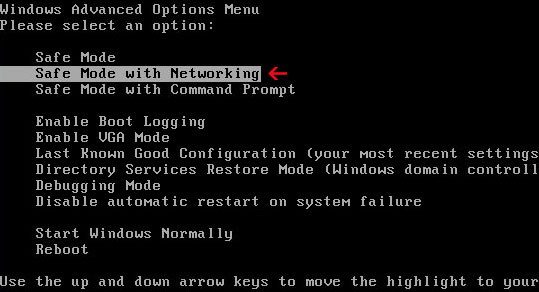

NOTE: Login as the same user you were previously logged in with in the normal Windows mode.


Manual System Security 2012 removal guide:

1. Right-click on System Security 2012 icon and select Properties. Then select Shortcut tab.

The location of the malware is in the Target box.

2. In our case the malicious file was located in C:\Windows\System32 folder. Select the malicious file, rename it and change a file name extension.

Original file: TcS22bF3nGaQWKf.exe


Renamed file: TcS22bF3nGaQWKf.vir


3. Restart your computer. After a reboot, download free anti-malware software from the list below and run a full system scan.

4. Download recommended anti-malware software (STOPzilla) and run a full system scan.

NOTE: in some cases the rogue program may block anti-malware software. Before saving the selected program onto your computer, you may have to rename the installer to iexplore.exe or winlogon.exe With all of these tools, if running Windows 7 or Vista they MUST be run as Auto Infoistrator. Launch the program and follow the prompts. Don't forget to update the installed program before scanning.

5. Remove the TDSS/ZeroAccess rootkit (if exists). Please follow this removal guide: http://computertipsandguide.blogspot.com/2010/03/tdss-alureon-tidserv-tdl3-removal.html


Manual activation and System Security 2012 removal:

1. Choose to remove threats and manually activate the rogue program. Enter one of the following codes to activate System Security 2012.

9992665263
1148762586
1171249582
1186796371
1196121858
1225242171
1354156739
1579859198
1789847197

2. Download recommended anti-malware software (STOPzilla) and run a full system scan. This program will remove the virus from your computer.

NOTE: in some cases the rogue program may block anti-malware software. Before saving the selected program onto your computer, you may have to rename the installer to iexplore.exe or winlogon.exe With all of these tools, if running Windows 7 or Vista they MUST be run as Auto Infoistrator. Launch the program and follow the prompts. Don't forget to update the installed program before scanning.

3. Remove the TDSS/ZeroAccess rootkit (if exists). Please follow this removal guide: http://computertipsandguide.blogspot.com/2010/03/tdss-alureon-tidserv-tdl3-removal.html


Associated System Security 2012 files and registry values:

Files:
  • C:\WINDOWS\system32\[SET OF RANDOM CHARACTERS].exe
  • %AppData%\hkRdkTdkFrGrPhT\System Security 2012.ico
  • %AppData%\ldr.ini
  • %DesktopDir%\System Security 2012.lnk
  • %Programs%\System Security 2012\System Security 2012.lnk
  • %Programs%\System Security 2012
Registry values:
  • HKEY_LOCAL_MACHINE\SOFTWARE\Microsoft\Windows\CurrentVersion\Run "[SET OF RANDOM CHARACTERS]"
Share this information with your friends:

Thursday, November 3, 2011

Remove Get-answers-fast.com (Uninstall Guide)

Get-answers-fast.com is a web search engine/browser hijacker that may return irrelevant search results and redirect users to sponsored websites having nothing to do with search inquiry. This website is not currently listed as dangerous (it won't infect your computer). It has not hosted malicious software over the past three months either. We added get-answers-fast.com to our database because it appears to be related to rootkits and Trojan horses responsible for click frauds and search redirects. We are fairly sure this is not a coincidence. In a common scenario, a rootkit or a trojan infects a computer and injects malicious code into Windows system files and processes. It may capture network traffic and send network packets to bypass Windows firewall.

Whenever you click on a link while searching with Google (or other web search engine) it would redirect you to either infected websites or such sponsored websites as get-answers-fast.com. Sometimes, it may display a blank page. Cyber criminals have to monetize their traffic. Redirecting search results to spammy website is a good way to do so. The redirects happen in all major web browsers. Re-installing your web browser won't help. System Restore won't help either, well it might help for a short period of time, but malware will be re-downloaded after a couple of hours. If you got this annoying get-answers-fast.com redirect problem, your computer is definitely infected by malicious software. Please note that in some cases, malware responsible for click fraud and redirects may block legitimate anti-malware software. Hopefully, you can remove this virus from your computer by following the steps in the removal guide below. If you need help removing get-answers-fast.com redirect virus, please leave a comment below. We will be more than happy to assist you. Good luck and be safe online!


Get-answers-fast.com web browser hijacker and associated malware removal instructions:

1. First of all, download and run TDSSKiller by Kaspersky.

2. Then scan your computer with recommend anti-malware software (STOPzilla) to remove this virus from your computer.

NOTE: in some cases the rogue program may block anti-malware software. Before saving the selected program onto your computer, you may have to rename the installer to iexplore.exe or winlogon.exe With all of these tools, if running Windows 7 or Vista they MUST be run as Auto Infoistrator. Launch the program and follow the prompts. Don't forget to update the installed program before scanning.

3. And finally, use CCleaner to remove temporarily and unnecessary files from your computer.


Associated Get-answers-fast.com files:
  • C:\Documents and Settings\All Users\Application Data\mazuki.dll
  • C:\Documents and Settings\All Users\Application Data\Microsoft\Network\Downloader\qmgr0.dat
  • C:\Documents and Settings\All Users\Application Data\Microsoft\Network\Downloader\qmgr1.dat
  • C:\WINDOWS\system\BCBSMP35.BPL
  • C:\WINDOWS\system32\sstray.exe
Share this information with your friends:

Remove Remarkablesearchsystem.com (Uninstall Guide)

Remarkablesearchsystem.com is a ZeroAccess rootkit-related browser hijacker that redirects users to totally different websites when they click on links on Google and other web search engines. In the bottom right it says Waiting for remarkablesearchsystem.com which I'm fairly sure is not something you recognize. Therefore it is not surprising because this domain was bought only a few months ago. The redirects happen when using major search engines in Internet Explorer, Mozilla Firefox, and Google Chrome. This rootkit may affect other web browsers as well. Once infected, your computer may become noticably slower. ZeroAccess virus blocks legitimate anti-malware programs, injects malicious code into Windows system files to bypass firewall.


Remarkablesearchsystem.com is only a gateway to dangerous websites. Most of the time, it promotes spammy websites and services, however, this rootkit may redirect you to infected websites too. Usually, cyber criminals use fake you tube and adult websites to distribute malware. It could be anything really, from adware to baking trojans. The rootkit starts a process with a very unique name with the following structure: numbers:numbers.exe, for example 34956595:36788464.exe. Just open up Task Manager and you'll see it.


To remove ZeroAccess rootkit and to stop this annoying remarkablesearchsystem.com redirect problem, please follow the steps in the removal guide below very carefully. It's worth mentioning that this virus cannot be removed manually. If you have any further questions, please do not hesitate to contact us or just leave a comment below. Good luck and be safe online!


Remarkablesearchsystem.com removal instructions:

1. First of all, download and run ZeroAccess/Sirefef/MAX++ removal tool. (works on 32-bit systems only!)

2. Then use TDSSKiller.

3. Finally, scan your computer with recommend anti-malware software (STOPzilla) to remove the leftovers of this virus from your computer.

It's possible that an infection is blocking STOPzilla from properly installing. Before saving the selected program onto your computer, you may have to rename the installer to iexplore.exe or winlogon.exe. Don't forget to update the installed program before scanning.

Alternate malware removal tools can be used in case STOPzilla has missed a threat:
NOTE: if you get the following Windows Security Alert, please click on Unblock button. This alert is caused by ZeroAccess rootkit.


Share this information with your friends:

Tuesday, November 1, 2011

Remove Eximioussearchsystem.com (Uninstall Guide)

Eximioussearchsystem.com is a ZeroAccess/Sirefef rootkit-related browser hijacker that redirects selected search results from major search engines to other websites, usually various advertisements and sites of dubious content, that have nothing to do with your search inquiry. This rootkit blocks legitimate anti-malware software and may grow your Internet connection increasingly sluggish since the infection started. Re-installing web browser won't help as well as attempt to restore your computer to previous date when the system was not infected. This is a common enough problem, already well documented but even computer-savvy users can mess around with infected computer for a couple of hours ore even more. Eximioussearchsystem.com redirects due to the ZeroAccess are very annoying and frustrating, however, the rootkit itself is a lot bigger problem as it injects malicious code into system files in order to bypass firewalls and anti-virus products. You may not notice the rootkit right away but if you are reading this article then I'm pretty sure you've noticed that while the redirect is loading it says Waiting for eximioussearchsystem.com at the bottom left corner of your computer screen.


The rootkit starts a process with a very unique name with the following structure: numbers:numbers.exe, for example 324252561:2342956285.exe. Just open up Task Manager and you'll see it.


You can't end it. You can't delete the malicious file either. But if you think that there's no other option but to reformat my hard drive, than you are wrong, because Webroot and Kasperky both have free utilities designed to remove ZeroAccess/Sirefef rootkit from infected machines. So to remove this virus from your computer and to stop eximioussearchsystem.com redirects, please follow the removal instructions below. If you have any questions, please leave a comment below. Good luck and be safe online!


Eximioussearchsystem.com removal instructions:

1. First of all, download and run ZeroAccess/Sirefef/MAX++ removal tool. (works on 32-bit systems only!)

2. Then use TDSSKiller.

3. Finally, scan your computer with recommend anti-malware software (STOPzilla) to remove the leftovers of this virus from your computer.

It's possible that an infection is blocking STOPzilla from properly installing. Before saving the selected program onto your computer, you may have to rename the installer to iexplore.exe or winlogon.exe. Don't forget to update the installed program before scanning.

Alternate malware removal tools can be used in case STOPzilla has missed a threat:
NOTE: if you get the following Windows Security Alert, please click on Unblock button. This alert is caused by ZeroAccess rootkit.


Share this information with your friends:

Remove Adjectivesearchsystem.com (Uninstall Guide)

Adjectivesearchsystem.com is a ZeroAccess/Sirefef rootkit-related browser hijacker that redirects users to totally different web pages having nothing to do with the search inquiries while searching with Google, Bing and other search engines. While the redirect is loading it says Waiting for adjectivesearchsystem.com and then goes straight to spam websites or even worse, sites that load malicious software.


Not only is this annoying and frustrating, but it can potentially be very harmful to your computer if you don't do anything about it. As a matter of fact, sometimes ZeroAccess rootkit drops a virus called Virus.Win32.RLoader.a. That's how Kaspersky identifies it. Besides, ZeroAccess/Sirefef alone is a very frustrating rootkit, it injects Windows system files to bypass Firewalls. It goes without saying that you need to delete this virus from your computer.

Users usually have no idea how they've gotten this virus on their PCs. However, it's very easy to identify this virus because it starts a process with a very unique name with the following structure: numbers:numbers.exe, for example 2324325:6823764.exe.


Unfortunately, you can end it and you can't delete the malicious files manually. The infected file has to be repaired. Thankfully, there tools designed to remove ZeroAccess/Sirefef and associated malware: Webroot ZeroAccess removal tool and TDSSKiller. Both utilities are free. Then you should use recommend anti-malware software to remove the leftovers or additionally installed malware from your computer. To remove the rootkit and to stop adjectivesearchsystem.com redirects, please follow the removal instructions below. If you need help removing this virus, please leave a comment below. Good luck and be safe online!


Adjectivesearchsystem.com removal instructions:

1. First of all, download and run ZeroAccess/Sirefef/MAX++ removal tool. (works on 32-bit systems only!)

2. Then use TDSSKiller.

3. Finally, scan your computer with recommend anti-malware software (STOPzilla) to remove the leftovers of this virus from your computer.

It's possible that an infection is blocking STOPzilla from properly installing. Before saving the selected program onto your computer, you may have to rename the installer to iexplore.exe or winlogon.exe. Don't forget to update the installed program before scanning.

Alternate malware removal tools can be used in case STOPzilla has missed a threat:
NOTE: if you get the following Windows Security Alert, please click on Unblock button. This alert is caused by ZeroAccess rootkit.


Share this information with your friends:

Saturday, October 29, 2011

Remove Rattlingsearchsystem.com (Uninstall Guide)

Rattlingsearchsystem.com is a ZeroAccess/Sirefef rootkit-related browser hijacker that redirects users to shady websites while searching on Google and other web search engines. It may occasionally open new tabs in your web browser advertising certain websites or services, for example WeLoveFilms community toolbar. The ZeroAccess is probably one of the most nastiest infections circulating on the Internet. Although, the are numerous 'symptoms' that may help you to determine whether or not your computer is infected with this rootkit, the most widely known and discussed is the web browser redirect or every often just Google redirect virus. Whenever you click on any of the search results, the status bar at the bottom of the web browser says Waiting for rattlingsearchsystem.com.


What does it mean? To put it simply, ZeroAccess/Sirefef rootkit injects legitimate Windows system files and configures your computer to redirect web browser request through web servers controlled by cyber criminals. Profit is the main motivation for them, so they may display various ads and redirect you to spam websites to to earn quick cash. What is more, Windows Firewall alerts may show up occasionally asking you to unblock certain applications. It blocks legitimate security products as well. And last, but not least, Rattlingsearchsystem.com infection has a very unique structure that sets this virus apart from malware. Just open up Task Manager and you'll see an active process named 3483441318:42842844.exe or something like that.


That's a very clear sing of ZeroAccess/Sirefef infection. So, to stop rattlingsearchsystem.com redirects and to remove the rootkit from your computer, please follow the removal instructions below. If you need help removing this virus, please leave a comment below. Good luck and be safe online!


Rattlingsearchsystem.com removal instructions:

1. First of all, download and run ZeroAccess/Sirefef/MAX++ removal tool. (works on 32-bit systems only!)

2. Then use TDSSKiller.

3. Finally, scan your computer with recommend anti-malware software (STOPzilla) to remove the leftovers of this virus from your computer.

It's possible that an infection is blocking STOPzilla from properly installing. Before saving the selected program onto your computer, you may have to rename the installer to iexplore.exe or winlogon.exe. Don't forget to update the installed program before scanning.

Alternate malware removal tools can be used in case STOPzilla has missed a threat:
NOTE: if you get the following Windows Security Alert, please click on Unblock button. This alert is caused by ZeroAccess rootkit.


Share this information with your friends:

Thursday, October 27, 2011

Remove Signalsearchsystem.com (Uninstall Guide)

Signalsearchsystem.com is a ZeroAccess rootkit-related browser hijacker that redirects users to malicious and very often completely irrelevant web pages. Web search engines, let's say Google or Yahoo!, generate a normal list of search results. If you click on any of the results however, the status bar at the bottom of the web browser says Waiting for signalsearchsystem.com.


What this rootkit actually does is route you to the fake search engine and then redirect to malicious web page or websites filled with advertisements. If the keyword is not profitable ZeroAccess related malware will simply load the requested website. One way or another, you will notice that websites are taking longer to load than usual. Not to mention that random pop-up ads may appear on your computer screen advertising products and services, for example WeLoveFilms toolbar.

What is more, Windows Firewall alerts may show up occasionally asking you to unblock certain applications. That's because ZeroAccess rootkit injects malicious code into system files to bypass Windows firewall.


But probably the most common sign of this infection is a randomly named process running on your computer. It has a very specific structure, there's no way you won't recognize it: numbers:numbers.exe, for example 516841384:54383211.exe.


The bad news is, that you can't end it manually. Doing sustem restore won't help either. ZeroAccess rootkit injects malicious code into Windows system files. You can't just delete them, you need to repair those files otherwise your machine may become unresponsive. The good news however, is that you can use Webroot's ZeroAccess removal tool and TDSSKiller to remove the rootkit. Both tools are free and safe. So, to stop signalsearchsystem.com redirects and to remove the rootkit from your computer, please follow the removal instructions below. Please note, that your should scan your computer with recommend anti-malware software to remove the leftovers of this infection and additionally downloaded malware. If you need help removing this virus, please leave a comment below. Good luck and be safe online!

http://computertipsandguide.blogspot.com


Signalsearchsystem.com removal instructions:

1. First of all, download and run ZeroAccess/Sirefef/MAX++ removal tool. (works on 32-bit systems only!)

2. Then use TDSSKiller.

3. Finally, scan your computer with recommend anti-malware software (STOPzilla) to remove the leftovers of this virus from your computer.

It's possible that an infection is blocking STOPzilla from properly installing. Before saving the selected program onto your computer, you may have to rename the installer to iexplore.exe or winlogon.exe. Don't forget to update the installed program before scanning.

Alternate malware removal tools can be used in case STOPzilla has missed a threat:
NOTE: if you get the following Windows Security Alert, please click on Unblock button. This alert is caused by ZeroAccess rootkit.


Share this information with your friends: